A faceless-channel owner has 40 minutes before a Short needs to be ready. The script is written, but there's no footage, no time to film, and no appetite for another long editing session. An AI video generator can turn that script into a first draft quickly, but the draft still needs a human check before it's fit to publish.
Table of Contents
- What an AI Video Generator Does for You
- AI Video Generator Types Compared at a Glance
- How an AI Video Generator Builds a Clip
- Pricing Models and the Real Cost per Finished Video
- Strengths and Weaknesses Worth Weighing
- Real Creators and the Videos They Make
- Copyright and Disclosure Before You Publish
- Test Three Prompts Before You Commit to a Plan
What an AI Video Generator Does for You
An AI video generator is software that takes a text prompt, script, still image, or audio track and produces moving footage, often adding voiceover, music, and captions in the same workflow.
Think of it as a one-person production crew working from a written brief. It can assemble a video fast and with little setup, but it still needs a director's check on the shots, pacing, and details. It's a good fit if you publish short, formulaic videos and don't already film and edit real footage every week. If you have a reliable live-action workflow or need precise control over every frame, a generator may add less value.

The technology has a broad research and development base. The World Intellectual Property Organization's 2025 generative-AI patent update reports that published generative-AI patent families rose from 18,862 in 2024 to 37,808 in 2025, with image and video the largest category. Patent counts indicate innovation activity, not whether a particular tool produces good results, costs less, or suits your workflow.
For a buyer, the practical questions come first: which type of generator matches the job, how it builds a clip, and what a publishable video really costs after revisions. Then weigh the strengths against the production limits, look at real creator patterns, check rights before publishing, and run a three-prompt test before paying.
The strongest case is for creators who need a steady supply of short videos and can review and edit each draft. If your work depends on exact product details, real locations, or frame-accurate storytelling, you may be better off filming and editing the footage yourself.
AI Video Generator Types Compared at a Glance
| Type | What you feed it | Strongest use | Main drawback | Example tools |
|---|---|---|---|---|
| Script-to-video | A topic or written script | Faceless Shorts and explainers with narration and captions | Generic stock-like visuals and less shot control | Pictory, InVideo, Revid |
| Text-to-video | A descriptive prompt | Concept clips, b-roll, and invented scenes | Motion and identity drift in multi-subject scenes | Higgsfield, Revid |
| Image-to-video | A still image plus a motion prompt | Animating product shots and character art | Output is limited by the still; camera moves can distort | Higgsfield, InVideo |
| Avatar or talking-head | A script plus a chosen presenter | Training, sales, and multilingual spokesperson clips | Lip-sync can look uncanny; presenters are recognisable | HeyGen |
| Music-to-video | An audio track, with optional prompt | Music videos and lyric visuals | Beat sync is approximate and usually needs editing | Revid |
| Repurposing and clip editing | A long video or recording | Turning long footage into captioned short clips | Depends on source quality; little generative creativity | Captions, Pictory |
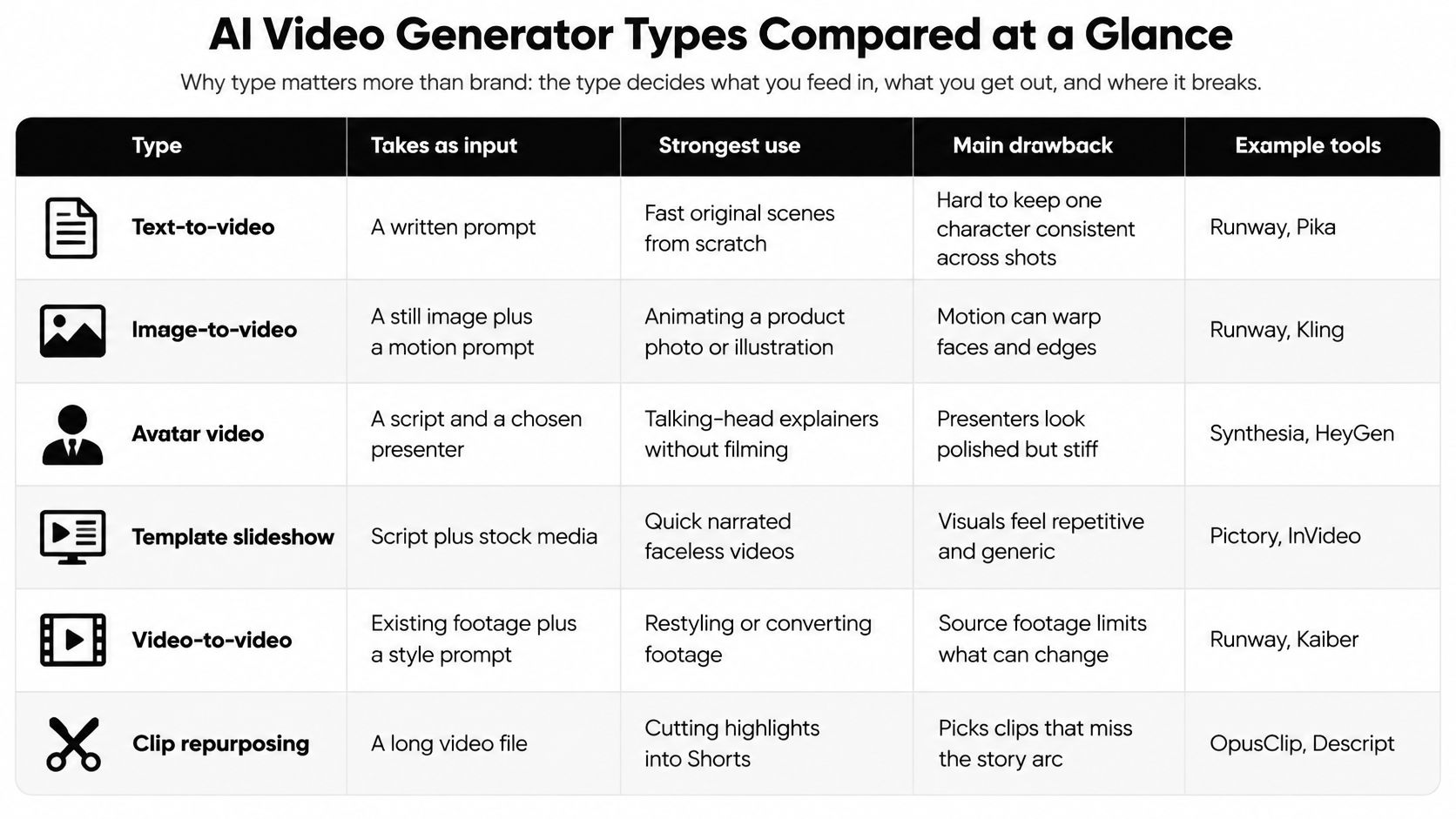
Type matters more than brand because it determines whether the tool can make the shot you need. A script-to-video tool assembles narrated visuals for a finished format. A text-to-video model invents a scene from words. Image-to-video starts with a visual you provide, while an avatar tool creates a presenter delivering a script. Music-to-video builds around an audio track, and repurposing tools find shorter moments inside footage you've already recorded.
A few distinctions can prevent a costly mismatch:
- Script-to-video works well when narration carries the story and visuals can be supporting material. It's a quick route to a faceless explainer, but stock-like images may not match every sentence.
- Text-to-video suits invented scenes and b-roll. It's less dependable when several subjects interact or a character must look identical across multiple shots.
- Image-to-video is the better starting point for an existing product photo or character illustration. You control the starting appearance, although the generated motion can still bend faces or edges.
- Avatar video is useful when the viewer needs a presenter but you don't want to film one. It's less convincing when natural body language or subtle emotion matters.
- Music-to-video gives an artist moving visuals for a track, but the editor may need to adjust cuts to fit the beat.
- Repurposing tools turn interviews, webinars, and podcasts into short clips. They can save review time, but they can't supply the missing context if an automated cut begins or ends in the wrong place.
Many products combine these categories, so compare the input they accept and the output you need, not just the label on a pricing page. Revid is one example that combines prompt-to-finished-video and music-to-video workflows with products in other categories.
Use a reference when accuracy matters. If the video needs a specific real person, product, or location, start from an image or actual footage. If the visual can be invented, start with a prompt.
How an AI Video Generator Builds a Clip
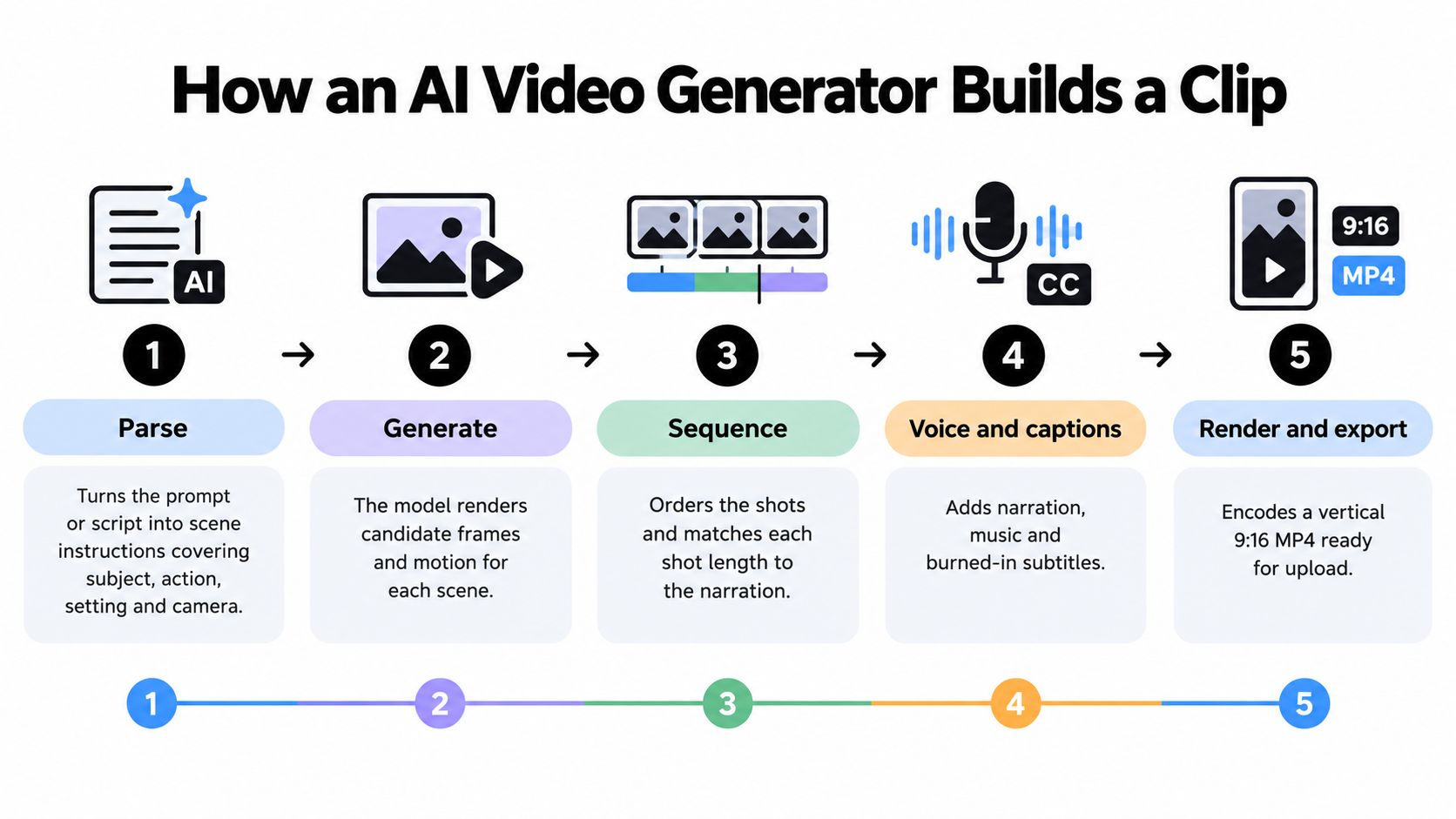
Most generators turn an idea into video through five linked stages:
- Parse: The system translates a prompt or script into scene instructions, including subject, action, setting, and camera.
- Generate: The model produces candidate frames and motion for each scene.
- Sequence: The shots are ordered and matched to the narration or intended pace.
- Add voice and captions: The workflow adds or syncs narration, music, and subtitles.
- Render and export: The finished sequence is encoded in the selected format for publishing.
Video generation has a harder job than image generation. The system must create frames that look good individually and preserve coherent motion as time passes. It's like a flipbook in which each page has to remember the previous one: a small drawing error can ripple through the sequence, changing a face, object, or movement as the clip continues.
The video diffusion research overview describes this as a spatiotemporal modeling problem. Video systems use techniques such as temporal attention, keyframe conditioning, and interpolation to maintain consistency. If frames are generated without enough attention to time, the results can flicker, drift in identity, or show implausible movement.
The computation required also shapes the workflow. More resolution, more frames, or a longer sequence increases memory use and processing cost. That's why a long, complicated request can be less dependable than several simple shots joined on a timeline.
Practical rule: Give each shot one clear action, provide a reference image when the subject must stay recognisable, and plan the edit around the clip length the tool can reliably produce.
Text-to-video and image-to-video fail in different ways. Text-to-video builds a scene from words, so the tool must invent the subject, setting, and motion. Image-to-video animates a scene that already exists, which gives it a concrete visual starting point but still leaves the movement open to interpretation.
Pricing Models and the Real Cost per Finished Video
| Pricing model | How you pay | Suits | Hidden cost to check |
|---|---|---|---|
| Monthly subscription with credits | Fixed monthly fee for a credit allowance | Steady, regular publishing | Unused credits can lapse; failed renders may consume credits |
| Annual plan | Discounted monthly rate paid upfront | Committed, high-volume channels | You're locked in if output disappoints; check refund terms |
| Pay-as-you-go or top-up packs | Buy credit packs as needed | Occasional creators and one-off projects | Price per credit may be higher than on a subscription |
| Per-minute or per-export | Charged for each finished minute or export | Ads and campaigns with a known length | Retries and revisions multiply the charge |
| Free tier | No payment for limited exports | Testing prompts and formats | Watermarks, lower resolution, or a low usage cap |
| Team or enterprise | Quote based on seats and usage | Agencies and brand teams | Security, licensing, and usage rights need review |
The figure that matters is effective cost per publishable video, not the price of one generation. A render that looks promising in a preview may still need a revision, upscaling, voiceover, captions, or editing. A failed attempt can consume credits without producing anything usable.
A simple credit calculation
Use this hypothetical example to estimate your own workflow:
- One generation costs 10 credits.
- A 45-second Short takes four attempts, so the initial renders consume 40 credits.
- One revision pass adds 10 credits, bringing the spend to about 50 credits.
That finished clip has cost five times the advertised per-generation amount in credits, before any non-credit costs. Keep a record of every attempt, including clips you discard, so your calculation reflects what the workflow really consumes.
| Creator pattern | Often a better starting point | What to watch |
|---|---|---|
| Occasional creator | Top-ups or pay-as-you-go | A higher per-credit rate may be acceptable if you rarely generate |
| High-volume faceless channel | A subscription, if the success rate is strong | A plan only saves money when enough generations become publishable |
| Brand or agency team | A team plan with terms reviewed | Usage rights, access controls, and licensing can matter as much as credits |
A 2025 global creator survey found that 38% of surveyed creators cited high cost as an adoption barrier, while 34% cited unreliable output quality. The Adobe 2025 creator survey makes the connection plain: cost and reliability belong in the same buying decision. The cheapest plan can become the most expensive workflow if it burns credits on retries and leaves you with extensive manual fixes.
Calculate your own credits per publishable video as total credits spent, including failed and revision renders, divided by the number of publishable clips delivered. Then add non-credit costs such as voiceover, captions, or editing time. Compare that result with the plan needed for your expected monthly volume, not the promotional price per generation.
Strengths and Weaknesses Worth Weighing
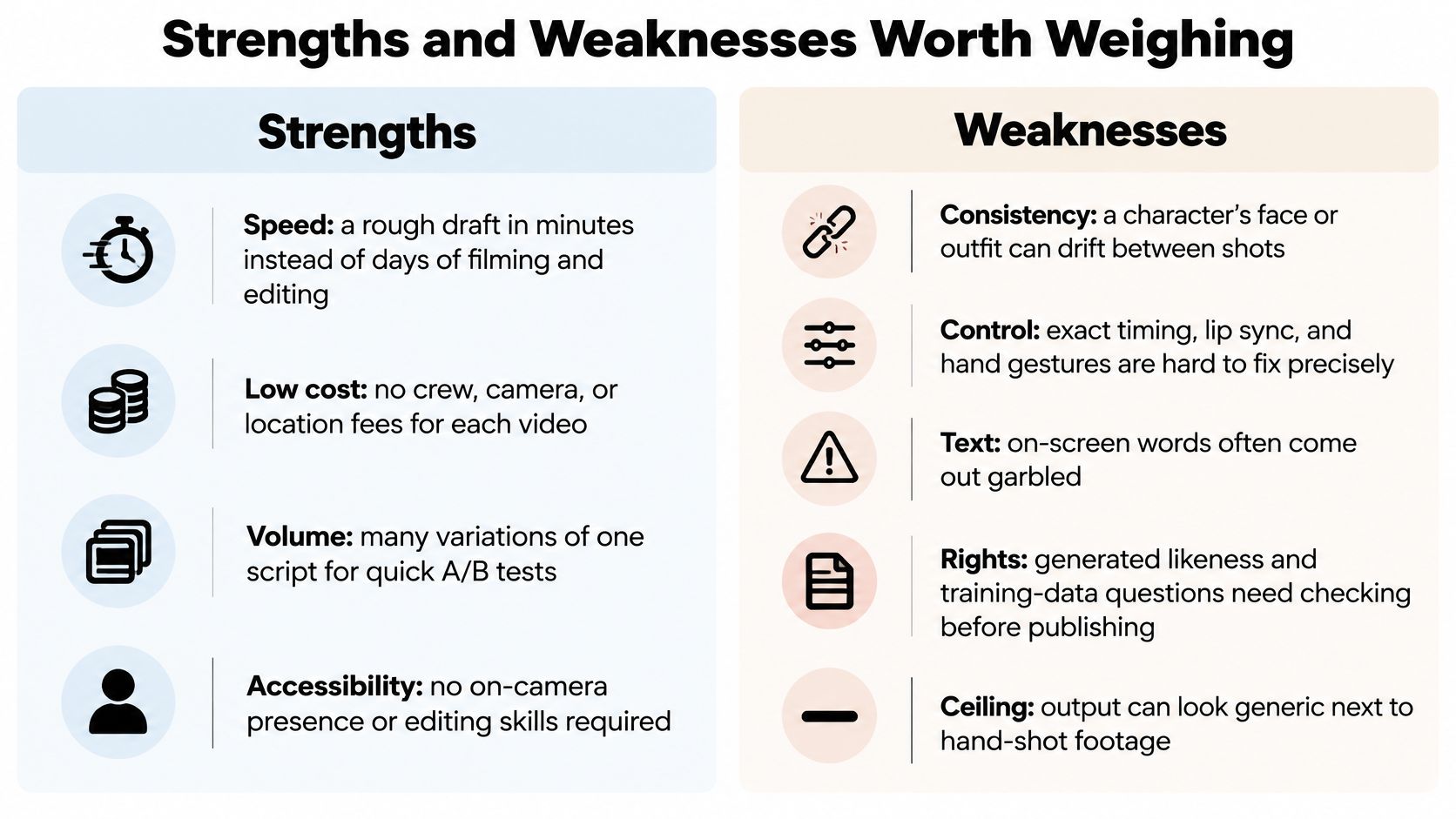
AI video generation can remove setup work, but it doesn't remove the need for editorial judgement. These are the trade-offs to weigh across tools:
Strengths
- Fast first draft: You can move from a prompt or script to a rough video without arranging a shoot.
- Lower production overhead: A simple concept clip doesn't require a camera, studio, or actors.
- More variations: You can test different openings or visual styles using the same underlying idea.
- Accessible workflow: A beginner can create a draft without learning a full editing suite.
- Flexible components: Some tools offer voice options, captions, and multiple formats in one place.
Weaknesses
- Retries consume credits: If a generated hand or face breaks, you may need another render before you have usable footage.
- Free exports can be restrictive: A watermark on a free-tier video can make a branded advertisement unusable.
- Shared visual style: Template-driven outputs can make different channels feel as if they use the same visual recipe.
- Limited timing control: It can be hard to make a gesture, cut, or camera move land on an exact beat.
- Vendor dependence: A change to a tool's credits, export limits, or pricing can force a workflow adjustment.
The balance tips toward AI when you're making short, single-subject clips or repeating a familiar format. It tips away when the story depends on precise interactions, a faithful product demonstration, or an exact location or brand detail. Before choosing a tool, compare independent user feedback with the limitations you've identified. Trustpilot reviews can add context, but an individual review isn't a substitute for testing your own prompts.
Verdict: High-volume creators of short, formulaic videos should test before buying; teams that need frame-accurate control or legally sensitive footage should wait until the workflow meets their requirements.
Real Creators and the Videos They Make
Creators tend to use video generators to solve a particular production problem, not to hand off every creative decision. The examples below are self-reported testimonials, not independent performance benchmarks. Open the original review or post before repeating a claim as evidence of typical results.
Faceless channels and music videos
A public X post from Justin Lord describes a channel that went from dead to growing in one week after switching from manual editing to a prompt-based workflow. The result is his own report, not a guarantee that another channel will see the same change; topic selection, publishing, and audience response remain outside the tool's control.
For music videos, the starting point is a track and a visual direction. Nikhil Prakash wrote that it was fun to create a music video with Revid's Music to Video feature and that there were many tools to try. A separate Trustpilot reviewer said the tool “took my song and created the perfect video.” Both comments are self-reported; the fit will still depend on whether the generated visuals match the track's mood and whether the cuts need editing.
Editing time and repeatable formats
Dan Mindru, reviewing the product on Product Hunt, said it “Basically gets editing time from days to few minutes ⚡️”. That efficiency claim is most relevant to marketers making batches of similar assets, but a short production time doesn't mean the draft is automatically ready to publish. You still need to check messaging, pacing, and visual accuracy. More public feedback is collected at Product Hunt reviews.
Two other practical patterns don't depend on a testimonial:
- UGC-style ads: Start with a script and a selected avatar, then review whether the delivery feels appropriate for the brand. The workflow can avoid filming a presenter, but a synthetic spokesperson may not suit a campaign that relies on personal trust.
- Educational explainers: Start with a written explanation, then build a narrated video with captions and supporting visuals. This can reduce assembly work, but the images need to illustrate the point rather than merely fill the screen.
Disclosure matters here: Revid Reviews is run by the Revid team, and this article discusses reviews of Revid. Rebuilding one example with your own script, track, or footage is a better decision test than treating any testimonial as a promise of results.
Copyright and Disclosure Before You Publish
A tool's terms saying commercial use is allowed still leave ownership of the output uncertain. The U.S. Copyright Office's guidance on AI-assisted works says a work may qualify for copyright when a human determines sufficient expressive elements, while prompts alone generally do not establish copyright in the output.
Ownership is only half the question. Creators are increasingly concerned about AI systems training on their work without permission, and labelling rules for synthetic content differ by region, by platform, and by campaign type. A clip that trips a disclosure rule is a clip you cannot publish, and that hurts your effective cost per finished video the same way a failed render does.
Before publishing, work through this checklist:
- Save your script, storyboard, and prompts with dates. Keep a record of the material you created and the instructions you supplied.
- Keep project files and edit history. They show how you selected, arranged, and revised the generated elements, which is the human contribution a copyright claim rests on.
- Check each asset licence separately. Confirm the terms for music, stock footage, fonts, and voices rather than assuming the generator's licence covers them all.
- Review the platform's synthetic-content rules. Label altered or generated content wherever the platform requires it.
- Check campaign disclosure requirements. Disclose substantial AI elements in sponsored or paid work when the brand or applicable rules ask for it.
- Don't claim automatic exclusivity. Avoid presenting unedited AI output as unquestionably exclusive or copyright-protected.
- Review likeness and training-data rules. Take extra care before using a recognisable person's face or voice.
This is workflow guidance, not legal advice. For paid work, check the rules in the jurisdiction where the video will run. Revid Reviews is run by the Revid team, and the checklist applies the same whether you publish from Revid or any other generator.
Test Three Prompts Before You Commit to a Plan
A free three-prompt test is the most important step before buying. It shows whether a tool handles the work you publish, instead of asking you to guess from a polished demo.
- Choose your main format. Pick the video you make most often, such as a Short, an advertisement, or a music clip.
- Write three test prompts. Use one simple, single-subject shot; one two-subject scene with a camera move; and one full 45-second script.
- Run each test on a free tier or the smallest plan. Log every attempt, including discarded renders.
- Score each clip against the same rubric. Rate each dimension separately because an impressive still frame can conceal unusable motion.
- Calculate the effective cost per publishable clip. Include failed renders and revision passes, then account for non-credit costs.
- Compare that cost with the plan your monthly volume requires. A plan is only a saving if its usable output matches your needs.
- Subscribe only if the results pass. If they don't, choose another tool type rather than trying to force the wrong workflow.
| Dimension | What to check | Pass sign | Red flag |
|---|---|---|---|
| Subject identity | Same face, outfit, and object across shots | Recognisable across the whole clip | Face or clothing changes between shots |
| Motion and hands | Hands, objects, and body movement | Natural movement at normal speed | Fingers merge, objects morph, or movement has no cause |
| Camera continuity | Pans, zooms, and cuts | Smooth transitions that match the prompt | Jumps in position or unexplained perspective shifts |
| Prompt adherence | Whether every requested element appears | All named elements are present | Subjects or actions are missing or swapped |
| Caption and text legibility | On-screen words and captions | Readable and correctly spelled | Garbled letters or unreadable text |
| Audio-visual sync | Voiceover and music against the picture | Speech matches lip or scene timing | Drift, clipped words, or music out of step |
| Retry rate | Attempts needed for one usable clip | Under three attempts for a simple shot | More than five attempts or repeated failed renders |
Run the same prompts on every shortlisted tool, including Revid, so the comparison uses a consistent test. Revid is an AI video generator that turns a typed prompt into a script, visuals, and voice in one generation. The tool is used by more than 3,000,000 creators, with around 59,000 or more new signups every month. Those usage figures don't tell you whether the output will suit your channel, so judge the test clips and your own cost calculation.
Revid Reviews is run by the Revid team. Before buying, check the original reviews on Trustpilot, X, and Product Hunt, and confirm current plans, credits, and cancellation terms on the official site. The Revid Reviews blog collects buyer-focused guidance and links to public reviews so readers can verify claims.
Revid Reviews collects public Revid reviews from Trustpilot, X, and Product Hunt, giving you a place to check creator feedback alongside practical buying guidance. Use the reviews and three-prompt test to judge whether Revid fits your workflow, then visit Revid Reviews to compare what creators say before you commit.