
You need a publishable video this week. Your script is half finished, your posting schedule is slipping, and every AI video maker promises the same thing: enter a prompt, press generate, and get something ready to post. Then you discover that creating cinematic footage, captioning a talking-head clip, and producing a faceless Short are very different jobs.
Pick the workflow before you pick the tool. For short-form social content, prioritize editable scenes, narration, captions, and publishing. For presenter videos, judge avatar delivery and localization. For repurposing, start with the material you already have. For cinematic generation, expect to direct individual shots and budget for retries.
Disclosure: Revid Reviews is run by the Revid team. Revid is included below under the same buying standard as the alternatives, including credit consumption, expiring monthly allowances, and the difference between company-reported claims and independently verified results. These recommendations reflect the supplied product information, not a claim that we personally tested every tool.
The distinction between creation and editing matters. In Adobe's creator survey, 52% of respondents used creative generative AI to create new assets, while 55% used it for editing, upscaling, or enhancement. That survey covers creative AI broadly, not video makers alone, but it supports a sensible buying approach: evaluate how you'll finish the video, not just how you'll generate its first draft.
Table of Contents
- 1. Revid
- 2. CapCut
- 3. VEED
- 4. InVideo
- 5. Captions
- 6. HeyGen
- 7. Pictory
- 8. Runway
- 9. Higgsfield
- 10. Adobe Firefly
- Top 10 AI Video Makers: Features Comparison
- Which AI video maker should you pick?
1. Revid
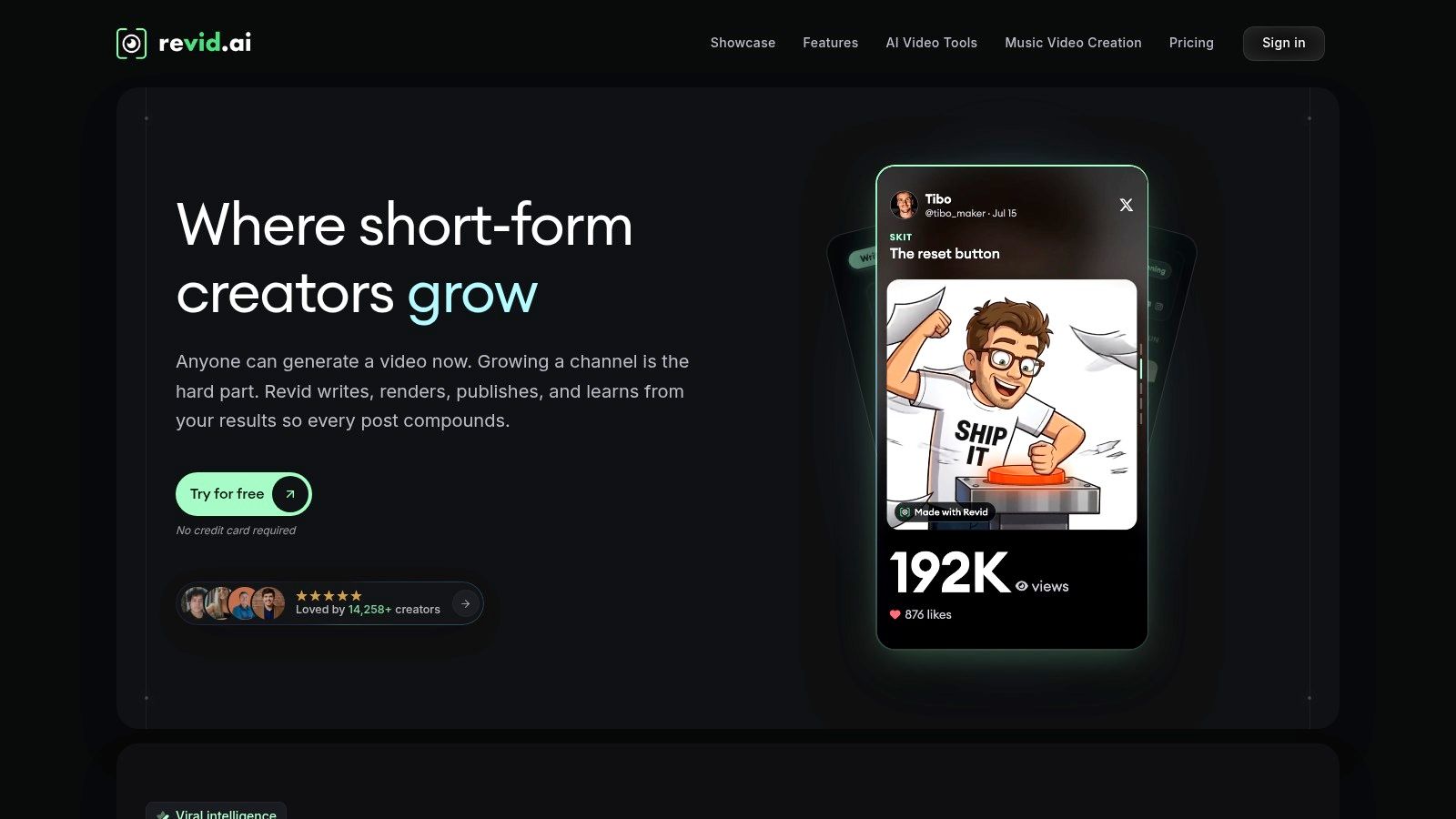
Best for faceless Shorts and direct social publishing. Choose Revid when you want to turn an idea, script, link, song, or reference format into an editable short-form video, then publish it without assembling a separate production stack.
Its appeal is the combination of tasks. You can work with visuals, voice-over, captions, and music alongside tools for faceless content, music videos, product videos, ads, and avatars. Direct publishing to TikTok, Instagram, and YouTube makes it particularly relevant when posting is part of the bottleneck.
Where Revid fits and where it doesn't
- Choose it for repeatable social production. A faceless explainer, music-led visual, or product ad fits its short-form focus.
- Check automation deliberately. Auto-Mode and developer access through its API, MCP, and CLI are relevant when you want a repeatable process rather than occasional manual projects.
- Watch the credit estimate. Revid shows estimated costs before rendering, but demanding models and repeated generations can still consume your allowance quickly.
Monthly plan credits don't roll over. Buy for the publishing workload you can realistically complete, not the production volume you hope to reach eventually. Free signup and trial credits let you inspect the workflow before committing.
The limitation is straightforward: combining production and publishing doesn't guarantee that every generated scene meets your standards. Review narration, visual continuity, caption timing, and product accuracy before posting.
Use the Revid Reviews buying guides to investigate credits, cancellation, and workflow questions. Treat published customer and performance figures as company-reported, not independently verified evidence.
2. CapCut

Already have footage, a rough script, and a clear idea of how the edit should feel? CapCut is the better fit for hands-on social editing than a workflow built around accepting an automatically assembled video.
CapCut pairs AI-assisted script and video creation with scene replacement, captions, music, voice-over options, and conventional editing. Its social-video focus makes it relevant to TikTok, Instagram, and YouTube creators who want assistance without giving up control over pacing.
The important distinction is what happens after generation. Rather than treating the initial output as finished, plan to replace weak scenes, tighten the opening, and adjust captions to match your presentation style.
Practical rule: If you already know which shots you want, prioritize the editor over the generator.
Check access before building your workflow
CapCut advertises a free AI video maker, but free access isn't a promise that every feature you need is included. AI availability and pricing can vary by platform, account, and location, so check the actual options available to you before relying on it for recurring work.
For a useful evaluation, bring a real social clip and complete the entire edit. Change a scene, correct captions, adjust the soundtrack, and inspect the export rather than stopping at the preview.
Choose CapCut when you enjoy shaping the final cut yourself. Choose a more automated script-to-social workflow when your main problem is assembling the video at all. Either way, budget time for brand-specific corrections instead of assuming the generated version will match your visual identity.
3. VEED
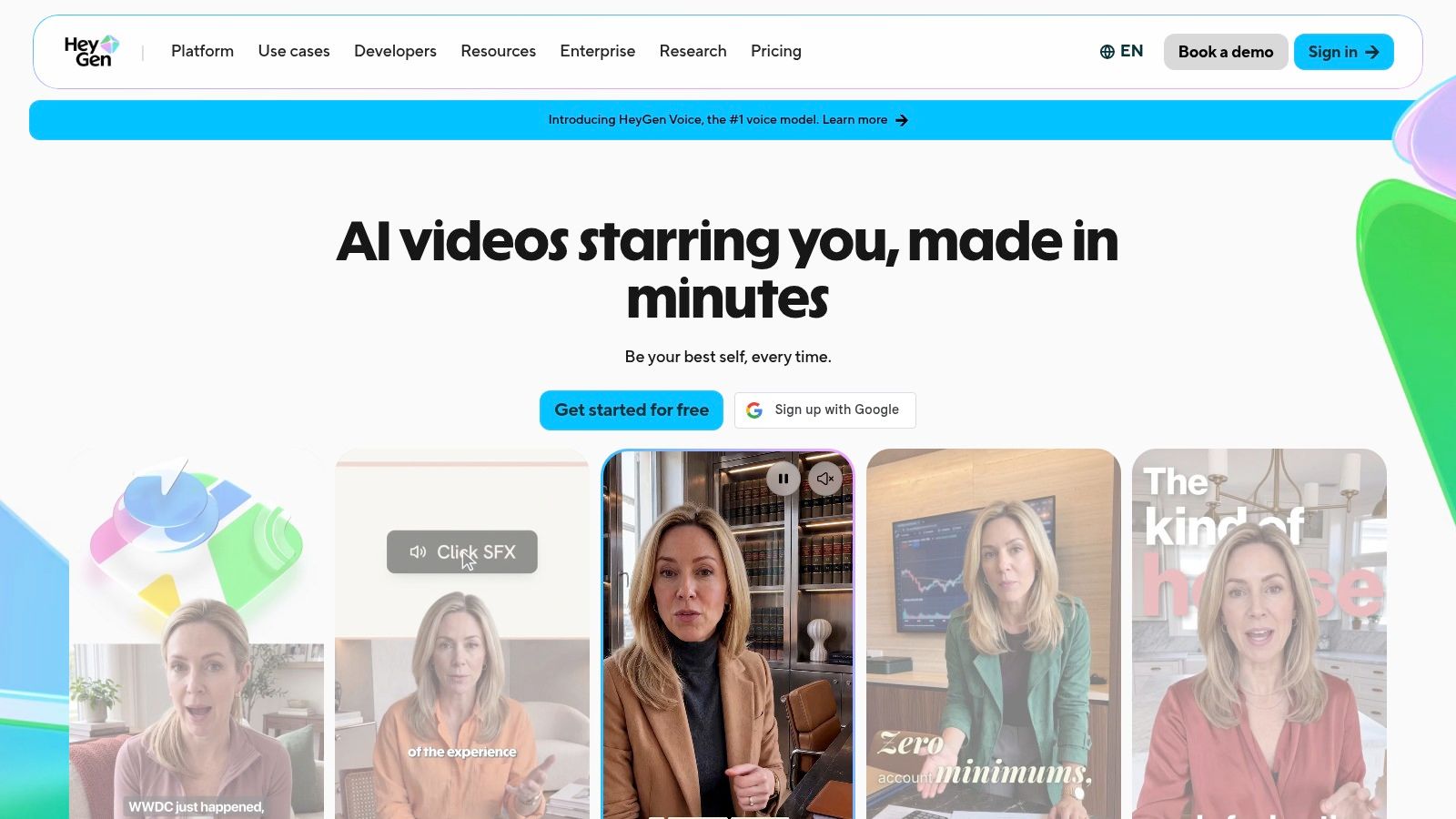
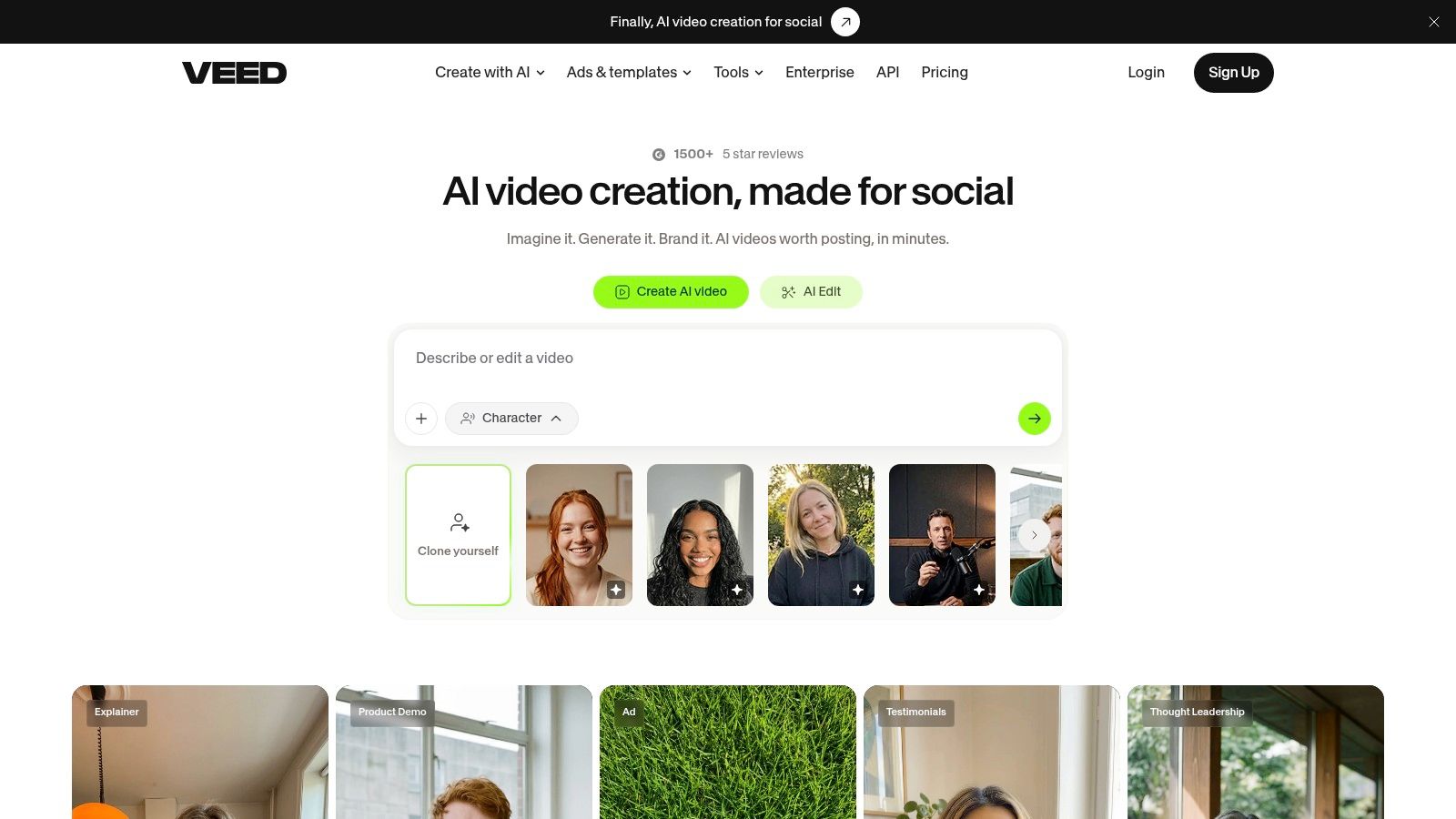
VEED is my pick for browser-based marketing production when you need generation and conventional editing in the same working environment. It's a useful middle ground between an automatic video assembler and a dedicated cinematic-generation workspace.
With VEED, the AI workflow can draft a script from a prompt and let you select a character, voice, music, and subtitles before generating. Its separate AI Playground provides clip generation with selected models, while the browser editor gives you somewhere to refine the result.
That separation deserves attention. Generating a standalone visual asset and producing a finished marketing video aren't interchangeable tasks, even when both happen inside the same platform.
- Useful cost visibility. VEED shows estimated credit costs before generation in its AI workflow.
- Specific failure protection. According to its documentation, failed generations don't deduct credits in the AI Playground. Don't assume that means every disappointing but completed output is refundable.
- Export restriction. Free exports include a watermark, so a successful trial preview doesn't establish that your free export is suitable for client delivery.
Buy for the complete marketing task
Test a representative announcement, product explainer, or narrated social clip. Make a script correction after generation and check whether the resulting editing process suits how you work.
Credits, model access, and feature availability depend on the plan, with account and regional differences also relevant. Confirm those details before subscribing.
When comparing vendor claims with customer experience, the original-linked Trustpilot reviews collected by Revid Reviews provide a way to investigate Revid specifically. They aren't evidence about VEED, and neither vendor's marketing should substitute for your own export test.
4. InVideo
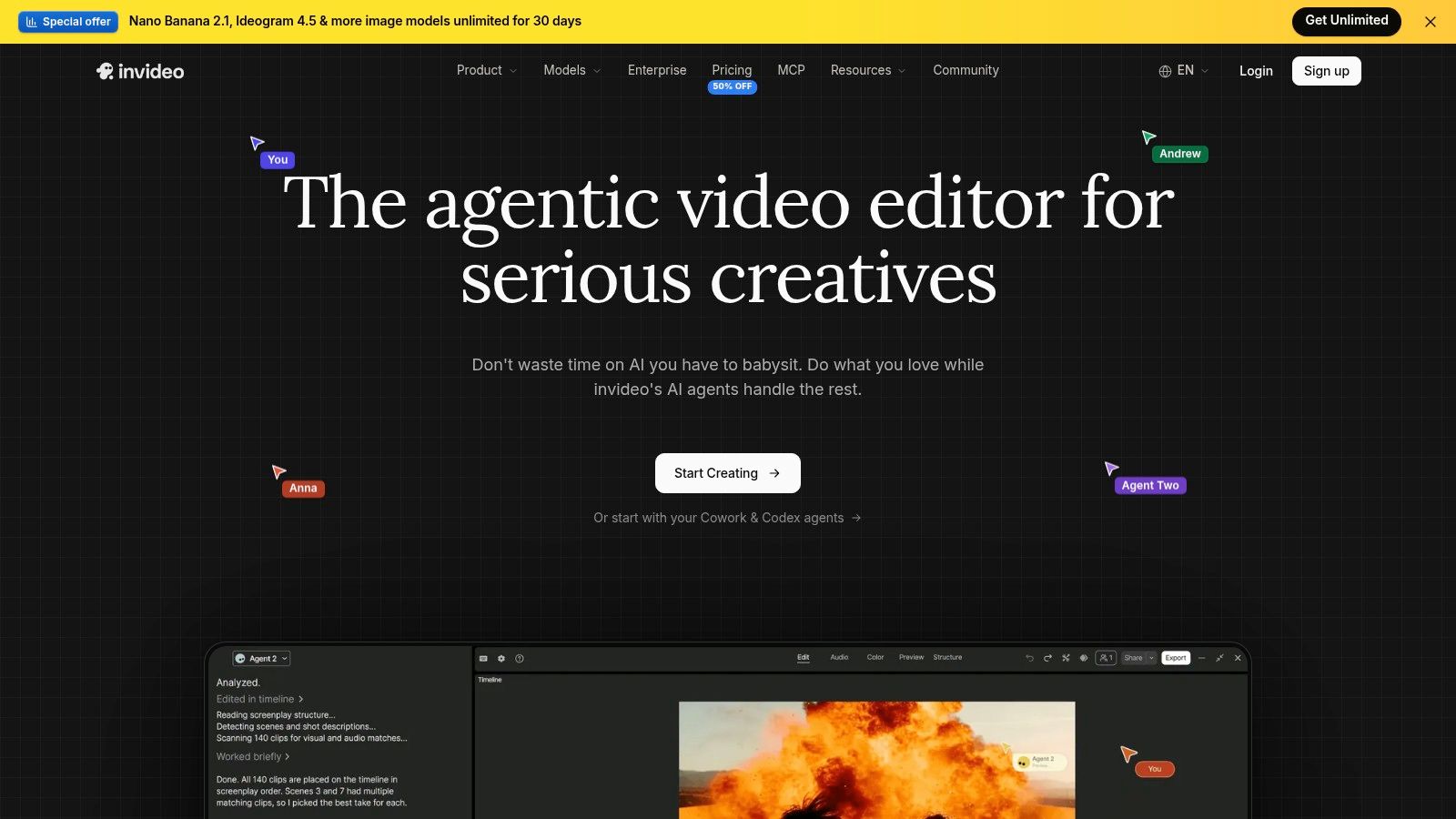
Choose InVideo for prompt-led marketing drafts that you'll revise before publishing. It suits the creator who wants help assembling a video but still expects to make editorial decisions.
InVideo combines prompt-based creation and editing with a timeline editor. Collaboration options and access to selected generative models depend on the plan, so the relevant comparison isn't whether InVideo offers a feature. It's whether your intended subscription includes it.
For a product promotion, start with the actual offer, audience, approved claims, and desired call to action. Then judge the draft by how easily you can correct its scene choices and messaging, not by whether the first preview looks busy or polished.
The subscription trap is model access
The cheapest plan may not include the model you want. Higher tiers provide additional credits, storage, and model access, but upgrading only makes sense if those additions solve a production requirement.
Credits are used for generation and don't roll over monthly. Heavy iteration makes usage harder to forecast, particularly if you keep changing the brief after rendering rather than resolving the script first.
- Best reason to choose it. You want AI drafting with an editing stage built into the workflow.
- Best reason to pass. You need predictable output volume but haven't tested the credit cost of normal revisions.
- Trial priority. Generate your intended format, revise it, and confirm the required model is available on the plan you're considering.
For the Revid side of your comparison, consult the original-linked Product Hunt feedback. Keep customer commentary separate from controlled evidence about quality or savings.
5. Captions

Your face and voice are already the content. You don't need an imaginary camera move across generated scenery. Choose Captions for spoken-to-camera social videos and repetitive presentation edits.
Captions focuses on AI-assisted creation, editing, and captioning in a mobile-oriented creator workflow. That's a more relevant starting point for personal-brand clips, spoken product explanations, and presentation-led social content than a cinematic text-to-video tool.
The buying question is whether it improves the work you repeatedly perform. Bring a real recording with your normal vocabulary, delivery style, and pauses, then assess caption accuracy and the amount of correction you need.
Evaluate the presentation, not just the text
Captioning isn't finished when the words appear on screen. Check whether their timing supports your speech, whether line breaks are readable, and whether corrections fit naturally into your editing process.
- Strong fit. Spoken social clips where captions and presentation are central to the finished video.
- Weak fit. Long cinematic scenes generated from scratch.
- Plan warning. AI allowances and feature access vary by subscription, and some higher-value capabilities require paid access.
Don't pay for a broad generation feature set if your actual recurring task is refining footage you've already recorded. Equally, don't choose Captions solely because you need subtitles if your larger requirement is automated faceless-video assembly and publishing.
Test the complete mobile workflow before subscribing. Record or import your usual material, make the corrections you'd normally require, and inspect the exported result. That gives you a useful answer about fit without relying on a polished demonstration.
6. HeyGen
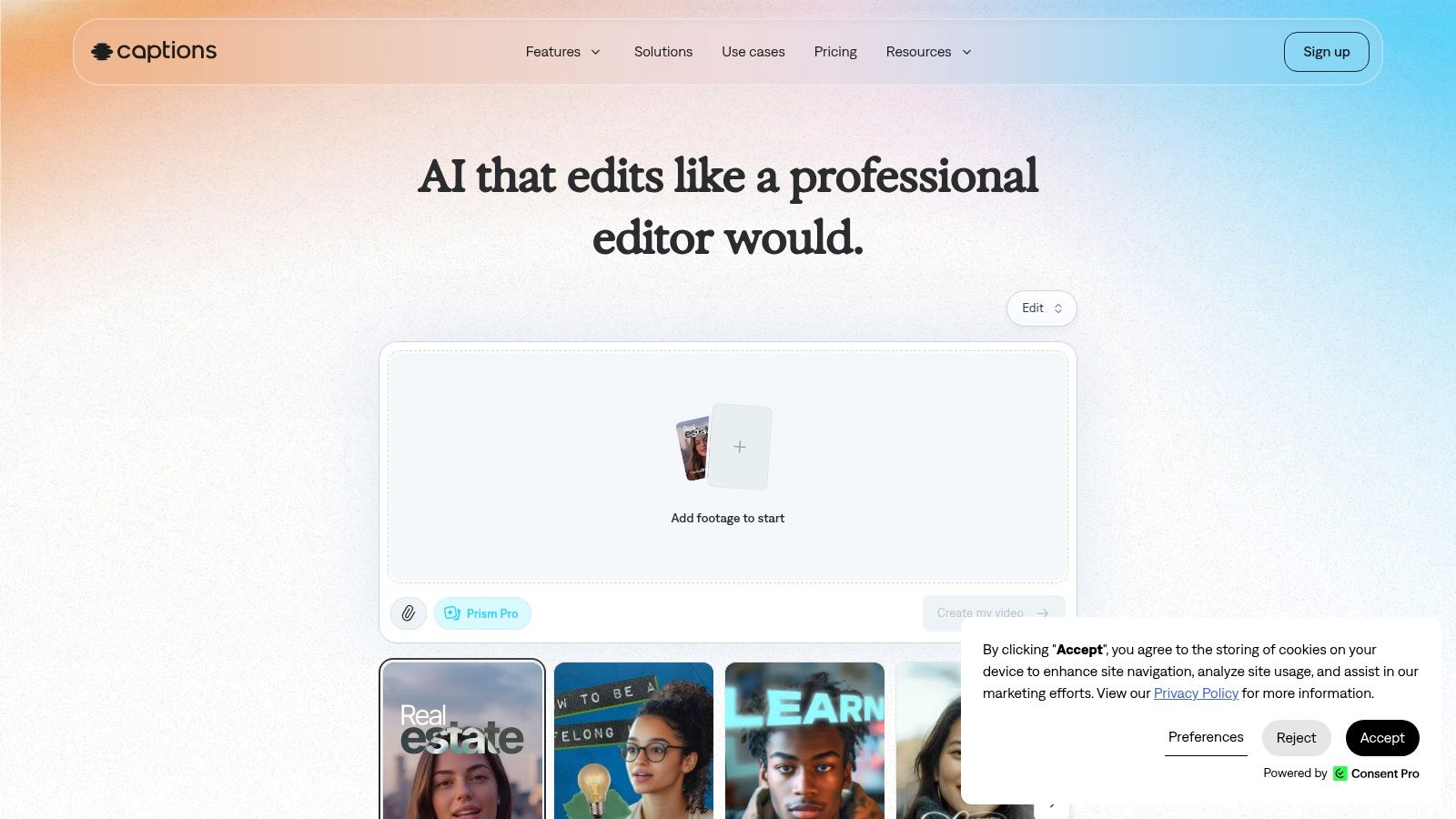
HeyGen is the clear choice here for presenter avatars and localized spokesperson videos. Pick it when the video needs someone delivering a script, not when you need original cinematic footage.
HeyGen offers stock avatars, custom video-avatar options, AI voice-over, and translation and localization features. That makes it relevant to explainers, training, sales messages, and other repeatable presenter-led formats without a conventional camera setup.
The decisive test is delivery. Use your actual script, including product names, technical terms, and sentences that require emphasis, rather than judging an avatar on a generic introduction.
An avatar that looks convincing in a preview still needs to deliver your message convincingly.
Test language and delivery together
For localization, review the spoken result as well as the translated text. Ask a fluent reviewer to assess pronunciation, pacing, and whether the delivery suits the audience.
Avatar delivery won't feel natural for every script. A factual training explanation and an emotionally personal message require different performances, so don't assume the same avatar is appropriate for both.
HeyGen's free plan supports limited testing. Credits are shared across features, and consumption can vary with the model and video complexity, making it important to evaluate your presenter and localization requirements together.
Public customer feedback is mixed, so inspect recent reports and cancellation terms before committing. Treat individual reviews as accounts to investigate, not proof that you'll have the same experience.
Also establish consent for any custom likeness or voice. A production workflow isn't ready for business use until you've resolved who authorized the presentation and how you'll disclose synthetic content.
7. Pictory
A blog archive, webinar recording, or training deck is a different starting point from a blank prompt. Pictory is the best fit here for repurposing existing written and recorded material.
Pictory supports scripts, URLs, presentations, and longer recordings, combining workflows such as text-based editing, summarization, subtitles, highlights, and narration. Stock media and brand-kit features help turn those inputs into edited videos, with some plans adding custom avatars and voice cloning.
Use it when the source material already contains the substance. For example, turn an approved training article into a narrated explanation, then review whether each selected visual clarifies the corresponding point.
- Main advantage. You can work from existing content rather than inventing a new video concept.
- Main editing burden. Generated visual selections may need replacement or adjustment to match the script.
- Main allowance trap. Video minutes, voice allowances, and generative AI credits have separate limits.
Don't confuse available minutes with finished capacity
A generous video allowance doesn't establish that the included narration or generative credits cover the same workload. Check the resources your actual format consumes, especially if you want branded visuals and a particular voice.
Pictory advertises a free trial, which is the right place to test a representative source document or recording. Evaluate the summary for missing context and the visuals for relevance, not merely for whether they look professional.
Choose Pictory when preserving and adapting existing information matters most. Choose Runway or Higgsfield when your priority is generating original visual scenes rather than assembling a narrated version of content you already own.
8. Runway
Choose Runway for original footage and shot-level creative work. It's a generative media workspace for creators who want to develop visual assets from text or images, then refine those assets as part of a broader production.
Runway brings together multiple video and image models alongside audio, editing, and upscaling tools. Its role in your workflow is different from an AI video maker that assembles a narrated social post: you're directing footage, not requesting a finished content package.
For a music video or visual concept, define the subject, setting, action, framing, and intended motion before generating. Assess the result against that shot brief rather than accepting an attractive clip that doesn't belong in the project.
Budget for usable shots
Output volume depends on the model and clip length, because plans use credits. Retries and manual refinement belong in the production budget, not in a separate category you ignore when comparing subscriptions.
Budget discipline: Count rejected generations as production costs. They consumed resources even though they won't appear in the edit.
A free tier lets you try selected capabilities, while higher tiers add resources such as storage, parallel generations, and upscaling options. Upgrade for a demonstrated bottleneck, not because a larger allowance looks reassuring.
Public review feedback includes complaints about billing, support, and unsatisfactory generations. Check current terms and recent customer accounts before committing, particularly if a deadline depends on repeated access.
Runway is the stronger recommendation when you want to shape original footage and accept an iterative process. It isn't my first recommendation for someone whose immediate need is a captioned faceless Short with direct social publishing.
9. Higgsfield
For a stylized campaign visual or camera-led concept, Higgsfield is the pick for exploring cinematic looks and visual treatments. Approach it as a place to develop shots, not as a substitute for planning the finished social video.
Higgsfield offers video and image generation with multiple models and creator-focused visual workflows. Model choice gives you different directions to explore, but it also makes the plan details important: access and generation costs affect what you can realistically produce.
Start with a visual brief you can judge. Specify the intended subject, framing, movement, and mood, then decide whether the generated clip meets the brief before experimenting with unrelated effects.
Separate exploration from production
Creative exploration is worthwhile, but it isn't the same as finishing an asset. Settle on a direction before generating the additional shots you need for a coherent edit.
- Choose it for visual development. Stylized sequences and camera-oriented experiments suit its focus.
- Expect iteration. It can require more prompting and refinement than a script-to-social-video workflow.
- Inspect plan terms. Credit costs and model availability can vary, making output volume difficult to estimate without testing.
Some users have raised concerns about changes to plans and access. Verify the current offer on the official site and retain the terms relevant to your purchase rather than relying on an older promotional description.
Don't buy on the strength of a showcase alone. Test your own visual requirement and record what you spend reaching an acceptable result. If your real need is narration, captions, and publishing, start with a workflow designed around those tasks instead.
10. Adobe Firefly

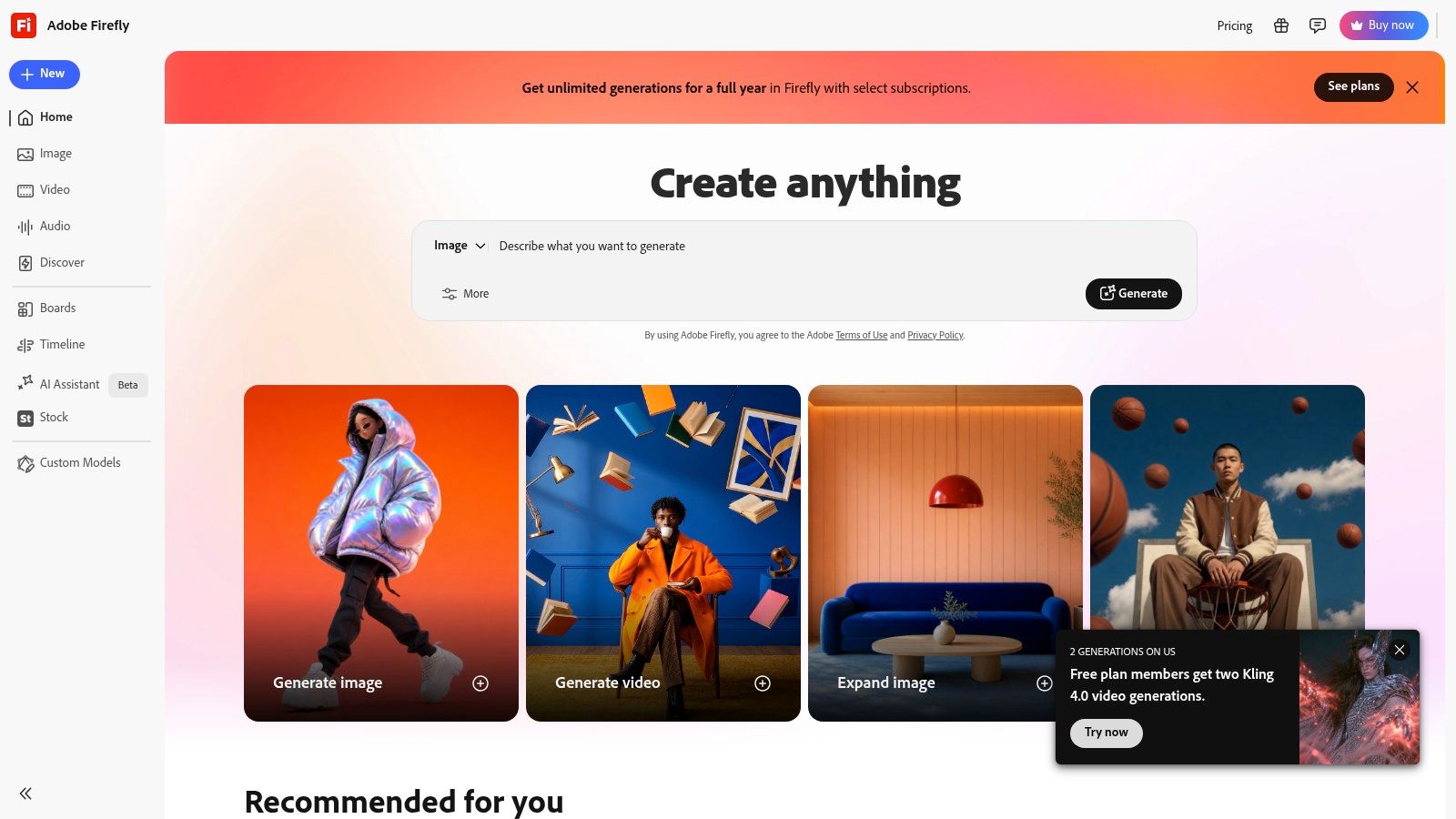
Adobe Firefly is the best fit for creators already working in Adobe's production ecosystem. Choose it when generated footage is an asset you want alongside your existing editing work, rather than the entire publishing workflow.
Adobe Firefly combines generative tools for video, images, and audio with Adobe app integrations. Paid plans provide monthly generative credits, and Firefly-generated content includes Content Credentials.
Adobe says its own Firefly model is trained on licensed and public-domain content. Keep that statement specific to Adobe's model rather than extending it automatically to every partner model available within the workspace.
Provenance is useful, not a blanket guarantee
Commercial-use claims and protections require a model-specific review. Check the selected model, subscription terms, and intended use before producing client work. Don't treat access through a familiar creative platform as universal legal clearance.
Repeated video generations can exhaust credits, and allowances differ substantially by tier. Evaluate the cost of the asset you need, including revisions, rather than comparing subscriptions by their advertised credit totals.
Content Credentials are relevant to a disclosure workflow, but don't assume an identification mechanism will remain intact everywhere. Ofcom's examination of synthetic-media identification found that watermarks can often be removed through basic edits, reinforcing the need to check your final distribution process.
Choose Firefly for its fit with an existing Adobe workflow and its provenance features. Still review the exported file, document permissions, and apply any necessary audience-facing disclosure when you publish.
Top 10 AI Video Makers: Features Comparison
| Tool | Best for | Core workflow | Standout features | Trade-offs | Value & pricing |
|---|---|---|---|---|---|
| Revid | 👥 Short-form creators | Ideas, scripts, links, or songs → editable social videos | ✨ 70+ languages, social publishing, Auto-Mode, API/MCP/CLI | Credits can run out quickly; monthly credits don't roll over | 💰 Free signup and trial credits; paid plans use credits |
| CapCut | 👥 Social creators who want an editor | Prompt or script → generate, edit, and export | ✨ Familiar editing tools; revise scenes, captions, and music | AI access and pricing vary; results may need manual edits | 💰 Free AI video maker advertised; check current access |
| VEED | 👥 Marketers and small teams | Prompt → script → video in a browser editor | ✨ AI characters, voices, music, subtitles; cost estimates | Free exports are watermarked; credits and features vary | 💰 Plan- and model-dependent credits |
| InVideo | 👥 Social and marketing teams | Prompt → first draft → timeline edits | ✨ Collaboration on eligible plans; varied model access | Credits don't roll over; heavy iteration can be hard to forecast | 💰 Tier-based credits, storage, and model access |
| Captions | 👥 Mobile-first social creators | Create or edit spoken-to-camera clips | ✨ Captioning and repetitive-editing tools | Less suited to cinematic text-to-video; some features require paid access | 💰 Multiple tiers; AI allowances vary |
| HeyGen | 👥 Training, sales, and explainer teams | Script → avatar presenter video | ✨ Stock/custom avatars and video localization | Avatar style may not suit every use; shared credits vary by use | 💰 Limited free plan; credit-based features |
| Pictory | 👥 Webinar, blog, and training-content creators | Scripts, URLs, or recordings → narrated video | ✨ Summaries, subtitles, voice-overs, and stock media | Visuals may need adjustment; several separate usage limits | 💰 Free trial advertised; plan limits vary |
| Runway | 👥 Creators making original generative footage | Text or image → video and media refinement | ✨ Multiple models plus audio, editing, and upscaling | Credits limit output; retries and manual refinement may be needed | 💰 Free tier; paid plans use credits |
| Higgsfield | 👥 Creators seeking stylized or cinematic visuals | Generate video and images with varied models | ✨ Creator-focused styles and camera-oriented workflows | Credit costs and access can change; may need prompt iteration | 💰 Credit-based plans; test costs before subscribing |
| Adobe Firefly | 👥 Creators already using Adobe tools | Generate media within a creative-workflow ecosystem | ✨ Adobe app integration; Content Credentials | Video generations use credits; plan allowances vary | 💰 Multiple plans with different generative-credit limits |
Which AI video maker should you pick?
For faceless Shorts and direct publishing, start with Revid. Choose CapCut when you want hands-on social editing, Captions when your own spoken presentation is central, VEED for browser-based marketing production, and InVideo for prompt-led drafts you'll revise.
For presenter avatars, choose HeyGen. For repurposing articles, presentations, and longer recordings, choose Pictory. For original cinematic footage, start with Runway; choose Higgsfield when stylized visual exploration is the priority, or Firefly when you want generated assets alongside an existing Adobe workflow.
Those are workflow recommendations, not a universal quality ranking. A convincing avatar won't solve a footage-generation problem, and a beautiful generated shot won't automatically become a publishable Short with accurate narration and readable captions.
Run a real project before subscribing
Use a free plan or trial where available, and bring the work you need to publish. Complete the revisions, inspect the export, and verify the required features against the paid plan you're considering.
Track the resources you consume along the way:
- Generation costs. Include rejected outputs, rerolls, scene replacements, and model upgrades.
- Finishing costs. Include narration, stock assets, subtitles, enhancement, and any separate editing tools.
- Human review. Record the work required to correct factual errors, visual mismatches, pronunciation, and timing.
- Plan restrictions. Check watermarks, export access, model eligibility, credit expiry, and cancellation terms.
Compare total cost per usable video, not just the monthly price. Divide the relevant production spend by the videos you can publish, and keep your editing time visible alongside that calculation. Don't count abandoned drafts as successful output.
That distinction matters because trying a tool isn't the same as integrating it successfully. A Research Intelo report reported that 67% of surveyed enterprise marketers had used AI video-generation tools, while 44% used them regularly; treat those findings as directional market-research evidence, not a definitive global benchmark.
Verify claims before paying
Inspect original customer reviews for recurring concerns about credits, billing, output quality, and support. Revid Reviews collects Revid feedback from Trustpilot, X, and Product Hunt, linking entries to their originals so you can examine the context firsthand.
Remember the affiliation disclosed above: the site is operated by the Revid team. Use its linked reviews to investigate claims, then make your decision with your own project and the current subscription terms.
Pick the tool that gets your actual job finished with acceptable quality, manageable revisions, and credit usage you understand. Subscribe after you've established that fit, not before.
Revid Reviews collects public Revid feedback and publishes buyer guides covering credits, pricing, cancellation, limitations, and comparisons with other AI video tools. Visit Revid Reviews to inspect the original-linked reviews and work out whether Revid fits your next faceless Short, music video, or social ad.