You need five short clips by Friday. You've got a script, a product page, and some footage, so you assume one generator can handle the visuals, voice, captions, and final edit. Then you discover that the tool you chose makes impressive scenes but doesn't assemble a finished video.
The right AI video software depends on the job you need done. Script-to-video platforms assemble narrated content. Avatar tools put a presenter on screen. Cinematic generators create individual shots. Repurposing tools turn material you already own into something publishable.
Credit systems make that choice harder. A subscription doesn't tell you how many usable videos you'll finish, especially when you need retries. Free access also varies, from editor previews to generation allowances with export restrictions.
Disclosure: Revid Reviews is run by the Revid team, and Revid is included in this comparison. Our public-review collection links each review to its original so you can check the reviewer's words rather than rely on our interpretation. Product links below let you inspect each vendor's current offering.
These aren't ranked recommendations. Choose by workflow, then compare editing effort, credit use, and export limits. Features and pricing described here can change, so confirm the vendor's published terms before subscribing.
Table of Contents
- 1. Revid AI
- 2. Runway
- 3. Google Flow
- 4. HeyGen
- 5. InVideo
- 6. Captions
- 7. Pictory
- 8. Synthesia
- 9. Pika
- 10. Fliki
- How the 10 AI video software options differ on free access, published paid pricing, and best-fit use
- Choosing your AI video software before you commit to a subscription
1. Revid AI
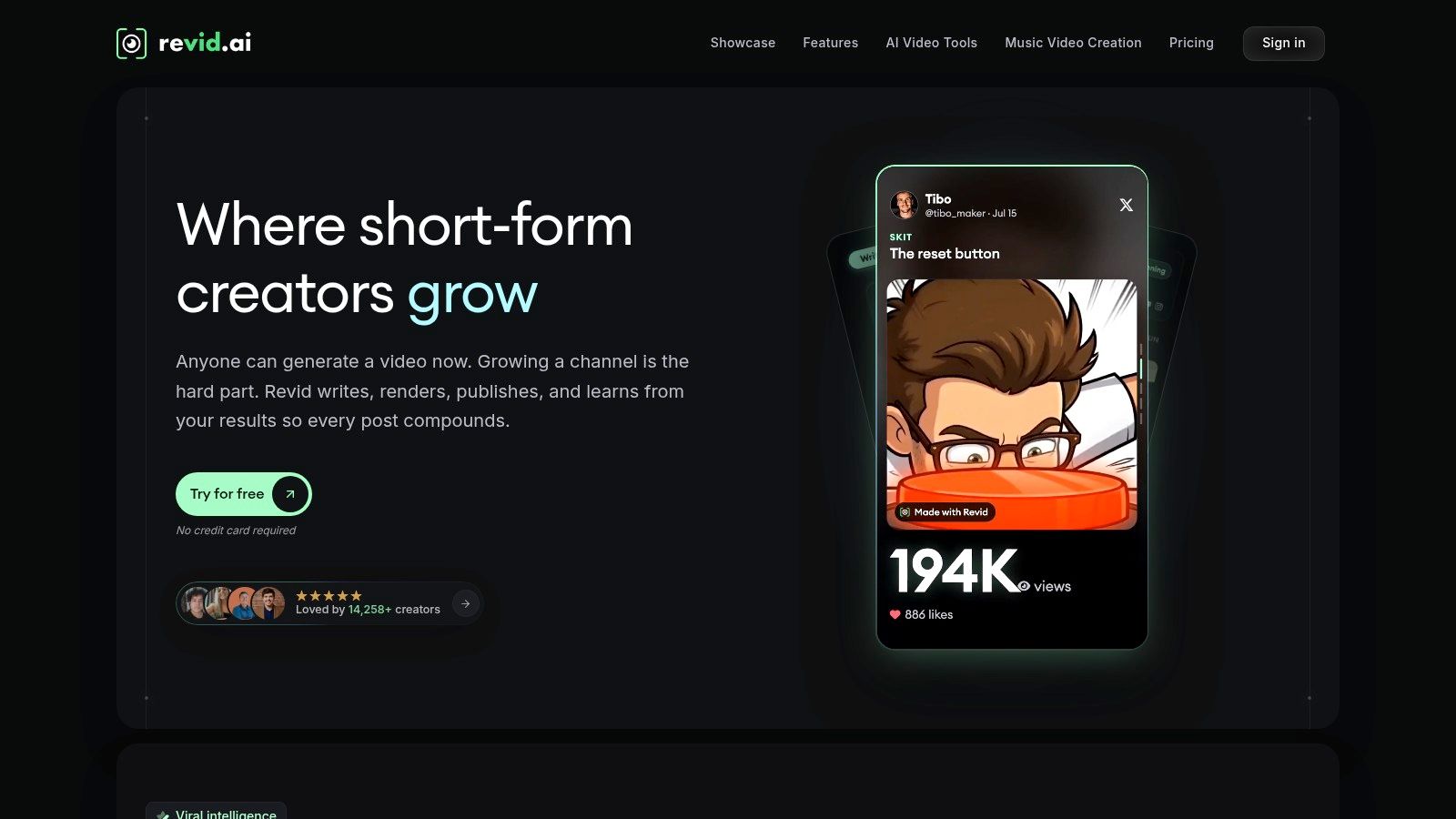
Workflow group: Script-to-video and short-form social production.
Revid AI fits creators who want a prompt to become a script, visuals, and voice in the same workflow. Its focus is TikTok, Instagram Reels, and YouTube Shorts, rather than generating isolated cinematic shots.
That makes it a sensible starting point for faceless explainers, narrated social clips, and music visuals. You can begin with written material, links, audio, or existing video, then refine the result instead of building every element separately.
Where the fit starts to weaken
The trade-off is control. A generated script can need rewriting, and an attractive visual can still be wrong for the sentence it accompanies. If your brief requires exact product behavior or recurring characters with tightly controlled actions, budget time for corrections.
- Best use: Producing a complete short-form draft when you don't want to coordinate separate scripting, voice, and caption tools.
- Main limitation: Retries can consume credits before you reach a publishable result.
- Buying check: Inspect estimated generation costs and confirm which automation or publishing features your selected plan includes.
I'd test Revid with a script you intend to publish, not an open-ended demonstration prompt. Check the factual claims, pronunciation, visual relevance, and caption timing before judging how much production work it saves.
2. Runway
Workflow group: Cinematic generation and visual experimentation.
Choose Runway when the shot itself needs attention. Its generation and transformation tools suit creators developing visual treatments, modifying footage, or exploring scenes that would be difficult to capture conventionally.
A musician creating surreal performance inserts has a different requirement from a marketer turning a blog post into narration. Runway fits the former more naturally. You're directing and selecting visual material, not just asking for an assembled social post.
Its broader media toolkit also means there's more to learn than in a guided short-video maker. Don't mistake access to many tools for a shorter production process.
Judge a cinematic generator by the footage you can actually cut into your project, not by the most impressive frame in a preview.
Check movement, subject identity, and whether the clip gives you a usable opening and ending. A scene can look convincing at first and still fail when you try to cut it beside another shot.
The main cost risk is iteration. Prompt changes and alternate generations can consume credits without producing additional finished footage. Use free access to test a specific shot brief, then inspect the current paid-plan terms for watermark removal, model access, storage, and concurrent generation.
Runway is a stronger choice for visual development than for someone who expects a finished, captioned explainer from a script.
3. Google Flow

Workflow group: Directed scenes and cinematic sequences.
A product launch film might need an opening scenic shot, a controlled reveal, and a matching transition. Google Flow is relevant when you want to develop those shots through prompts, reference imagery, and frame-based guidance.
Its appeal is scene direction, not automatic stock-footage assembly. Start and end frames can help define a clip's boundaries, while model choices let you weigh available capabilities against credit use.
References help, but continuity still needs review
Don't assume that a reference image guarantees consistent motion or identity throughout a sequence. The survey of video generation models identifies temporal consistency, including stable identities and coherent movement across frames, as a central limitation of realistic video generation.
For a practical test, use a reference subject and ask for a clear action. Inspect whether its appearance survives the movement, then see whether a related shot feels like part of the same scene.
- Good fit: Directed visual sequences where you're prepared to select and assemble generated shots.
- Poorer fit: Routine narrated videos that mainly need captions, supporting footage, and quick publishing.
- Access check: Confirm subscription eligibility, regional availability, and the features supported by your chosen model.
Flow can supply material for a finished film, but you may still need a timeline editor for pacing, sound, titles, and delivery. Include that finishing work in your comparison.
4. HeyGen
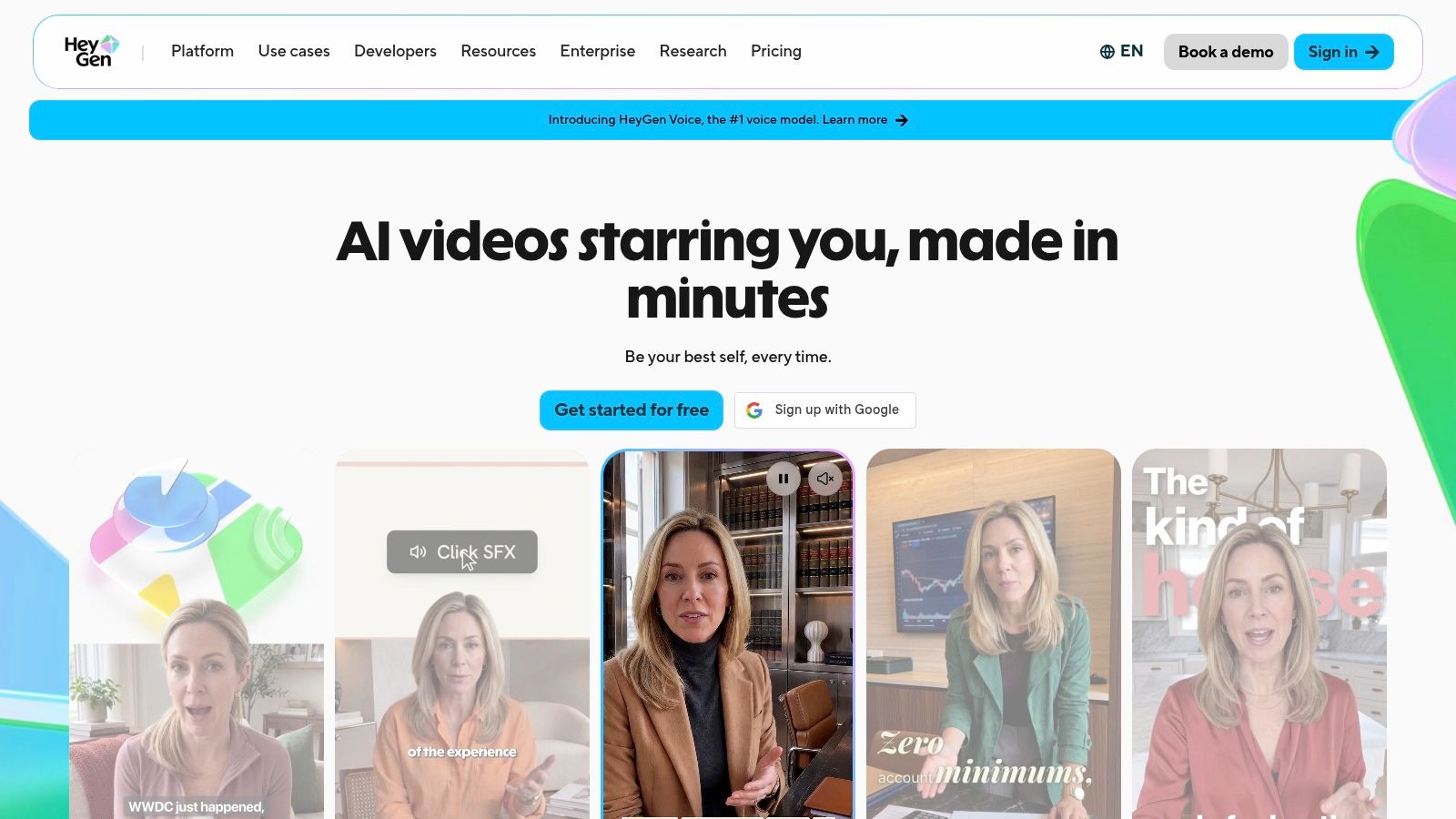
Workflow group: Avatar presenters and localized explainers.
HeyGen makes the most sense when a presenter is central to the video. Think product walkthroughs, instructional messages, and localized marketing where the speaker needs to deliver a clear script.
Its avatar, voice, translation, and lip-sync workflows address a different problem from cinematic generation. You're choosing how someone presents information, not just what a scene looks like.
A presenter isn't automatically a strong social hook. An avatar reading a long introduction can feel static, even when the speech is clear. Cut the script around the viewer's question, then use screen recordings, demonstrations, or supporting visuals where a talking head adds little.
Test delivery before scaling localization
Use your real terminology in the trial. Check brand names, abbreviations, sentence stress, and pauses. A translation workflow still needs someone who understands the target language to review meaning and delivery.
HeyGen also offers separate generative-video options, but don't assume those make its presenter workflow the best choice for action-led storytelling.
When evaluating customer feedback, distinguish general avatar concerns from product-specific complaints. Our collection of original Trustpilot reviews concerns Revid, not HeyGen, and shouldn't be treated as evidence about HeyGen's reliability.
Before subscribing, confirm current free-access restrictions, feature-specific credits, export quality, and video-length allowances. Test the exact presenter format you'll use, rather than a polished template that avoids your difficult pronunciation or timing requirements.
5. InVideo
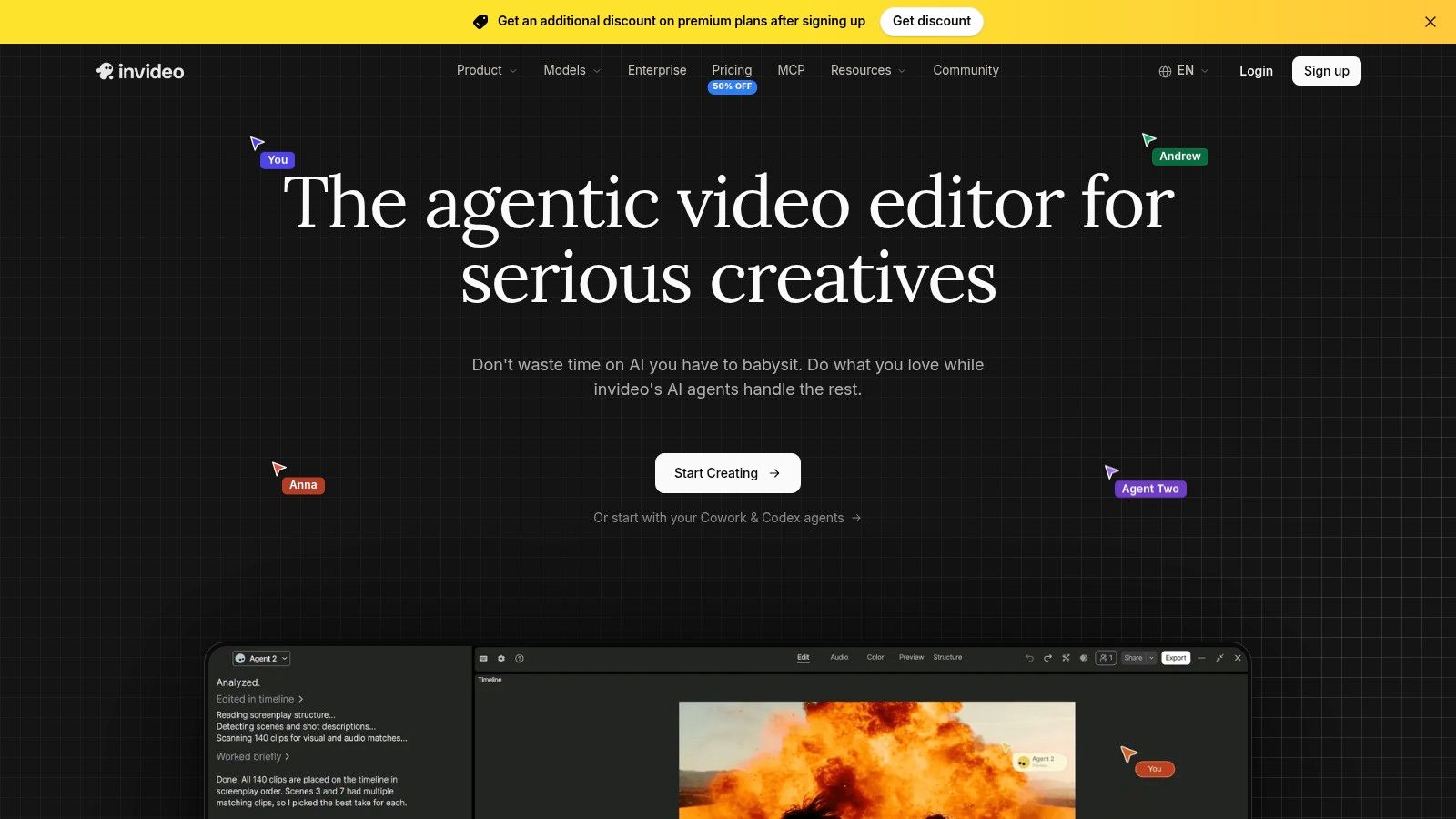
Workflow group: Script-to-video with manual finishing.
The useful question for InVideo isn't just whether it generates a draft. It's whether you can fix that draft without rebuilding the project elsewhere.
Its combination of AI-assisted creation and timeline editing suits creators who expect to adjust scene order, pacing, and supporting media. That matters when the narration is right but the visual sequence doesn't explain the idea.
For example, a small business might generate an introductory video, then replace generic footage with its own product demonstration. The timeline becomes more important than another attempt at the original prompt.
- What works: Using generation to establish a draft, then making deliberate editorial changes.
- What doesn't: Regenerating the entire project whenever an individual scene needs a small correction.
- What to verify: Model availability, credit allowances, seat-based charges, and the billing commitment attached to the displayed price.
The editing workflow is the deciding factor here. During a trial, replace a clip, shorten a pause, move a scene, and change the ending. If those routine revisions are awkward, the initial generation speed won't solve your production problem.
Generative media can still consume credits quickly, particularly when you keep requesting alternative footage. Separate ordinary editing from paid generation in your cost notes. InVideo fits a creator who wants automation plus intervention, not someone who expects every first draft to be ready for publication.
6. Captions
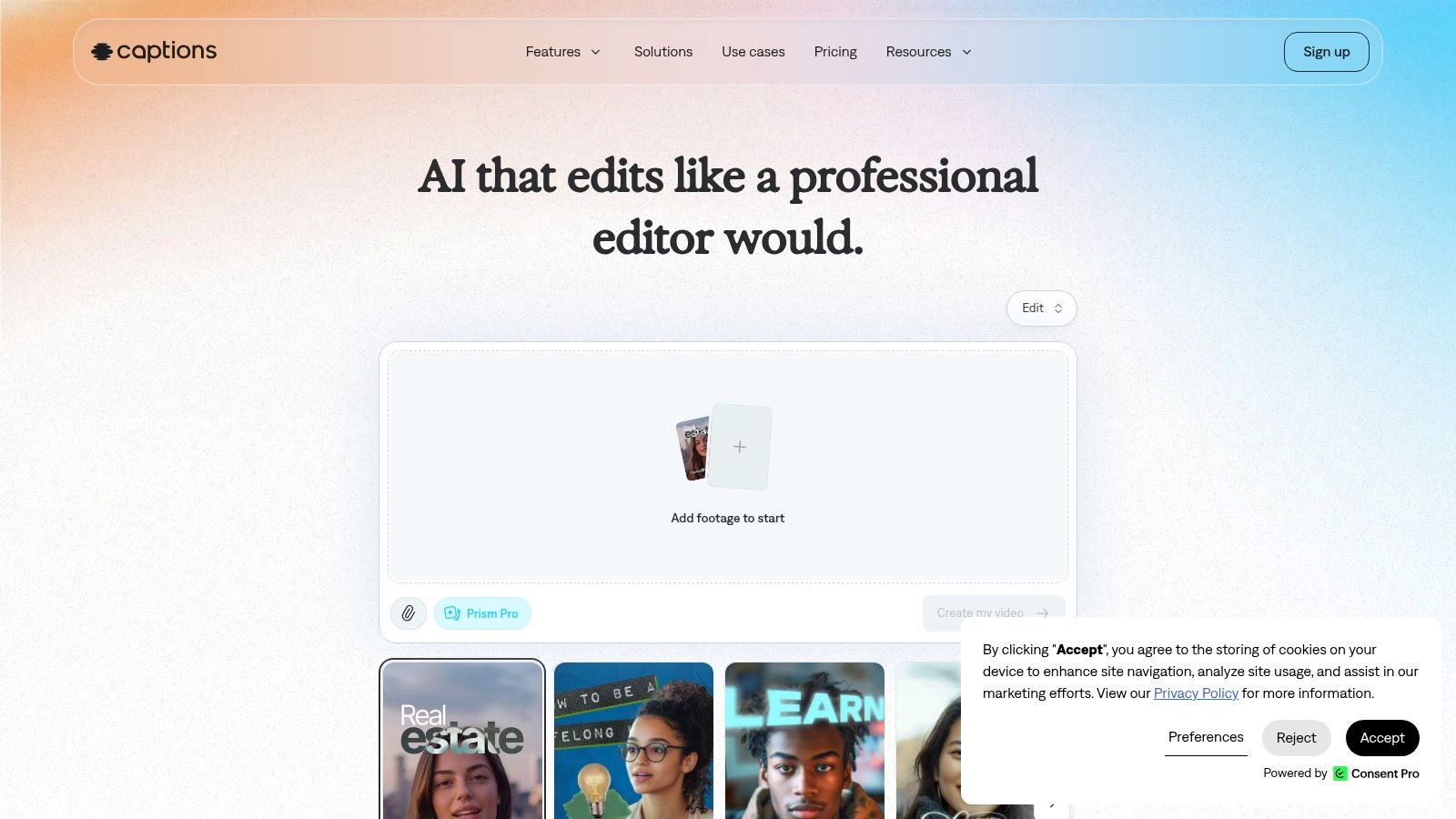
Workflow group: Social editing and repurposing, with generation options.
If you already have footage, Captions deserves a different test from a text-to-video generator. Start with a recording that needs tighter pacing, readable subtitles, and short extracts.
Its combination of captioning, editing, clipping, and generated actors or footage can keep several social-production tasks together. Chat-based editing also gives you an alternative way to request changes, though you still need to inspect what changed.
Practical rule: Don't regenerate footage to solve an editing problem. Correct the cut, caption, or crop first.
For a spoken clip, check caption accuracy against the audio. Watch line breaks, emphasis, and placement over faces or interface elements. Then review the selected extract without the longer recording to confirm that viewers can understand it independently.
Captions fits ongoing social production better than a cinematic-shot brief. Its value depends on whether its editing tools match your recurring work, not whether it can generate an actor.
Plan and device differences deserve close attention. Confirm that the features you want are available on your platform and payment route, rather than assuming every version includes the same tools.
Keep a separate record of editing tasks and credit-consuming generation. If your workload is mostly existing footage, you don't want to choose an expensive generation allowance while overlooking the caption and export features you'll use every day.
7. Pictory

Workflow group: Repurposing written and recorded content.
A useful article isn't automatically a useful video script. Pictory gives marketers, educators, and publishers a route from scripts, URLs, presentations, audio, and images into structured video, but the source material still needs editorial judgment.
Start by removing sentences that depend on page layout or lengthy context. Rewrite the opening around what the viewer needs to understand. Then check whether each selected visual supports the spoken point.
Assembly is the strength, specificity is the challenge
Pictory is better matched to narrated, assembled content than to original cinematic scenes. That's a practical advantage when you're converting educational material, but a limitation when the brief depends on distinctive visual storytelling.
- Use it for: Turning approved material into explainers, summaries, and supporting video content.
- Review carefully: Automatically selected footage, scene boundaries, voice delivery, and captions.
- Expect to intervene: Replace generic visuals when the script describes a particular process, product, or claim.
Our AI video buyer-guide blog addresses related questions about workflows, credits, and alternatives. For Pictory itself, use the vendor's current plan details to confirm trial terms, export permissions, and production allowances.
I'd choose a source document with difficult visual requirements for the trial. If the tool handles only broad lifestyle imagery well, you need to know that before committing an entire content library to the workflow.
8. Synthesia
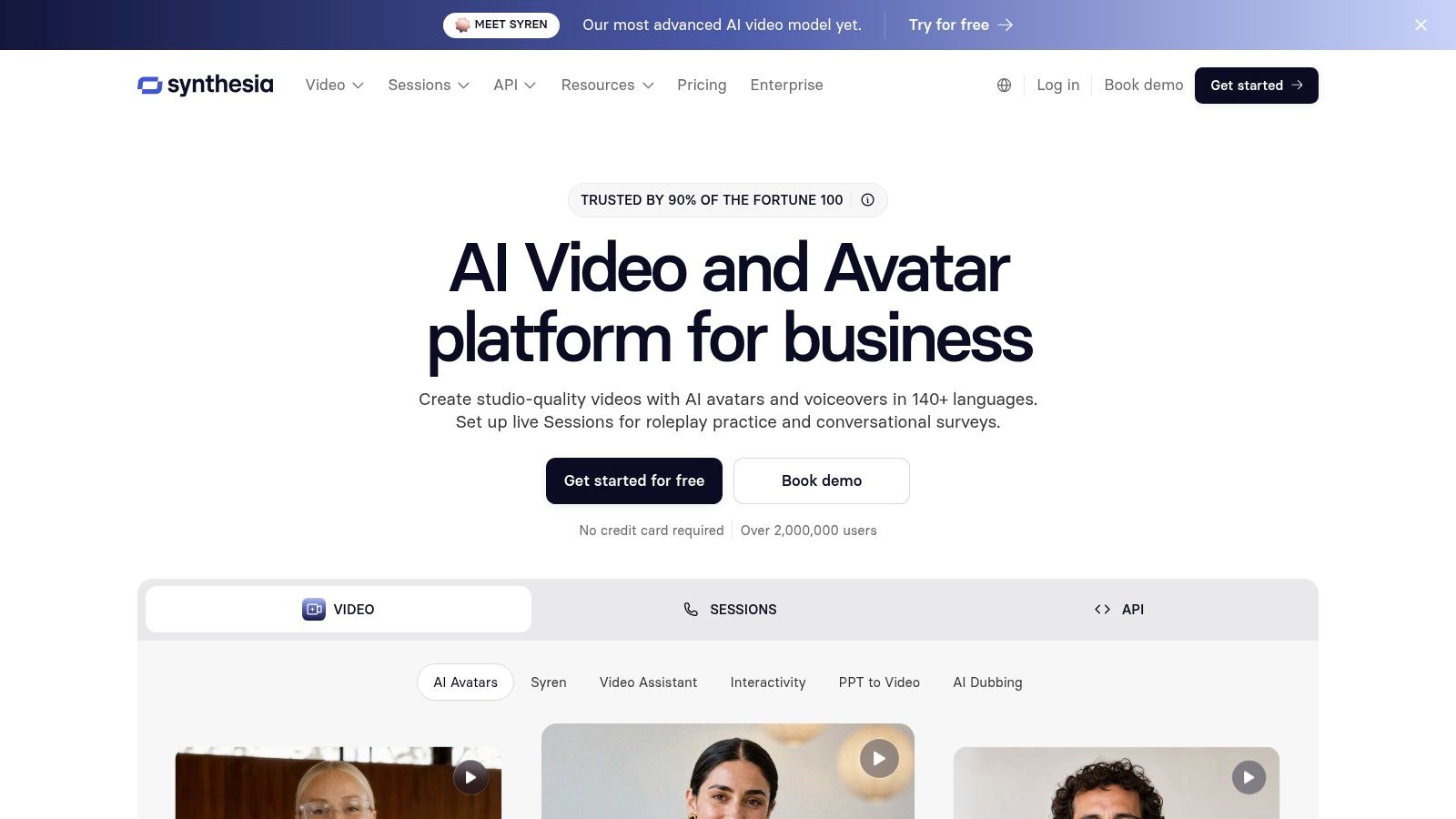
Workflow group: Avatar-led workplace communication.
Synthesia belongs on the shortlist for training, onboarding, internal announcements, and repeatable explainers. Those jobs call for consistent presentation and clear delivery more than dramatic camera movement.
Templates, avatars, voice options, and brand-oriented features help structure that kind of production. Shared workspaces and organization controls become relevant when several people need to create or review content.
The limitation is the performance itself. An avatar presenter isn't interchangeable with a filmed human, especially when the message depends on warmth, spontaneous reaction, or emotional nuance.
Build around the instruction, not the presenter
For a software tutorial, show the interface when you explain an action. Use the presenter to introduce context or connect sections, rather than leaving an avatar on screen while the viewer needs to inspect a setting.
Test a realistic revision as well as an initial video. Change a process step, update a screenshot, and check that the revised narration still matches the visuals.
Free access can help you inspect the editor and avatar approach, but confirm what your selected plan permits you to download. Credits, video-minute allowances, collaboration, and API access can differ.
Synthesia fits planned workplace communication. It fits poorly when you need documentary authenticity, expressive acting, or a fast-moving social montage. Choose it because the presenter format serves the instruction, not because it removes the need to make editorial decisions.
9. Pika
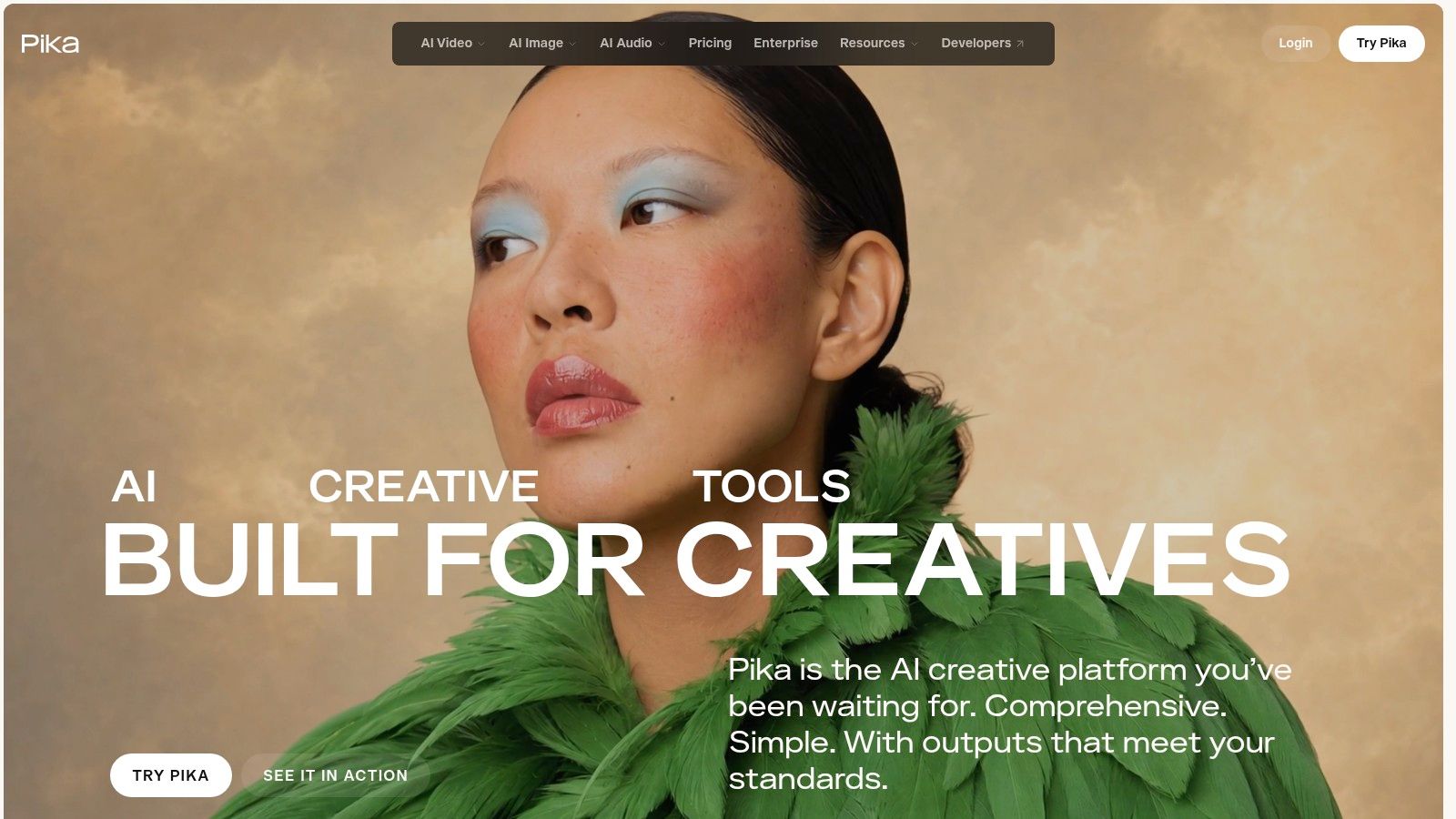
Workflow group: Creative effects and short generated shots.
A surreal transition or stylized transformation is a reasonable brief for Pika. A complete instructional video with narration, captions, and a controlled scene sequence is a different job.
Pika's generation and scene-alteration tools suit experimentation. For a music visual, that can mean creating an unusual insert that you later cut against performance footage or artwork.
The boundary is creative shot versus finished production. You may get the effect you want and still need another editor for timing, sound, titles, and delivery.
Give an effects tool a shot brief, not responsibility for the entire story.
Describe the subject, action, framing, and intended transition. After generation, inspect whether the effect preserves the parts of the image that need to remain recognizable.
Credit costs vary with models and settings, so compare estimated costs before generating. Don't assume free access includes a recurring credit allowance or that a paid plan removes every practical production limit.
If you consult our Product Hunt review collection, remember that it contains feedback about Revid. It isn't independent evidence of Pika's performance.
Pika is worth testing when visual novelty is part of the brief. It's a weaker starting point when your main problem is organizing information or producing a repeatable business-video format.
10. Fliki
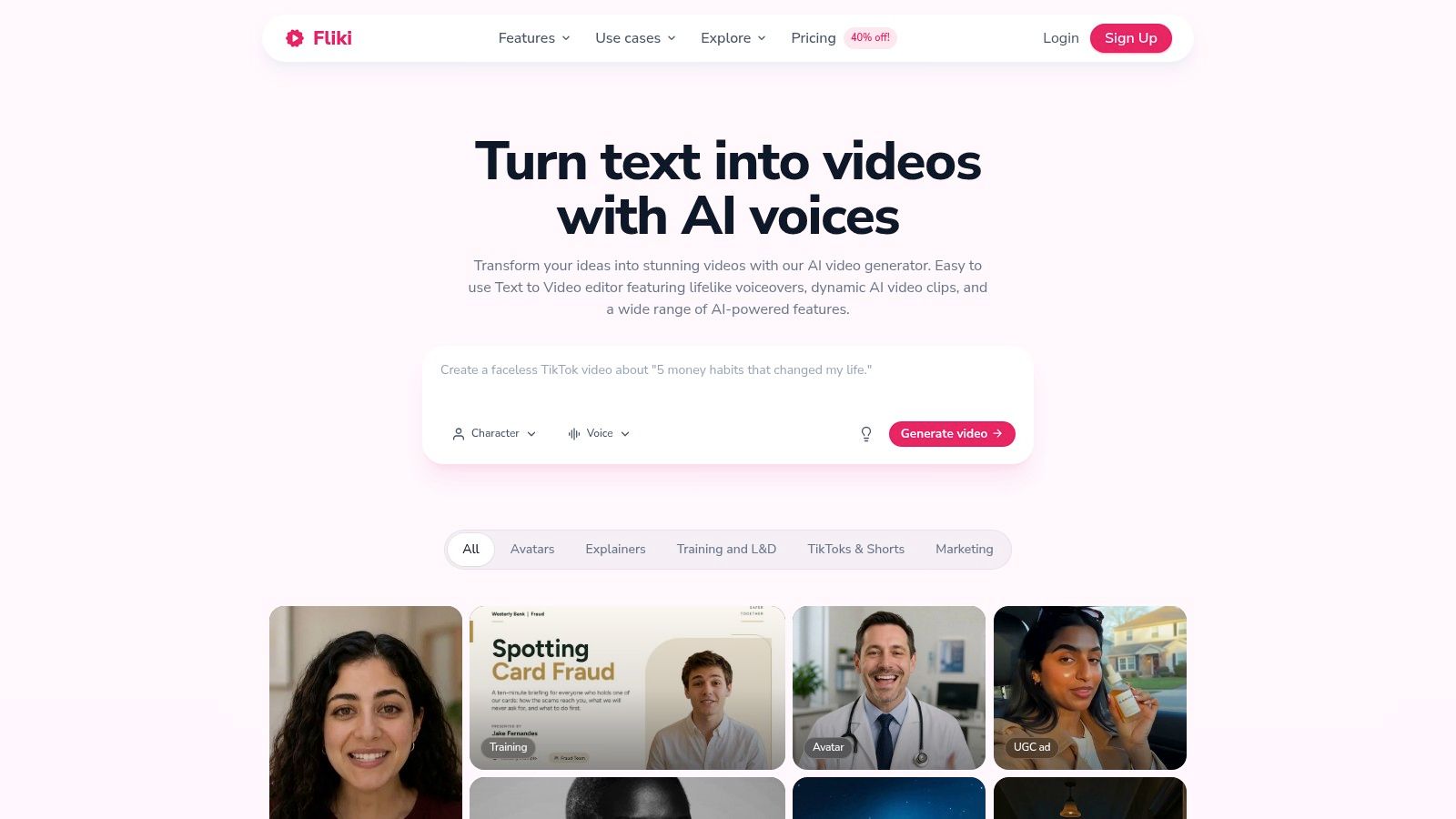
Workflow group: Narration-led script-to-video and repurposing.
With Fliki, start by evaluating the voice. Its idea, script, blog, and presentation workflows make sense when spoken explanation carries the video and the visuals support it.
That's a useful fit for informational content, slide-based explainers, and localized narration. It's less compelling when viewers need a distinctive visual world or a precise product demonstration.
Listen before you choose the visuals
Use a script containing your normal vocabulary. Check names, abbreviations, emphasis, and the way the voice handles a sentence that changes meaning with different stress.
Then review the media selection. Stock footage can establish context, but it shouldn't imply that a generic scene documents your actual product, customer, or result.
- Strong fit: Voice-led explanations built from existing written material.
- Weak fit: Highly specific visual storytelling that depends on original footage.
- Plan check: Confirm credits, available voices, export resolution, and video-length restrictions for the plan you intend to use.
Clear narration doesn't compensate for an unfocused script. Remove repeated points before generating, and replace visuals that merely decorate the narration.
Use free access to evaluate the full workflow rather than just auditioning voices. You need to know how easily you can revise a sentence, swap media, adjust pacing, and export the result. Those operations determine whether Fliki fits a recurring publishing routine.
How the 10 AI video software options differ on free access, published paid pricing, and best-fit use
| Item | Free option | Published paid entry | Best for |
|---|---|---|---|
| Revid AI | No free option stated | Growth at $39/month | Fast short-form and faceless videos |
| Runway | 125 credits, allocated once | Paid plans available; entry price not listed | Visual experimentation and media editing |
| Google Flow | Requires an eligible Google AI subscription | Subscription required; entry price not listed | Directed scenes and visual sequences |
| HeyGen | Up to 3 videos per month | Creator and Pro plans; prices not listed | Presenter-led business videos |
| InVideo | No free option stated | Starter at $10 per seat/month, billed annually | Generated videos with manual timeline editing |
| Captions | No free option stated | Max at $24.99/month with 500 credits | Captioning and short-form video editing |
| Pictory | 14-day free trial | Starter at $25/month, billed annually | Repurposing written or recorded content |
| Synthesia | Free Basic plan | Starter plan; price not listed | Training and workplace videos with avatars |
| Pika | Free access; no monthly credit allowance stated | Starter plan; price not listed | Short creative videos and visual effects |
| Fliki | 3 credits per month | Standard plan with 180 credits per month; price not listed | Narrated informational videos |
Choosing your AI video software before you commit to a subscription
Start with the deliverable. For short-form social clips, test Revid or another guided production workflow. For presenter videos, compare HeyGen and Synthesia using the same script. For cinematic scenes, give Runway, Flow, or Pika a defined shot brief. For repurposed content, test Pictory, Fliki, Captions, or InVideo against the source material you already use.
Then finish a real project. Don't stop when the preview looks promising. Correct the script, check pronunciation, replace irrelevant footage, fix captions, and export in the format you need.
A meaningful comparison needs more than visual appeal. The T2VEval-Bench evaluation treats prompt alignment, temporal consistency, visual quality, and motion realism as distinct dimensions. Apply that thinking to your trial: a beautiful clip that ignores the instruction isn't a successful result.
Buying rule: Record credits used per finished video, including discarded attempts, rather than credits used by the successful generation alone.
Keep a brief production log with the starting allowance, generation costs, retries, manual corrections, and final export. Also note whether you needed another editor. A subscription that appears inexpensive can be a poor fit if you spend most of your time repairing its output.
For marketers, test variation as well as initial creation. The Interactive Advertising Bureau reported that 42% of video-ad buyers planned audience-specific versioning in 2025. Try changing the hook, audience, format, or ending without rebuilding the entire project.
Check the publishing workflow too
Decide how you'll disclose meaningful AI involvement before you publish synthetic presenters, voices, or realistic scenes. Adobe's global creator survey found that only 49% of surveyed creators always or often disclosed AI use. Check current platform requirements and whether the tool supports visible labels, metadata, or your own disclosure text.
Finally, confirm current pricing, billing frequency, credit rules, export permissions, and cancellation terms on the vendor's site. Don't buy from an old comparison's price alone.
Revid offers a free trial with no credit card required to start. Use it on a short-form project you genuinely need, inspect the editing and credit costs, and decide whether the finished result justifies a subscription.
Revid Reviews collects public feedback about Revid and links each review to its original, alongside buyer guides covering pricing, credits, comparisons, and common purchase questions. Visit Revid Reviews to check those accounts against the workflow you need before you subscribe.