A creator making a faceless YouTube Short and a marketer building a presenter-led training video rarely need the same software. Yet many lists treat every AI video tool as interchangeable, even though generating a cinematic shot, captioning recorded footage, and turning a script into a finished video are different jobs.
This guide groups AI video tools by the work they do best. Each entry explains the practical trade-offs, including what credits cover, what the tool produces, and what you'll still need to do before publishing. Creator adoption is already substantial: a 2025 survey of 514 creators found that about 83% used AI in at least part of their workflow, though the survey wasn't a census of all creators (Digiday's creator survey). That makes workflow fit more useful than a feature-count contest.
Disclosure: Revid Reviews is run by the team behind Revid, one of the tools listed here. Each entry covers limitations alongside strengths, and the comparison table lets you scan the details that matter for your workflow.
Table of Contents
- 1. Revid for frequent short-form production
- 2. Runway for creative shot control
- 3. Google Veo and Flow for cinematic scenes
- 4. HeyGen for presenter-led explainers
- 5. InVideo for prompt-led marketing drafts
- 6. Captions for polishing recorded social videos
- 7. Pictory for turning written material into video
- 8. Pika for effects and playful transformations
- 9. Luma AI for intermittent generation
- 10. Kling AI for standalone generated clips
- How the AI video tools differ by workflow, access, and main limitation
- Matching your AI video workflow to the right tool
1. Revid for frequent short-form production
Revid is built around creating short-form videos for social platforms, including TikTok, Instagram Reels, YouTube Shorts, and X. You can start with an idea, a link, or existing content, then use the platform for scripting, visuals, voiceovers, captions, editing, and publishing. That breadth is useful if you want fewer handoffs between drafting a script and preparing a post.
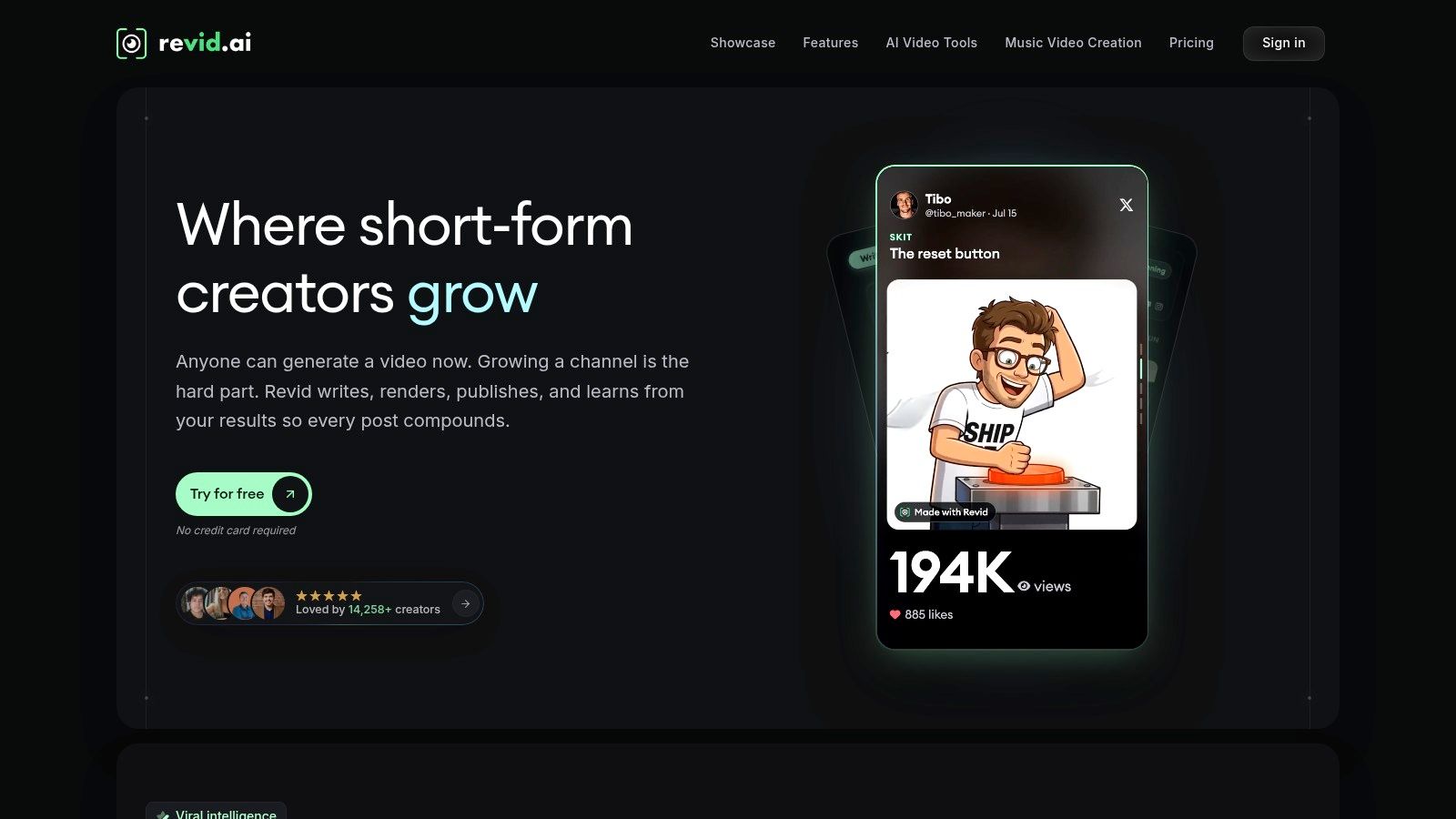
It's a practical candidate for faceless-channel workflows, where narration, visuals, and captions need to come together without a camera recording. Revid also offers AI voices, avatars, music-video tools, publishing automation, and developer tools. That range can be useful for a frequent publishing schedule, but it's more than you need if all you want is a standalone cinematic clip.
Credit reality: A tool that automates several stages can still be hard to budget if generations use credits and some outputs need retries. Track the total credits used to produce a publishable video, not just the cost of one initial generation.
The main trade-off is between workflow coverage and predictability. Credit consumption can make costs difficult to estimate, and you may need to regenerate or edit results before they're ready. Before paying, try a representative post and note which stages the tool replaces. For more about how the product compares with alternatives, Revid Reviews publishes buyer-focused coverage, including its limitations and common complaints.
2. Runway for creative shot control
Runway is suited to creators who want to direct how a shot looks, then refine it in a creative workspace. Its video generation, shot and scene tools, and editing features offer more control than a one-prompt workflow, though learning the interface takes time.

Runway offers a limited free tier and paid plans. Check current plan terms before using outputs in commercial work. Credits are finite, so repeated attempts to get the framing or motion right can increase the cost of a shot. That trade-off makes Runway a better fit for projects where creative control matters than for quick captioning or a basic social edit.
Reviews include complaints about credits, outputs, and support. Weigh those concerns against the control Runway offers, particularly when a deadline leaves little room for retries. Before committing to a workflow, test generation, export, and editing with a representative project. The Revid Reviews blog covers other AI video tools and their trade-offs.
3. Google Veo and Flow for cinematic scenes
For a creator who needs a scene rather than an assembled marketing video, Google Veo and Flow are worth considering. Veo generates video from text or image inputs and can include generated audio. Flow provides a filmmaking workspace for shaping clips and scenes, with reference images, clip extension, and camera or scene controls among the available capabilities.

Reference images can help steer the visual direction, while scene controls and extension tools are useful when one isolated shot won't tell the whole story. Generated audio can also reduce the need to create every element separately. But access and generation limits depend on which Google product or developer platform you use, and API use may be metered separately. Check the product you'll be using, not just the model name.
The output still needs a human review. Inspect whether the action, framing, and audio fit the intended scene, then edit the clip into the larger video. Veo and Flow are strongest as components in a visual production process; they don't automatically supply the full script, captions, pacing, and publishing workflow a social post may need.
4. HeyGen for presenter-led explainers
Use HeyGen when the video needs a presenter but you don't want to record every version yourself. The platform focuses on scripted avatar videos, AI voices, and localization, with stock and custom avatars. It also offers a separate general-purpose video model with text-, image-, and reference-to-video options.

That makes it a natural fit for training, explainers, and marketing messages where a consistent presenter can carry the content. Language options help when you need versions for different audiences. The format doesn't suit every brand, though. A synthetic presenter can feel out of place in a personal creator channel or in a video that depends on the trust and spontaneity of a real speaker.
Some user reviews cited in the results praise ease of use and avatar quality, while others mention occasional glitches and fast credit use. The practical test is to generate a short sample using your own script, then check pronunciation, pacing, gestures, and how natural the presenter looks on the devices your audience uses. Review recent HeyGen feedback on Trustpilot alongside the plan terms, because feature access and costs vary with usage.
5. InVideo for prompt-led marketing drafts
InVideo combines AI-assisted video creation with a timeline editor. Its guided workflows can turn a prompt into a draft video, while the editor lets you assemble and revise material yourself. That mix can work for a small business or marketer who needs a serviceable first cut quickly but still wants to replace footage, adjust the script, or fix the sequence.
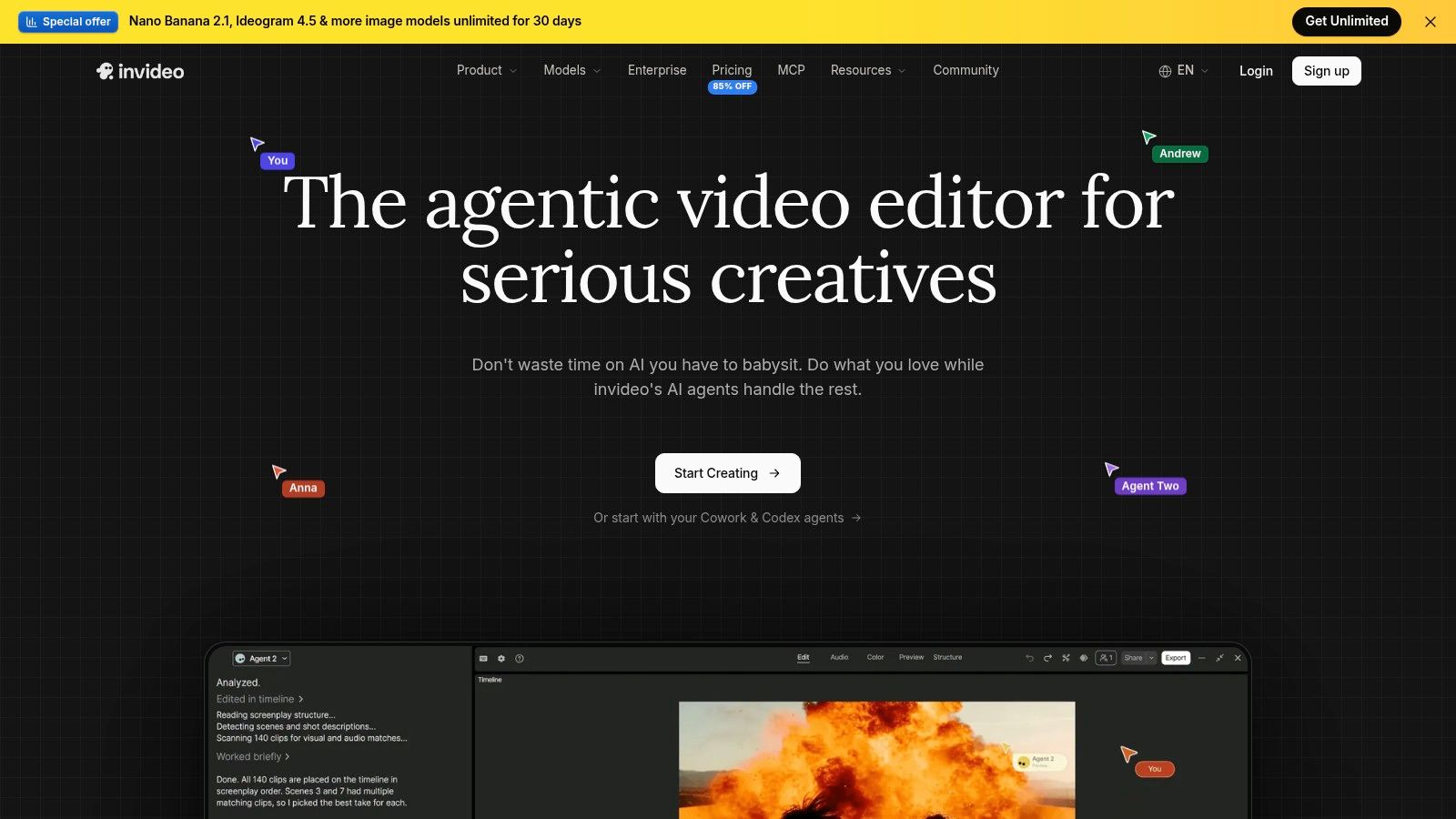
The platform combines AI creation with stock and generated media, voice, and music generation. Its help center says downloading and manual timeline edits don't consume credits, while AI generation does. That distinction matters: you can spend credits to create a draft and then make ordinary timeline revisions without each edit adding to the generation bill. Costs for AI use vary by model, so verify which generation choices your intended plan includes.
Monthly plan credits reset, and unused credits don't roll over. Recent reviews cited in the results include complaints about credit transparency, output quality, and support. For a fair trial, use a real campaign script and check whether the selected footage illustrates the product, rather than merely matching keywords. InVideo can help assemble a first version, but it won't remove the need to correct generic visuals, tighten the copy, and check every claim before publication.
6. Captions for polishing recorded social videos
Captions is a social-video editing tool for people who already have footage, or want to combine editing with AI-generated material. Its features include automated captions, editing, generated footage and actors, chat-based editing, clipping longer videos into short posts, translation, and dubbing. That mix makes it more relevant to short-form post-production than to cinematic scene generation.
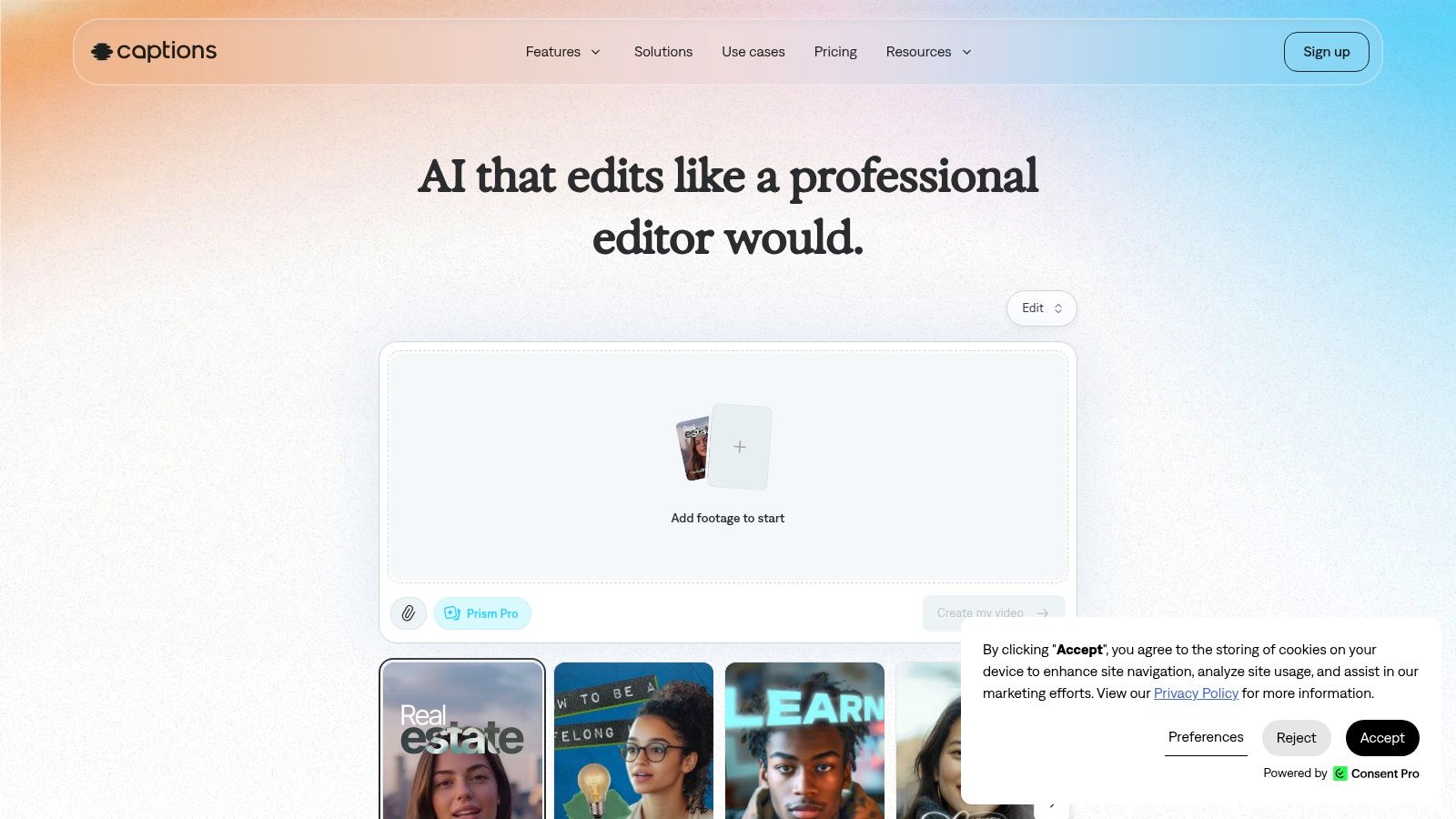
If you record a talking-head video, the workflow can help you caption and edit it, then create variations or add generated scenes. Clipping and translation features can also support a repeatable publishing process. The key is to treat automated captions as a draft: check names, product terms, and punctuation against the actual audio before exporting.
Plan details and pricing vary by platform and subscription, and higher-tier generative features use monthly credits. Some plan information may be clearer inside the app than on the general pricing page, so confirm that the specific features you need are available in your version. Captions is a stronger choice when your bottleneck is polishing and adapting social footage than when you want a fully generated film scene from scratch.
7. Pictory for turning written material into video
If your starting point is a script, article, or presentation rather than a camera recording, Pictory offers a content-first workflow. Its tools support script-to-video creation, repurposing existing content, stock media, and AI video creation and editing. Instead of building a sequence from a blank timeline, you bring the material and shape it into a video.

That approach can suit informational videos, training content, and business marketing. A stock-led draft can give each part of a script a visual quickly, but it can also look generic if you accept the first suggestions. Replace mismatched clips, add brand-specific visuals, and revise the timing so the finished video doesn't feel like a narrated slide deck.
Pictory is less focused on precise cinematic shot control than tools built to generate individual scenes. Check the plan's available minutes and credits against the amount of content you expect to export. If most of your work begins with text, a content-first tool can cut down the assembly work. If your main need is visual direction or footage transformation, a generative video workspace may be a better match.
8. Pika for effects and playful transformations
Pika is oriented toward creative video generation, effects, and transformations for short, shareable clips. It supports text-to-video and image-to-video generation, multiple models, and effects that go beyond a basic prompt-and-render workflow. It's worth trying for stylized social posts or playful edits where the effect itself is part of the idea.
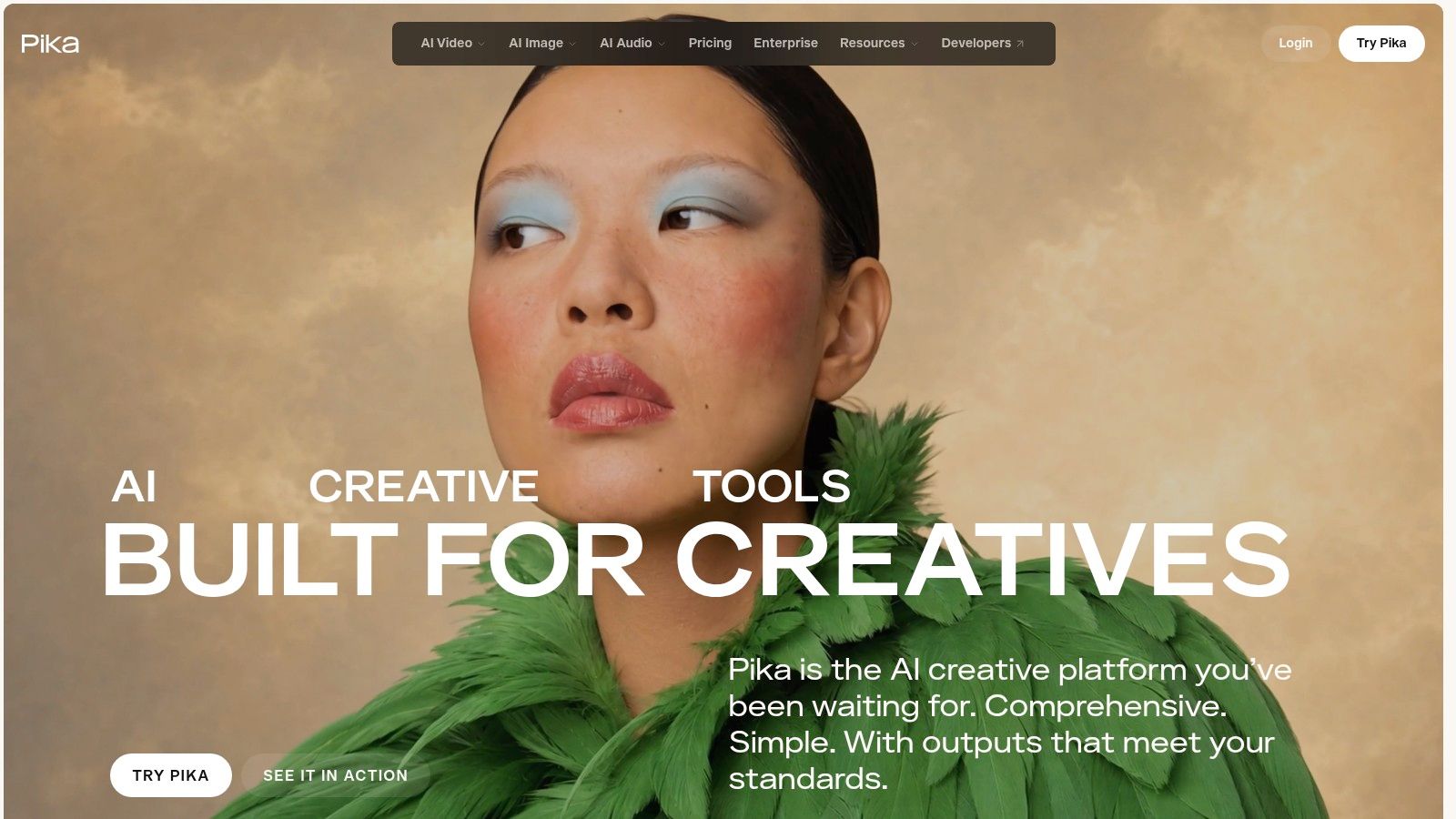
The limits show up when the brief calls for a restrained business style or a presenter-led explanation. Effects-heavy output won't automatically fit a product's visual identity, and the platform isn't a complete system for scripting, captioning, editing, and publishing. Treat it as a way to make a particular shot, then bring that result into your normal editor if it needs to sit inside a polished campaign.
Pika offers free access subject to limits, while paid plans use credits. Credit costs vary by model and generation type, so compare the intended effect and model before planning a batch of videos. Paid plans can remove watermarks and add usage, but test the output first. A visually clever result that needs substantial correction may not be the quickest route to a publishable post.
9. Luma AI for intermittent generation
Luma AI combines image and video generation with multiple AI engines, lip-sync, and enhancement tools. Its credit-based access includes subscriptions as well as one-time credit packs, which may appeal to creators who generate occasionally and don't want every project tied to a recurring subscription.

A useful feature for planning is that the creation flow shows the credit cost before generation. That gives you a chance to decide whether a particular model and setting are worth trying before you commit credits. Still, the total usage depends on the model, duration, and settings, so compare the credit allowance with the kind of work you produce.
Luma isn't a complete editing or publishing workflow. You'll need another tool to arrange clips, finish captions, check pacing, and prepare the final social export. Its image tools can be useful when you need to create or develop a visual reference before generating video, but that doesn't make it a one-stop production suite. Choose it for the generation options and credit model, not because you expect it to handle every step after the prompt.
10. Kling AI for standalone generated clips
Kling AI focuses on generating short clips from text and image prompts. Model and quality options let creators choose how to approach a shot, and model updates have added audio-visual generation capabilities. It's best treated as a source of individual scenes or shots to assemble elsewhere, not as a finished social-video pipeline.
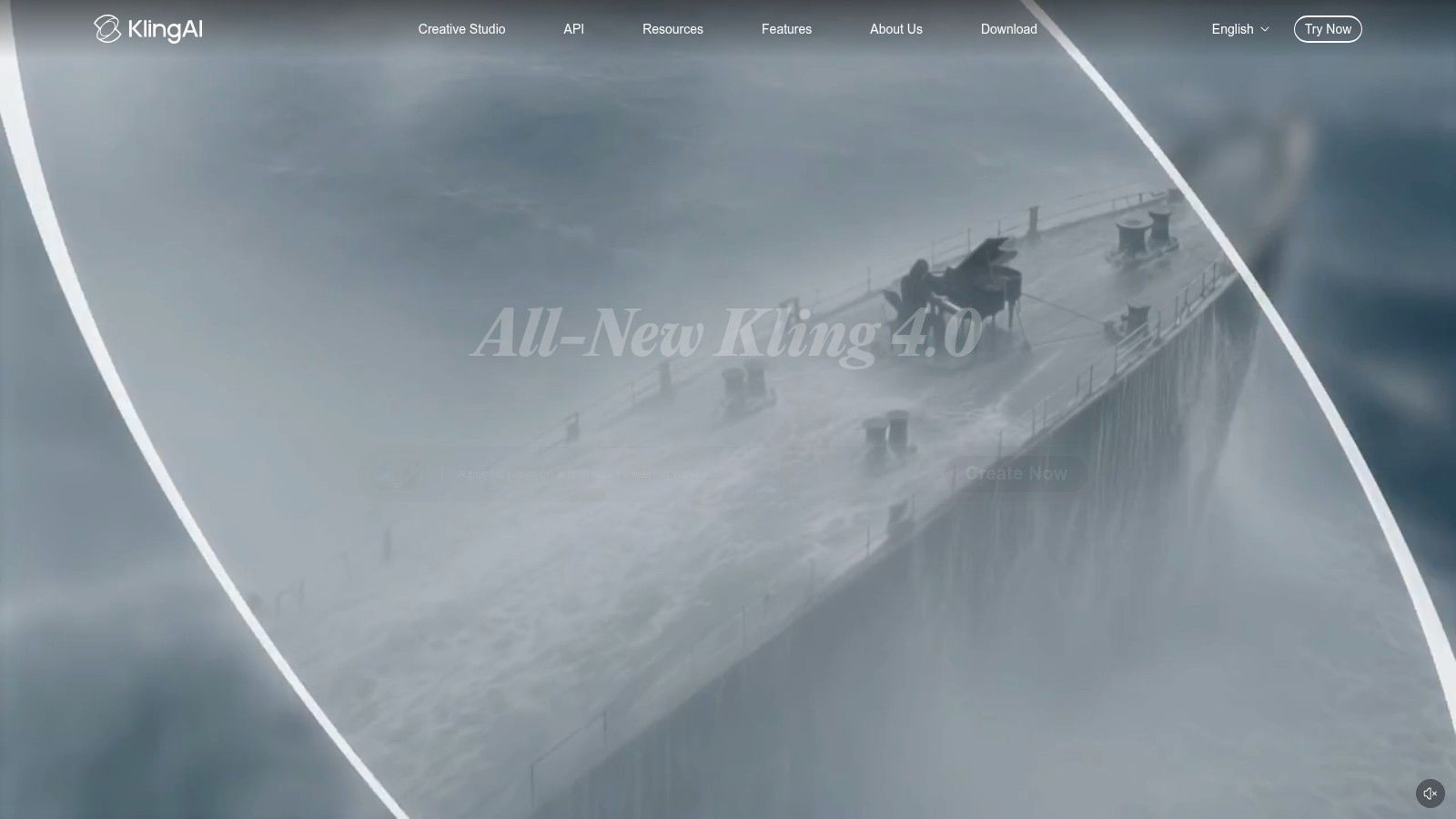
That distinction affects the workload. A generated clip may still need trimming, captions, narration, music, a hook, and an ending before it's ready to post. Credit requirements vary by model and settings, and some prompts take multiple attempts to get a usable result. Budget for those retries rather than assuming the first generation will make the final cut.
Kling makes sense when you want a particular visual shot and already have an editing workflow to finish it. It's less suitable if your main requirement is turning an idea into a complete vertical video with voice, captions, and publishing. Start with a small test: generate a scene you know how to evaluate, then check whether it fits the sequence around it and whether the credits spent were reasonable for the usable output.
How the AI video tools differ by workflow, access, and main limitation
The right choice depends on the work you need to finish. A prompt-to-video tool can speed up short-form publishing, while a shot generator may leave editing, captions, and assembly to you. Compare access alongside the workflow, since free tiers, trials, and credit limits differ.
| Item | Best for | Free access | Primary workflow | Main limitation to check |
|---|---|---|---|---|
| Revid | Frequent short-form social video publishing | Free trial, no credit card required | Generate a script, visuals, and voice from a prompt, then edit and publish | Credit use and retries can make costs unpredictable |
| Runway | Creators wanting generative video plus editing tools | Free tier with one-time credits | Generate and refine shots in a creative workspace | Credits are finite, and the interface may take time to learn |
| Google Veo / Flow | Cinematic shots with reference-guided generation | Free access and usage limits depend on the platform | Generate and shape video clips, scenes, and stories | Access, usage limits, and API costs vary |
| HeyGen | Presenter-led training, explainers, and marketing videos | Free plan with limited video creation | Create scripted avatar videos and localized versions | Costs vary, and generated presenters may not fit every brand |
| InVideo | Marketers and small businesses making edited videos | Free plan with limited exports and watermarks | Generate videos with AI, then assemble and revise on a timeline | AI generation uses credits that reset monthly |
| Captions | Creators editing and publishing short-form videos | Free plan with limited features and usage | Caption, edit, translate, and create video variations | Features, pricing, and credits vary by plan and platform |
| Pictory | Turning scripts and existing content into informational videos | Free trial with limited video creation | Convert written material into videos using stock media and editing tools | Stock-led videos may look generic; check plan minutes and credits |
| Pika | Stylized, shareable clips and creative effects | Free access with limits | Generate and transform short videos from text or images | Credit costs vary, and free usage may be restrictive |
| Luma AI | Intermittent image and video generation | Free access with limited generations | Generate images and videos using credit-based access | Credit use varies, and editing and publishing tools are limited |
| Kling AI | Standalone generated shots for later editing | Free access with limited credits | Generate short clips from prompts or images | Credits vary, outputs may need retries, and clips are not finished videos |
Treat the free-access details as a starting point, not a measure of how much finished work you can produce. A trial or limited plan may let you assess the workflow, while usable output can still depend on credits, export limits, or repeated generations. Compare the amount of editing left after generation, too: a polished shot and a publish-ready short video are different deliverables.
Matching your AI video workflow to the right tool
Start by naming the job you need done most often. If your bottleneck is a cinematic shot, test tools built for generating and shaping scenes, such as Runway, Veo with Flow, Pika, Luma AI, or Kling AI. If the video needs a scripted presenter, HeyGen is more directly suited to that format. For editing recorded footage, captions, or short-form variations, consider Captions. If you're turning written material into video, compare Pictory with a broader social-video workflow such as Revid or InVideo.
Don't choose from a feature list alone. Run two or three candidates through the same real project, using the script, source footage, brand assets, and aspect ratio you'd normally publish. A tool that makes an impressive isolated clip may not handle your captions, narration, scene changes, or final export cleanly.
Compare the finished video, not the demo: A useful trial ends with a publishable draft, or a clear account of what still needs fixing.
Track how many credits each video consumes, including failed or repeated generations. Note which manual edits don't use credits, what exports are available, and whether you need a separate editor or publishing tool to finish the work. If the workflow relies on a presenter, check pronunciation and localization. If it uses generated scenes, inspect the action and continuity. For stock-led video, replace visuals that don't fit your message instead of assuming a convenient match is a good one.
Before committing to a paid plan, review the vendor's current pricing and credit rules. These products change, and a plan's headline features won't tell you how much it costs to produce a usable video in your workflow. Read recent user feedback too. In particular, look for specific complaints about credit use, generation results, account support, or features that matter to your work, rather than relying on a general star rating.
There's also a publishing decision beyond software. YouTube requires disclosure for realistic synthetic or meaningfully altered content, while its monetization policies separately target mass-produced, repetitive, or inauthentic content (YouTube's disclosure guidance). A label alone doesn't turn a repetitive template into original work. Write a distinct script, vary the visuals, add meaningful human direction, and check whether the finished video gives viewers something beyond interchangeable narration over stock footage.
Disclosure and rights aren't the same question. Adobe and Harris Poll research covering creators in eight countries found that 90% considered copyright protection important for work made with creative AI assistance, while creator disclosure practices varied (Adobe's creator research). Check the tool's terms for commercial use, voice and music rights, and any available provenance information. A disclosure may help meet a platform's transparency requirements, but it doesn't by itself guarantee exclusive ownership of every generated element.
For creators comparing Revid with alternatives, Revid Reviews collects public Revid reviews from Trustpilot, X, and Product Hunt, with links to the originals. Our site also covers questions buyers ask about Revid's costs, credits, cancellation, and comparisons with other AI video tools. Use that material as one input, then test the candidate tools on your own project before deciding.
Revid Reviews collects public reviews of Revid from Trustpilot, X, and Product Hunt, and links each review to its original so you can assess the comments yourself. If you're comparing AI video tools or deciding whether Revid fits your short-form workflow, visit Revid Reviews for buyer-focused coverage of strengths, limitations, credits, and alternatives.