Ten AI video generators, sorted by what you need to make. You have a finished script for a faceless YouTube explainer due Friday and no editor on call. The wrong generator can burn a week of credits on clips you cannot publish, because a pretty first frame is not the same thing as a usable video.
That gap is older than the current product wave. VGAN, presented at NeurIPS in 2016, trained a generative adversarial network on unlabeled clips and produced about one-second videos at 64×64 pixels, separating foreground motion from a relatively static background. Later work, from TGAN and MoCoGAN through Microsoft's NUWA, CogVideo, Stable Video Diffusion, and OpenAI's Sora technical report in February 2024, kept the same problem in view. Temporal consistency, object identity, camera movement, and physical plausibility still decide whether a clip survives a real brief.
Demand is already high, and so are the reasons people bounce. Adobe's 2025 Creators' Toolkit Report, covering more than 16,000 creators, found that 86% were actively using creative generative AI. Within that group, 52% used it to generate new assets such as images and video, 55% used it for editing, upscaling, or enhancement, and 48% used it for ideation. The buying friction is just as clear. 38% cited high cost, 34% unreliable output quality, and 28% uncertainty about how models were trained.
This guide compares ten leading AI video generators by the job they do, the credit system that sets real output cost, and the limits that show up after the demo. Disclosure: Revid Reviews is run by the team behind Revid, so Revid's entry is flagged as such. Public pages are linked so you can check the terms yourself before you spend.
Table of Contents
- 1. Google Flow
- 2. Runway
- 3. Kling AI
- 4. Revid
- 5. HeyGen
- 6. InVideo AI
- 7. Adobe Firefly
- 8. Pika
- 9. Pictory
- 10. Synthesia
- How the 10 best AI video generators compare by use case, free access, and credit model
- Test the same brief in two free tiers before you commit credits
1. Google Flow
Google Flow is the workspace I would open first for a concept film, a music-video look, or a sequence of related shots, not a finished talking explainer. You develop scenes from prompts, images, or video references, then refine them in a project rather than exporting a single orphan clip.
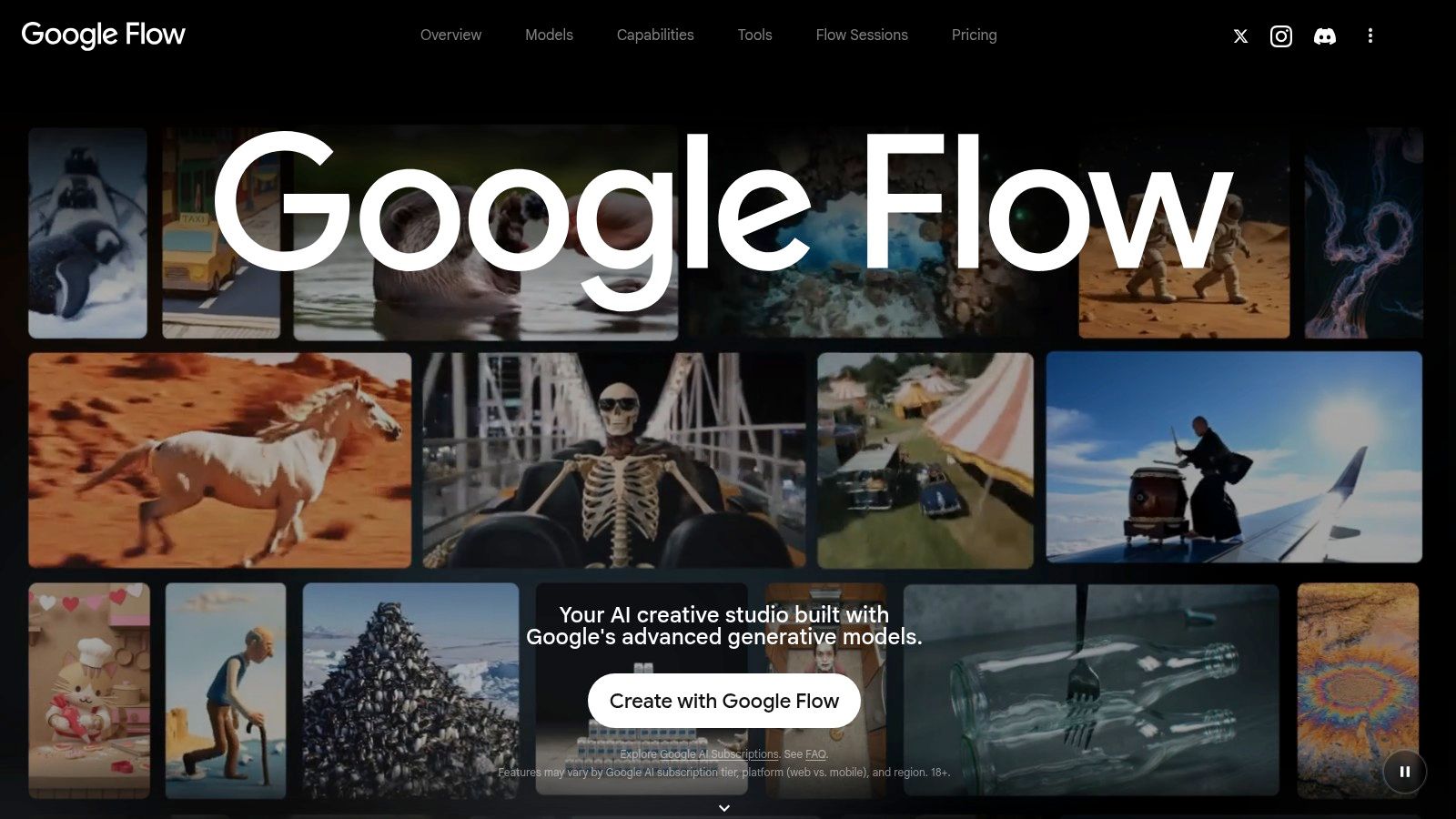
On the Google Flow site, the practical set is text-to-video, frames-to-video, and ingredients-to-video, plus video extension and native audio through Veo 3.1. Gemini Omni covers creation and editing from mixed inputs. Scenebuilder and natural-language edits are what make it a story tool instead of a one-shot toy.
Who should pay for the credits
A free tier exists, which is the right way to learn the board before you commit. Credits and feature access depend on the plan and region, and generation cost changes with the model and settings. That variability is the complaint that matters. A spectacular 8-second shot can be cheap or expensive depending on what you turned on, and you will not know until you run your own scene.
What works
- Planning and refinement sit together: You can iterate a scene instead of downloading isolated clips and hoping they match.
- References beat vague prompts: Frames and ingredients keep characters and props closer to what you uploaded.
- Audio can come with the shot: Veo 3.1's native audio saves a separate sound pass on experiments.
What does not
- The credit math is not obvious at first. Different models and settings spend at different rates.
- Regional and plan locks are real. A feature you saw in a demo may not be on your account.
I would not use Flow as the only tool for a captioned Short due tomorrow. I would use it when the picture is the product.
2. Runway
Runway earns its price when footage already exists and the job is variations or a controlled edit instead of a blank-prompt clip. Generation and editing sit on the same Runway account, which matters once a project moves from a test generation to a real cut.
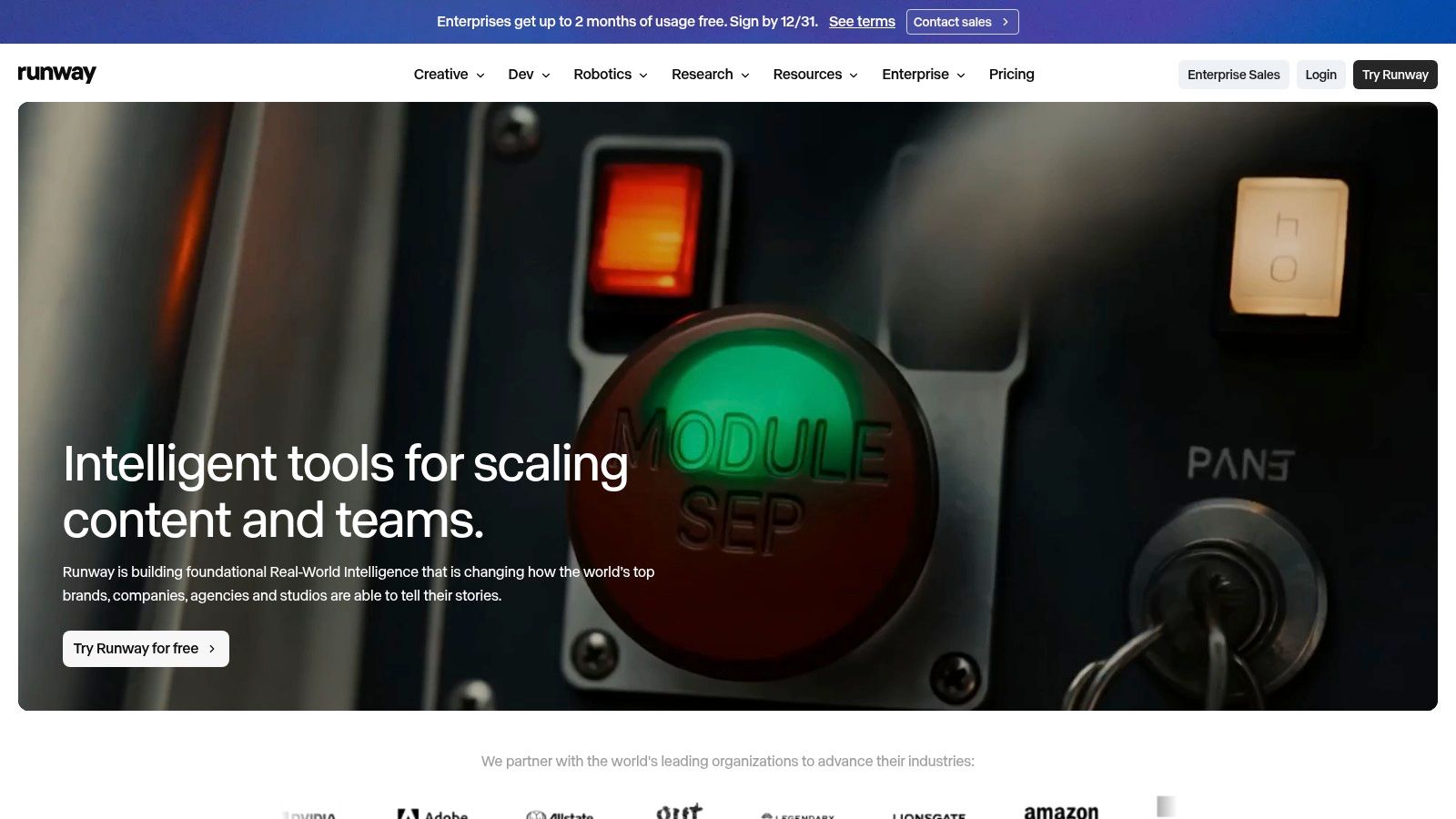
You can generate from text, images, or video across several models. Aleph 2.0 is the part to check when real footage needs changes, while Edit Studio handles assembled sequences. Paid plans use monthly credits that also cover image and audio tools. The free plan is a one-time allotment, so treat it as a probe.
Check Runway's current plan terms for whether unused credits carry over, since a delayed shoot can change what you pay for. Higher-cost models can drain the balance fast, and the control surface is more than a social manager needs for one product cut. If you want a plain map of how these generators differ before you pick a plan, start with the Revid Reviews blog, then run one Runway test on footage you already own.
I would buy Runway for a small creative team that will edit every week. I would skip it for a captioned faceless post if Aleph will never be touched.
3. Kling AI
Kling AI is the motion tool I shortlist when the asset already exists as a still. Product photos, character art, and keyframes are easier to animate here than to rebuild from a paragraph.
What the workspace actually does
The Kling AI workspace covers text-to-video and image-to-video, motion control, video extension, plus image, audio, avatar, and lip-sync tools. Paid plans add monthly credits and higher-resolution generation. Kling's plan information includes commercial-use features on paid tiers, which is the line to read before you put a clip in an ad.
Credit count and resolution are the price. A loose social loop may land on the first or second try. A precise camera move, a specific hand action, or a locked product angle often needs rerolls, and each reroll spends credits. Promotional pricing is easy to mistake for the ongoing rate, so check the current plan terms on the day you subscribe.
Fit check
- Still-to-motion work: Artwork, product imagery, and character images are the jobs it is built for.
- Short sequences: Extension and motion control help you build a beat, not a ten-minute film.
- Exact briefs: Expect editing or another take when the prompt has to hit one specific action.
I would not pick Kling as the home for a weekly explainer with voiceover, captions, and three aspect ratios. I would pick it when the still is already approved and the missing piece is movement.
4. Revid
A faceless channel lives or dies on posting volume, and that is the job Revid is built for. Revid targets TikTok, YouTube Shorts, and Instagram Reels: type a prompt and it returns a script, visuals, and voice in one generation. It also generates the video title and description for social media and can auto-post, which is what separates it from generators that stop at the clip.
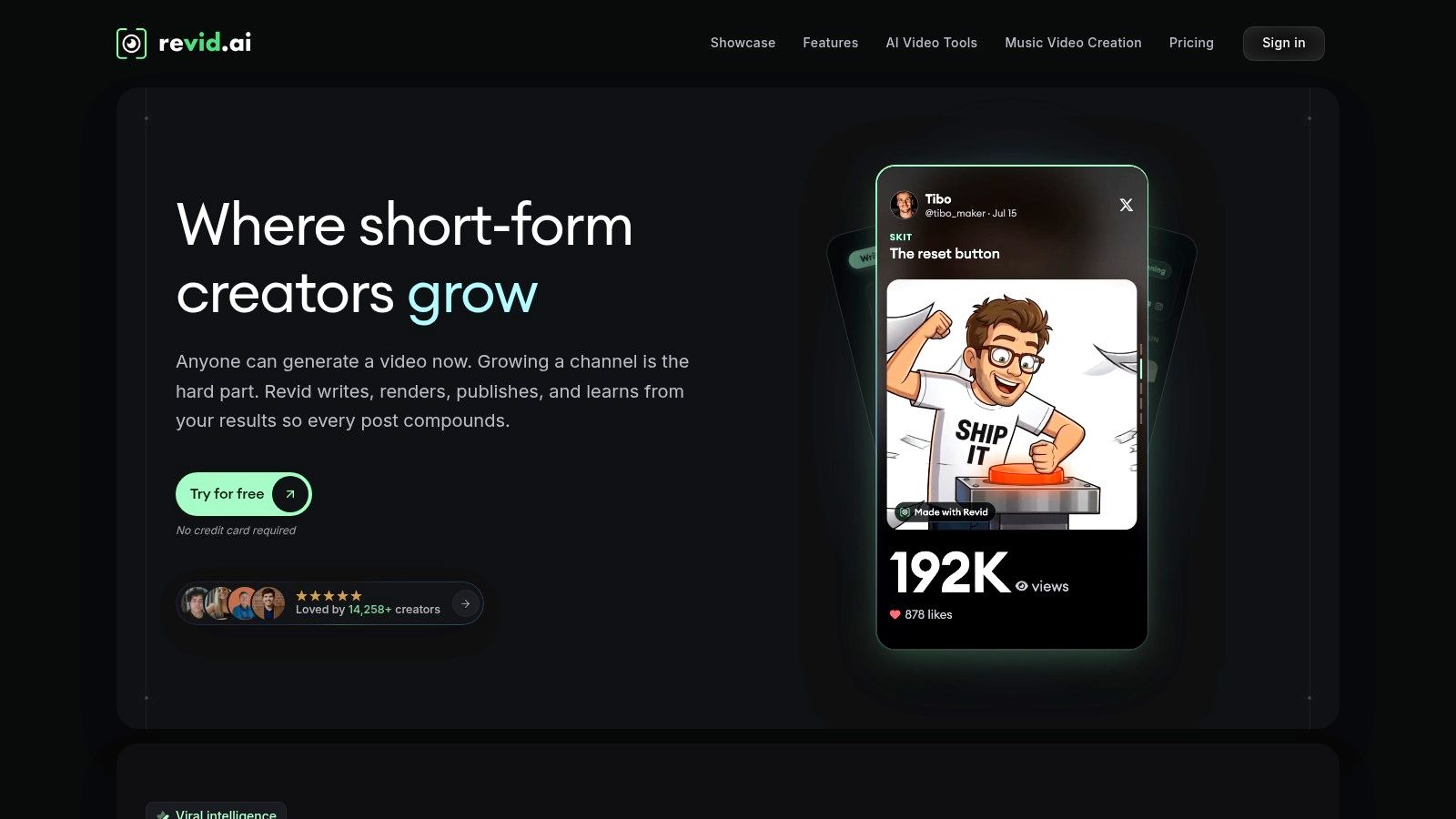
HubSpot's 2024 Video Marketing Report found that 49% of social media marketers used visual AI tools, including image, video, and design generators, to create content. That is the buyer this workflow targets. Revid is used by more than 3,000,000 creators, with around 59,000+ new signups every month, and the free trial requires no credit card to start.
The trade-off sits inside the credit spend. A finished short pulls from several steps at once (script, visuals, voice, title, posting), so what a video costs depends on which tools and models you select for it. If all you need is one standalone cinematic shot, the publishing layer is weight you will not use. I would shortlist Revid for shorts-led channels and faceless formats, and pick a clip-focused generator when the brief is a single hero shot.
Preston-Michael Simpson, writing on Trustpilot, put the upside in practical terms: “Revid AI allows creators to make videos of up to 4K quality with various features and create characters to feature within.”
5. HeyGen
You need the same product update in three languages and nobody on the team wants to stand in front of a camera again. That is the HeyGen job. Cinematic B-roll is not.
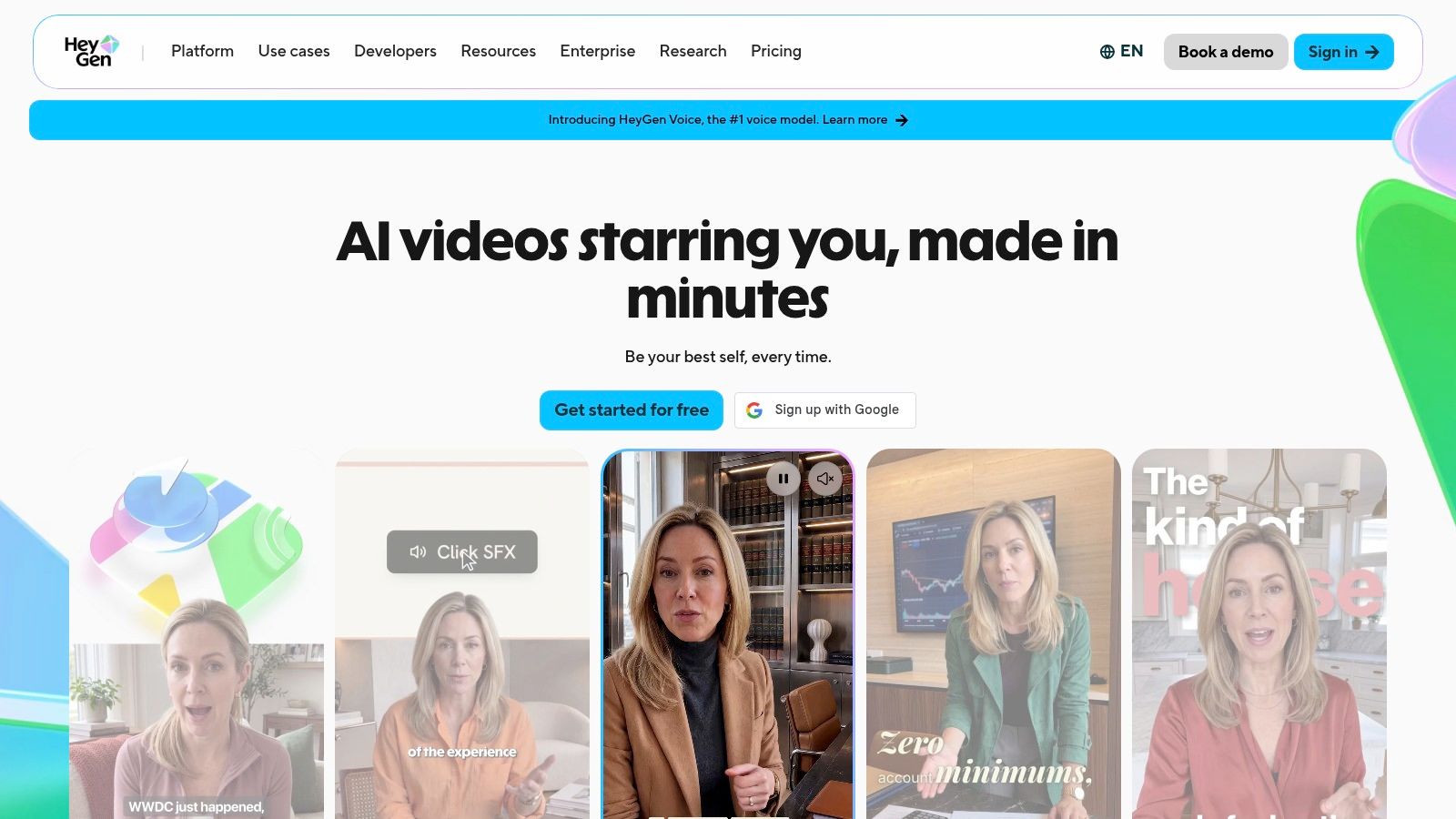
HeyGen is built around stock and custom video avatars, voice generation, and voice cloning, with translation and localization across many languages and dialects. Paid plans add Video Agent and further video-generation options. The free plan lets you try avatar creation, and it is limited to three watermarked videos per month. Paid plans remove the watermark and raise export and usage limits.
The limit that decides the buy
Usage on paid plans still depends on credits and the features you turn on. A short script with a stock avatar is a different spend from a custom avatar plus a long localization pass. Avatar video also will not pass as documentary footage or a natural product demo. Viewers notice the presenter style, and some brands should not pretend otherwise.
I recommend HeyGen for explainers, training snippets, and campaign variants where a consistent face is the point. I would keep a separate generator for scenic shots and cut them in only if your edit needs them.
6. InVideo AI
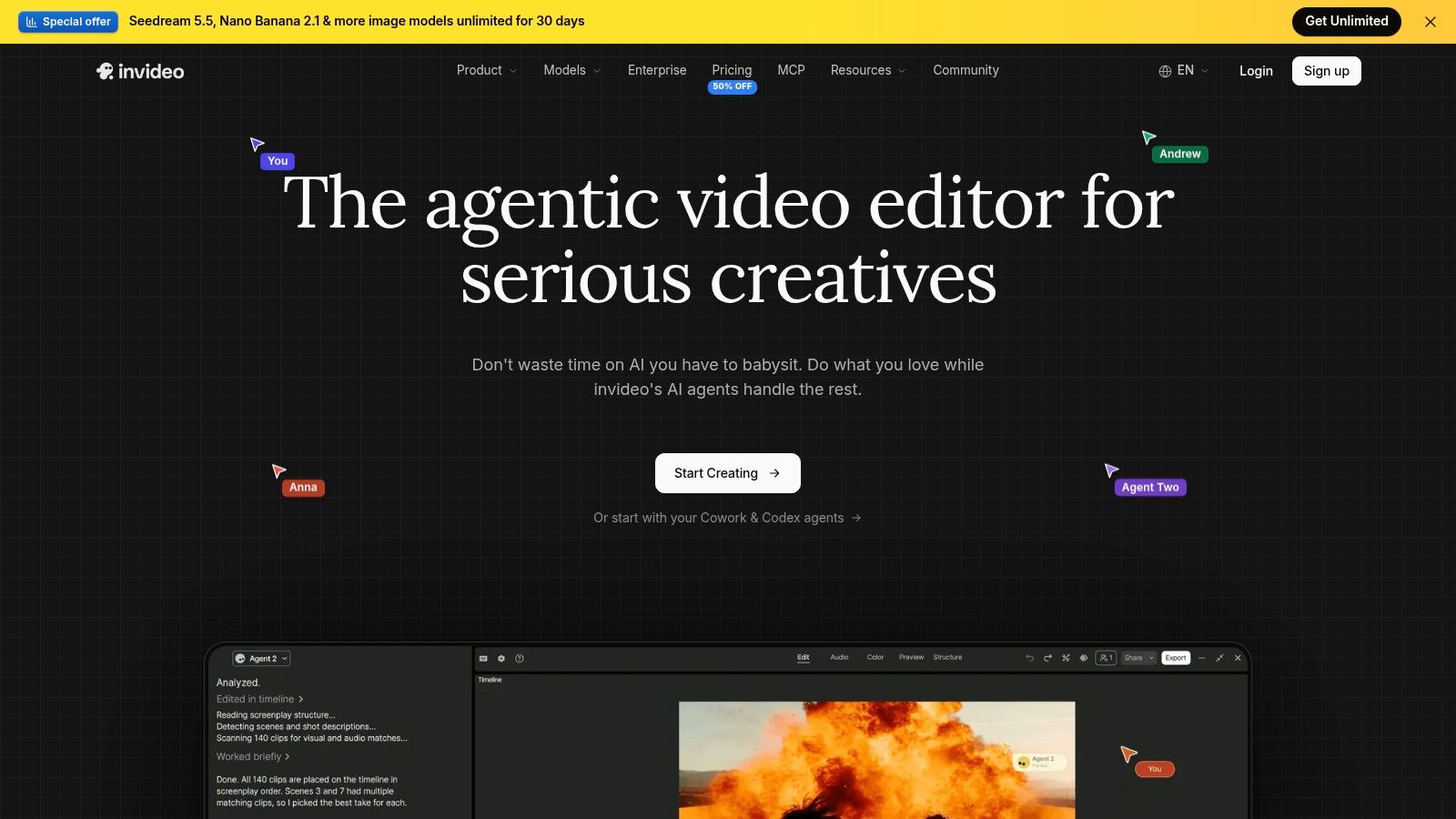
InVideo AI is for people who want an assembled video to fix, not a single generated scene. You start from a prompt or a script, then you are in a timeline with stock footage, music, and AI media, which is closer to editing than to rendering one shot.
InVideo pairs that editor with team-plan seats. Paid plans supply monthly credits for AI models and features. A limited free option exists so you can see the layout, but free exports carry restrictions. Read the watermark and commercial-use terms before you post anything a client will see.
The reason assembly tools matter is volume, not magic. MarTech's report on generative AI in digital video notes that 30% of digital-video ads were already built or adjusted with generative AI, with that share expected to approach 40% by 2026, and audience customization was the leading use case at 42%. The same research says more than 70% of marketers have hit AI-related incidents such as hallucinations, bias, or off-brand content, while fewer than 35% planned to increase AI-governance or brand-integrity investment.
Practical read
- First drafts are the product: You still fact-check claims, swap off-brand clips, and fix timing.
- Credits follow the model: Heavier models and more generations shrink the month faster.
- Higher tiers gate features: Some models are not on the cheaper plan.
If your complaint is “I need a timeline, not another 5-second clip,” InVideo belongs on the shortlist. If your complaint is “I need one artful shot,” it does not.
7. Adobe Firefly
Firefly is the sensible pick when the rest of the job already lives in Adobe. You generate a clip, then you keep working on it as an asset, not as a finished film.
Adobe Firefly covers prompt-based video plus image and audio generation. Plans are built around generative credits, with different monthly allowances. The free tier offers daily generations, which is enough to learn whether the look belongs in your edit. Paid plans state a monthly allowance, and that number is the budget, not a suggestion.
Frequent video generation eats credits, so a heavy testing week pushes you onto a higher plan. Clips usually need a further edit. They are inserts, extensions, and B-roll, not a captioned ad with a voice and an end card. Plan features and promotional pricing also move, so the checkout page on the day you buy is the only price that counts.
A Firefly clip that still needs Premiere is not a failed generation. It is the workflow the product assumes.
I would buy Firefly inside an existing Creative Cloud habit. I would not buy it as a first video tool for a creator who has never opened a timeline.
8. Pika
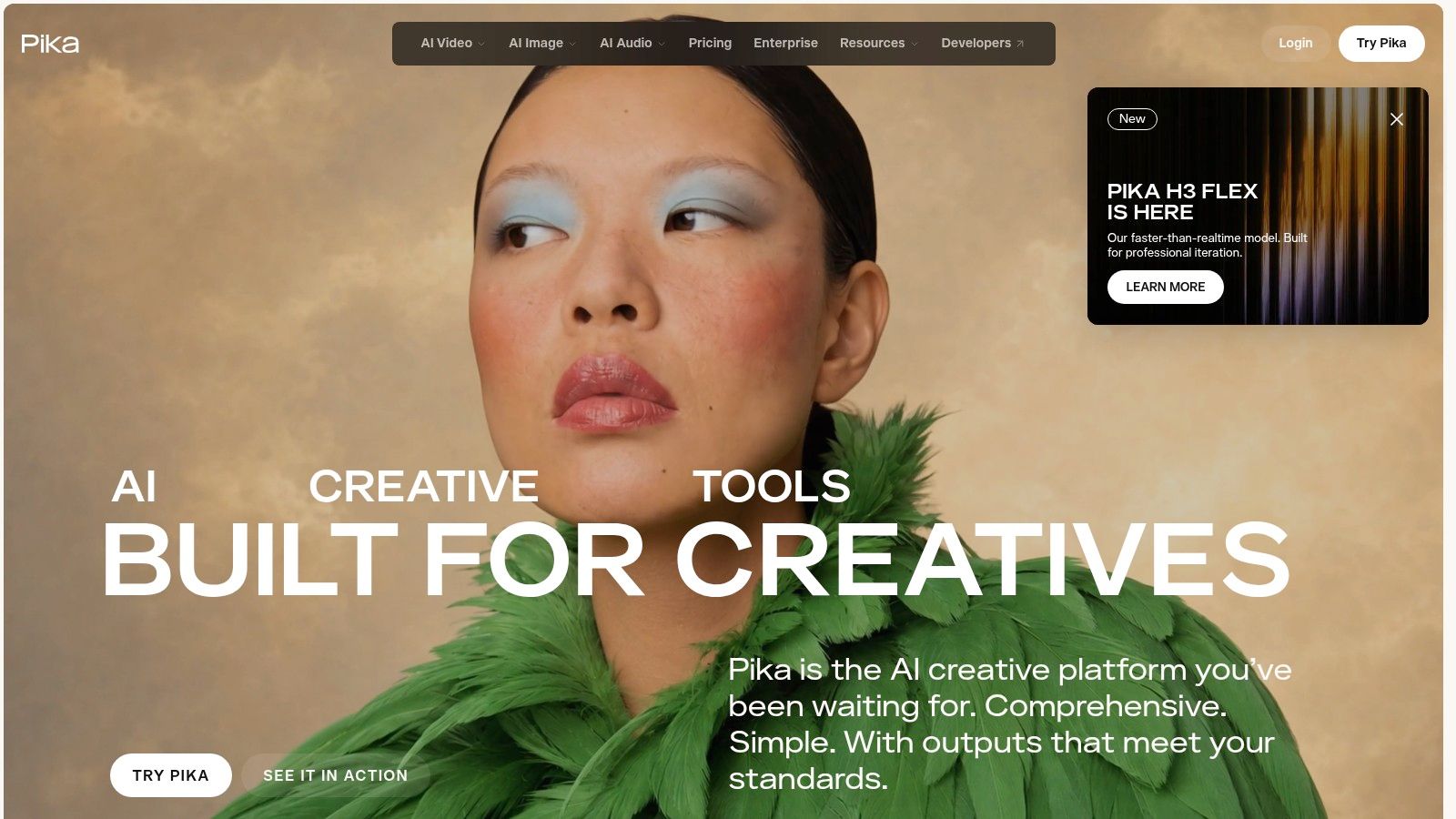
A bottle melts into a logo. A face swaps mid-shot. A new prop lands inside footage you already filmed. Pika is built for those one-off stunts: stylized clips from prompts, images, or existing video, aimed at social experiments rather than a polished piece.
The named tools on Pika are the reason to look: Pikascenes, Pikaswaps, Pikadditions, and Pikatwists, on top of text-to-video and image-to-video. Plans differ in credit allowances and generation limits, and one-time top-ups let you add credits without opening a subscription. The pricing page states that generated videos have no watermark.
Real spend is harder to forecast than in a flat per-minute tool, because the cost of a clip depends on the model and the effect you pick. Treat the free access as a trial of the effects themselves, and read the plan conditions before anything goes into paid work. A clip that looks finished can still sit outside what your tier allows commercially.
Public creator reactions are worth reading beside the pricing page. The Product Hunt reviews collected on Revid Reviews put one tool's reception next to the wider category, which helps when you are weighing an effects bench against a publishing workflow.
For a visual gag, a product twist, or a style test before a bigger production, Pika earns its credits. A weekly calendar of captioned, scheduled posts needs a different system.
9. Pictory
Pictory starts from material you already wrote or recorded. Scripts, articles, webinars, and URLs become assembled videos with stock, voice, and subtitles. It is a repurposing desk, not a camera.
Pictory offers script- or URL-to-video, an AI editor, automatic subtitles and subtitle-file exports, stock media, AI voices, avatars, and some generated video. You edit scene by scene, which is the right grain for an explainer pulled out of a blog post. A free trial is the correct test. Paste one real article, not a toy sentence, and see whether the scene breaks match your argument.

Limits that bite after you cancel
Monthly credits and video minutes change by plan, so a long webinar and a 30-second cut are not the same allowance. Projects are deleted when an account is cancelled. Download anything you still want before you close the account. That is not a footnote. It is how you lose a month of edits.
Cinematic footage from scratch is the wrong expectation. Licensed stock plus narration is the honest one. Marketers turning posts into Shorts will feel at home. Directors chasing a single invented shot will not.
10. Synthesia
A compliance lead needs forty onboarding clips in three languages, same presenter, same tone, no reshoots. That is Synthesia's lane: training, onboarding, internal updates, and instructional modules where a stable avatar and a clean script matter more than camera movement.
You build from scripts and templates, then assign an avatar and voice. The editor covers many languages, AI dubbing, translation, and business features such as collaboration and admin controls. Free access is enough to test the script-to-avatar flow. Paid tiers are where logo-free downloads and higher allowances sit; video creation and dubbing draw on plan limits or credits, and monthly billing versus annual billing changes the cost.
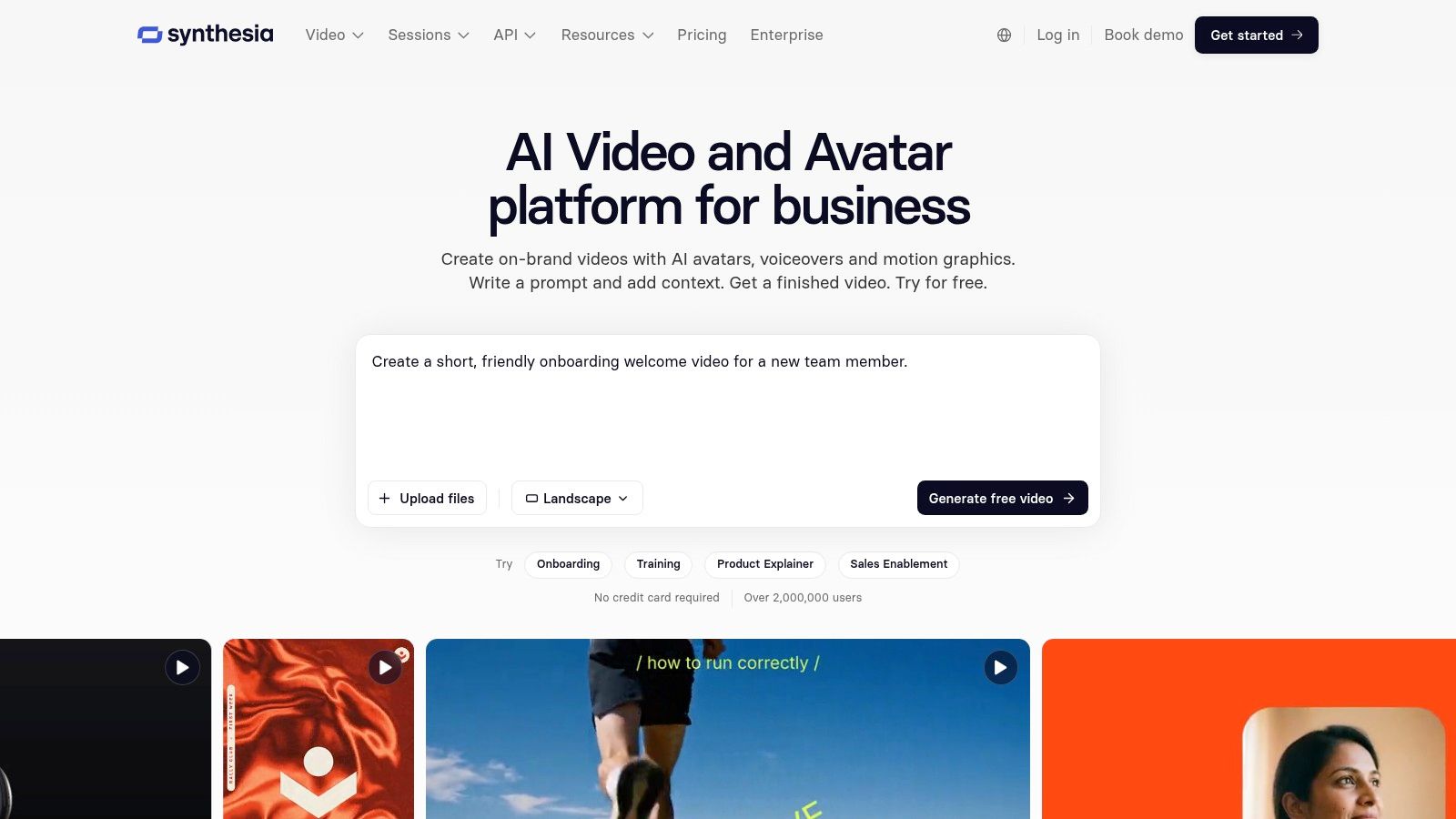
Keep review sources matched to the product. Revid's Trustpilot reviews describe prompt-to-video publishing; the Synthesia plan page is the cleaner reference for presenter limits, logo rules, and billing terms. For Synthesia itself, read public Trustpilot sentiment against that page and ask whether teams accept the corporate look after the trial.
I would pick it for L&D, HR, support, and regulated internal comms that need consistency across a library. A playful TikTok account can look wrong with a corporate avatar, and a compliance course can look wrong with a cinematic generator. Its job ends where invented worlds begin.
How the 10 best AI video generators compare by use case, free access, and credit model
Match the tool to the job first, then read the two money columns. Free access tells you whether the workflow fits; the credit model tells you what rerolls, higher resolution, dubbing, or heavier settings will do to the bill.
| Item | Best for | Free access | Credit model |
|---|---|---|---|
| Google Flow | Developing scenes and visual stories | Free tier available; limits vary by plan and region | Limited credits; costs vary by model and settings |
| Runway | Generating and editing video footage | Free plan includes a one-time allotment | Monthly credits on paid plans; credits do not roll over |
| Kling AI | Animating images and creating short sequences | Check the current free-tier terms on the Kling site before subscribing | Resolution and reroll count drive spend on each generation |
| Revid | Creating and publishing short-form social videos | Free trial requires no credit card | Credits vary by tools and models; monthly credits do not roll over |
| HeyGen | Presenter-led explainers, training, and localization | Free plan allows three watermarked videos per month | Paid usage depends on credits and selected features |
| InVideo AI | Assembling and editing complete videos | Limited free option available | Monthly credits on paid plans; usage varies by model |
| Adobe Firefly | Generating creative assets within Adobe workflows | Free tier offers daily generations | Monthly generative credits vary by plan |
| Pika | Creating stylized clips and visual effects | Free plan available, but no monthly credit allowance | Plan-based credits; one-time top-ups available |
| Pictory | Repurposing scripts, articles, and recordings into videos | Free trial available | Monthly credits and video-minute limits vary by plan |
| Synthesia | Creating repeatable business and training videos | Free access available to try the editor and avatars | Plan allowances or credits apply to video creation and dubbing |
Read “free” as a test limit, not a production promise. One-time allotments suit a single proof; daily or monthly allowances fit steadier publishing. No-rollover credits reward batches planned inside the month.
Test the same brief in two free tiers before you commit credits
Pick one real project, a 30-second Short or a single product clip, and run the identical prompt through two tools from this list. Write down credits per generation, how many takes you needed, and whether a human still has to edit. A spectacular sample that needs six rerolls costs more than a plainer clip you can publish on the second try.
Benchmark culture is catching up to that habit. The NTIRE 2025 XGC Quality Assessment Challenge scored an AI-generated-video track with Q-Eval-Video, a corpus of 34,029 videos from 11 popular text-to-video models, alongside benchmarks such as VBench, EvalCrafter, and Q-Bench-Video. Quality moves with the prompt, the motion, temporal consistency, and whether the subject stays the same person. A ten-prompt set of your own will still tell you more than a leaderboard, provided you log first-pass success, artifacts, duration, resolution, render time, and cost per accepted clip.
Trust is the other half of the bill, and roundups often skip it. Kantar's US Media Reactions 2025 puts the tension in numbers: more than 60% of consumers worry that generative AI could produce fake or misleading advertisements, while more than 70% of marketers say they use generative AI for advertising creativity. Broader buyer research points the same way. Adoption among video-ad buyers runs ahead of disclosure habits, and younger consumers tend to treat AI-made ads as neutral rather than disqualifying. Disclosure is not an automatic conversion killer. Hidden likenesses and unverifiable claims are.
Before you pay, check whether credits roll over, whether the free tier includes a commercial license, and whether a watermark comes off only on a higher plan. Download finished files before you cancel. Revid Reviews is one place to compare public creator comments on Revid against tools like HeyGen when the job is short-form publishing rather than a training avatar. If the Friday explainer is a faceless Short, start with a script-to-publish tool and a clip generator side by side. If it is a course module, start with an avatar tool. Hold off on a paid plan until those two logs give you a clear answer.
Revid Reviews collects public reviews of Revid and related AI video generators from Trustpilot, X, and Product Hunt, each tied back to the original, and the blog covers credits, cancellation, and how Revid compares with tools such as HeyGen, InVideo, and Pictory. If you are deciding whether a short-form generator is worth paying for, start with the comparisons and the linked reviews on Revid Reviews before you spend a month of credits.