You have the master bounced, a stack of credits, and a half-written prompt that says "cinematic music video." That prompt will burn the credits before the chorus even lands. Shot count, rights evidence, and how much of the picture stays human decide the method. Set those three before you plan a single shot.
Table of Contents
- How Many Shots Your Track Needs
- Choose Audio and Clear Rights Before Generating
- Decide How Much of the Video Stays Human
- How to Plan Sections and Visual Themes
- How to Generate Visuals Shot by Shot in Revid
- How to Sync, Edit and Export for Each Platform
- Common Problems and How to Fix Them
How Many Shots Your Track Needs
Say you generate forty clips for a three-minute track. The chorus looks fine for two seconds, then the porch, the face, and the light all drift. The problem was never the prompt. It was the shot count. Shot count, not the number of prompts, sets both the time and the credit budget.
| Track length | Shots at 2 s | Shots at 4 s | Shots at 6 s |
|---|---|---|---|
| 1:00 (60 s, short-form clip) | 30 | 15 | 10 |
| 2:30 (150 s) | 75 | 38 | 25 |
| 3:30 (210 s) | 105 | 53 | 35 |
| 4:00 (240 s) | 120 | 60 | 40 |
A two-second shot is cheap to regenerate and easy to cut on a beat. A six-second shot asks the model to hold identity, hands, and motion for far longer, so failures pile up. Four seconds is the length I would budget first.
Have these ready before you open any generator:
- Master audio: finished file, with tempo and key written down.
- Lyrics: lines with start timestamps, not a bare lyric sheet.
- Notes file: prompts, seeds, and version history in one place.
- Audio status: original, licensed, or library, decided in writing.
Practical rule: Plan a 4-second average and add about half again for failed takes. A 3:30 track is about 53 approved shots, so budget roughly 80 render attempts.
Choose Audio and Clear Rights Before Generating
A generated video is not royalty-free because a model made the pixels. Pick the audio first: an original recording, a licensed track, or a library track. Prefer steady tempo, clear section changes, and a known BPM. Every later cut hangs on those timing points.
Run five checks, and keep a document for each one.
- Song master. Confirm you own it, or hold a license that covers video use. Keep the contract and the receipt.
- Performer face or voice. Owning the song does not cover a recognisable likeness. Get signed written permission before you generate any performer.
- Reference images. Confirm rights to every source still, or use only original generated stills. Log file names.
- Generated footage. The ASCAP summary of the U.S. Copyright Office report states that purely AI-generated material is not protected by copyright, while human selection, arrangement, and modification may qualify case by case. Keep a project file that records those decisions.
- Platform disclosure. YouTube requires creators to disclose realistic AI-generated or altered content, so keep an upload checklist next to the export.
If you can't name the document behind each check, don't generate the performer, and don't publish yet.
Copyright in your edit is not the same thing as commercial permission to use the song, the face, or the voice. A technically clean video can still be pulled.
Decide How Much of the Video Stays Human
Pick the level of AI before you storyboard. Berklee's 2026 survey of 1,003 video creators, musicians, marketers, and music supervisors found that 32.7% had already used AI-generated music as the final audio track in published content. Respondents still flagged licensing, compensation, consent, creative control, and platform algorithms as open problems. That is why the split should be a decision, not an accident.
| Approach | Best for | Main risk | Rights exposure |
|---|---|---|---|
| Fully synthetic | Concept videos, lyric visuals, background loops | Drift in performer identity across shots | High: likeness and footage provenance |
| Hybrid | Official releases built around a real artist | Longer edit time and more disclosure work | Medium: manageable with documented permissions |
| Human-led with AI effects | Live performance footage with AI transitions or backgrounds | Visible seams at effect boundaries | Low to medium: depends on realistic-content disclosure |
Fully synthetic fits a lyric visual or a loop where no real performer is claimed. Identity drift is the cost.
Hybrid keeps the artist's performance and the final cut human, and uses generation for concept frames, environments, and transitions. You spend more time in the edit, and you still disclose realistic synthetic shots. Nikhil Prakash said, "It was fun creating a music video using Revid's Music to Video feature. It has a lot of tools to play with." Uncle Grape put it more plainly: "Revid took my song and created the perfect video for me." Fun is not the same as a locked method. Write down which shots stay filmed.
Human-led starts from live performance and adds AI only at transitions or backgrounds. Rights exposure drops. Seams at the effect boundary are the usual failure.
Test the chosen level on a 30-second chorus before you commit the full track. Score lip-sync consistency, character continuity, editability, production time, rights risk, and viewer retention in the first 10 seconds after you publish a private cut. Then scale it, switch level, or simplify the shots. Record the choice in the project notes so permission and disclosure match what you made.
How to Plan Sections and Visual Themes
A music video works when the picture repeats a hook the way the chorus does. The Inlander account of MTV's launch notes that MTV launched in the United States on August 1, 1981, opening with The Buggles' "Video Killed the Radio Star," and that MTV Europe had launched by 1987. The format stuck because sound became a repeatable visual language, not a pile of pretty frames.
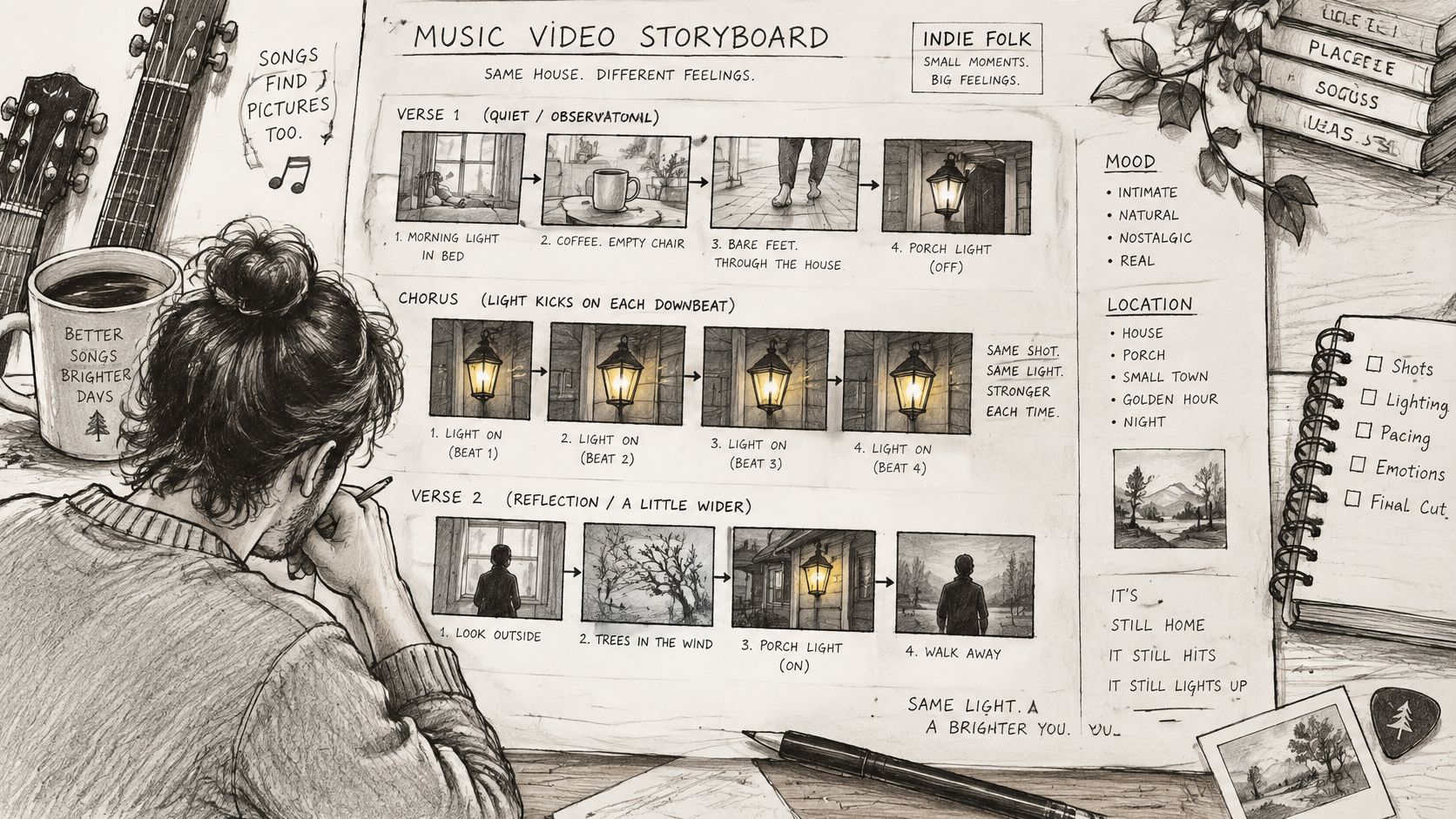
Take an indie folk track whose chorus motif is a porch light that flickers on each downbeat. Verses show that same porch in daylight.
- Mark the sections. Intro, verse, chorus, bridge, outro, with start and end times. Verse 1 might run 0:22 to 0:48.
- Give each section a job. Verses establish the porch in daylight. Choruses hit the night light with stronger colour contrast. The bridge leaves for the road.
- Write a one-page bible. Fixed wardrobe, palette, lens, and environment phrases you will paste unchanged.
- Lock two or three motifs. The porch light, the coat, the gravel path. Put them in the bible so the chorus can call them back.
- List shots by section. Tag each as establishing, performance, or detail.
- Note beat and bar numbers beside every shot so the edit can use them later.
You should finish with one page and a shot list the generator can follow one shot at a time. Generation explores frames and short clips. You still own pacing, continuity, aspect ratio, and lyric sync.
The porch-light plan only works if the night shot and the daylight shot share the same door, the same coat, and the same lens line. Change those words mid-song and you have two houses.
How to Generate Visuals Shot by Shot in Revid
Long takes fail for a mechanical reason. A Springer survey of video generation notes that many diffusion-based systems produce fewer than 16 frames per sampling pass without extra help. At 24 fps, 16 frames are only about 0.67 seconds. Even when a tool stretches clips, render modular shots of 2 to 6 seconds and assemble them in an editor. High-resolution, long-duration generation is still unresolved, and smooth motion plus long-range coherence stay weak.
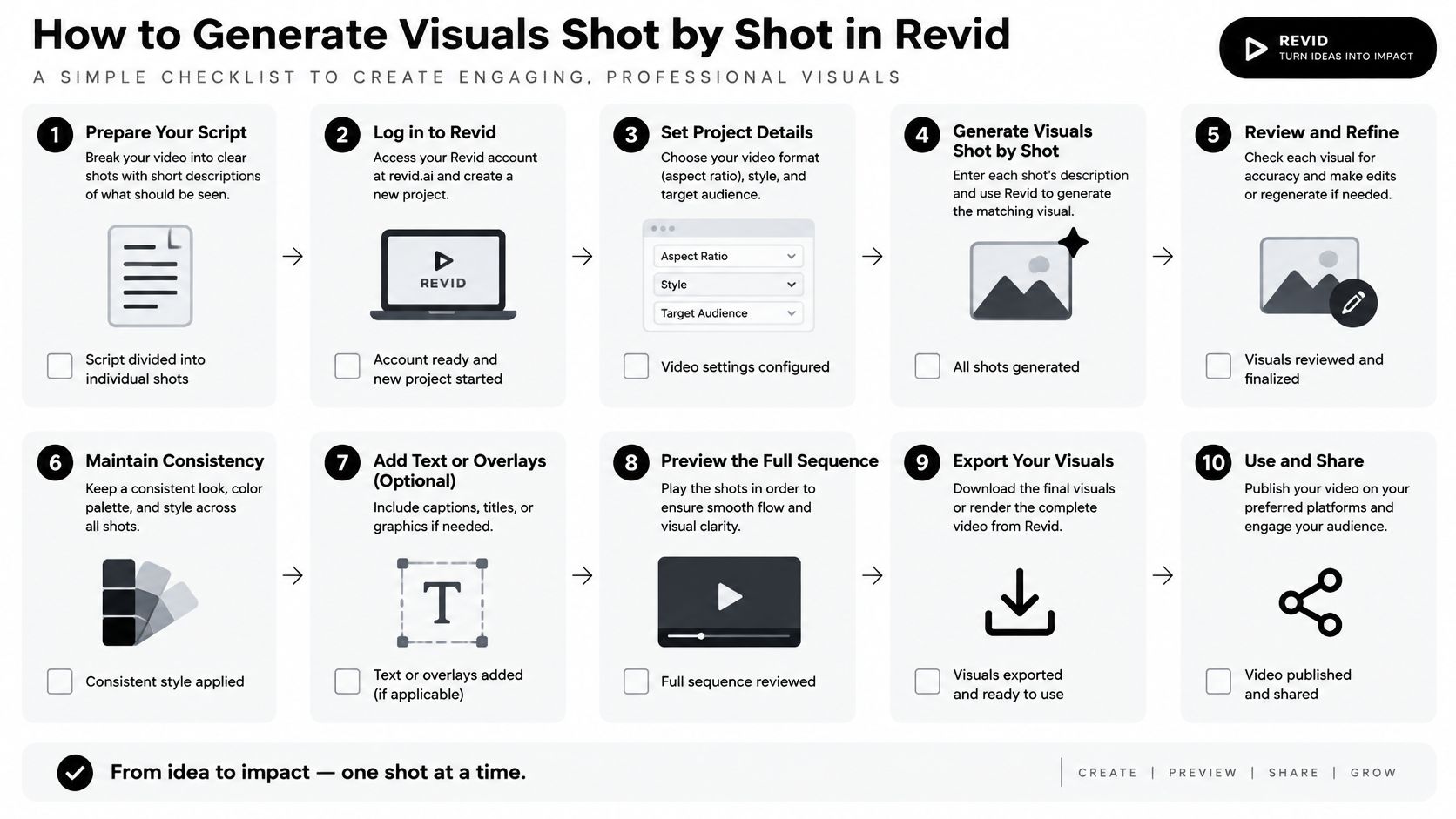
Work one shot at a time in Revid's music-to-video flow. Revid Reviews collects public creator notes on that kind of generation, which is useful when you are deciding how many retries a chorus is worth.
- Storyboard low. One still per section. Check beat alignment and the character before you spend a video credit.
- Make a reference image for each character and location, and attach it to every shot in that scene.
- One prompt, one action. One subject action, one camera move, one environment. Split choreography, camera, and weather into separate shots.
- Paste the bible text for identity and palette without rewording it.
- Render 2 to 6 seconds. Never a full-length take.
- Gate the clip. Identity across neighbours, stable hands and props, plausible motion direction, no flicker, lyric-safe captions, no unintended logos or recognisable likenesses.
- Regenerate failures only. Upscale or rerender the approved shots last.
A rooftop chorus is a typical case. Wind motion missed the beat on the first two renders. It held on the third after the prompt kept a single motion instruction and dropped the second camera move. Keep the licensed master as the timing authority. Don't replace generated audio unless your license says you may.
How to Sync, Edit and Export for Each Platform
The original master is the timing authority. Import it first. Leave generated audio out unless the license explicitly allows it.
A repeatable pipeline, close to the one formalised in the MVPrompt prototype, runs from section marks and beat positions through a visual theme, reference images, short clips, sync to the master, then continuity and export checks. That research limits each generation to one shot so the editor can place cuts on beats. Surveys behind that work also flag temporal flicker and cases where an object changes appearance after it leaves the frame and comes back. Favour short establishing, performance, and detail shots. Musical timing beats visual novelty.
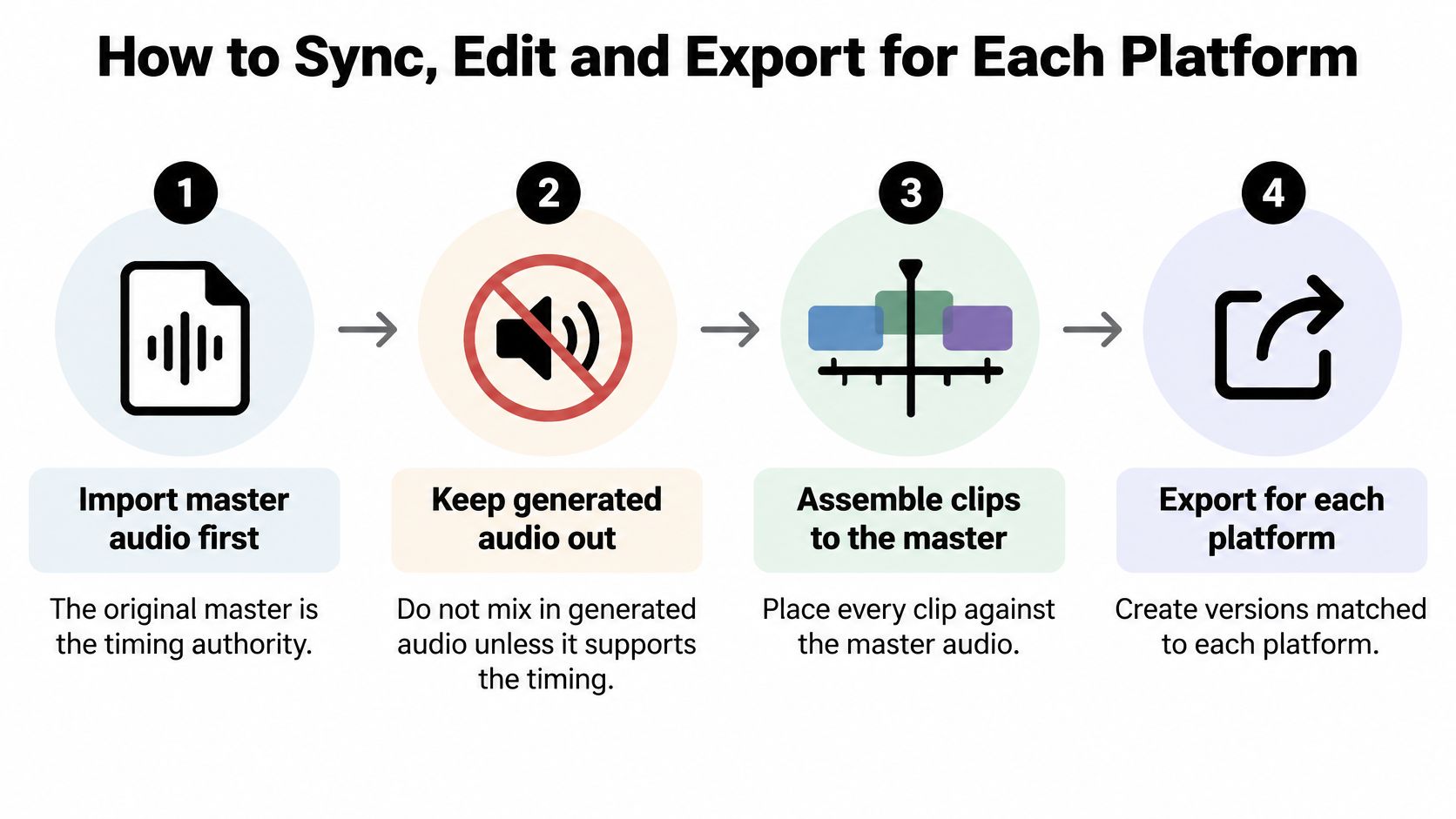
- Import the master and drop beat markers on each bar number.
- Lay the chorus first. Those shots carry the hook. Align cuts to downbeats.
- Cut on beats, inside phrase boundaries, not in the middle of a sung word.
- Check continuity on character, props, and colour at every join.
- Caption lyrics to the vocal line, and keep type off the face.
- Run the rights and disclosure checks before you export.
- Export the master, then test the target ratio and watch every cut at full resolution.
| Platform | Aspect ratio | Typical use |
|---|---|---|
| YouTube (standard) | 16:9 | Full landscape music video |
| YouTube Shorts | 9:16 | Vertical hook or teaser |
| Instagram Reels | 9:16 | Vertical teaser and loops |
| TikTok | 9:16 | Vertical teaser and loops |
| Instagram feed | 4:5 | Portrait feed post |
Cut each platform version from the same master. Don't rebuild the edit per app. Play the final cut on a phone and on a monitor. The chorus should land on the same beat in both.
Common Problems and How to Fix Them
Flicker is the failure you will see most. It is a consistency problem, not a "needs more adjectives" problem. A longer prompt rarely holds the frame together.
| Symptom | Likely cause | Fix |
|---|---|---|
| Flicker between frames | Weak frame-to-frame consistency | Regenerate with the reference image and shorten the shot |
| Character changes after leaving frame | Long-range coherence failure | Bridge with a detail shot and reuse the same character text |
| Lip movement drifts from vocal | Clip stretched or placed off its timing marker | Re-time to the vocal marker and trim rather than stretch |
| Hands or props morph | Several actions in one prompt | Split the action into two shots |
| Motion looks random | Camera and subject instructions conflict | Specify one camera move per shot |
| Logo or recognisable face appears | Unintended likeness or brand element | Regenerate, mask or replace the shot |
| Audio drifts after export | Frame rate mismatch or variable-speed import | Re-import the master, confirm frame rate, recheck at two points |
Keep a prompt log with version numbers so you can roll back to the wording that worked. If a face keeps changing, cut to a detail of the porch light or the guitar instead of forcing another close-up. When an export looks late, check the frame rate and re-import the master before you blame the generator.
After three failed attempts on the same shot, simplify the action or split it. A fix has worked when you rewatch that shot full screen, in sequence with the shots on either side, and the join doesn't announce itself.
Revid Reviews collects public Trustpilot, X, and Product Hunt reviews of Revid so you can see how creators use music-to-video generation before you spend credits. We link each quote back to the original and cover limits alongside what people liked. Visit Revid Reviews before you lock a plan for your next track.