Free credits vanish fast when a clip finally looks right. A creator is often left with a finished render that still carries a watermark, a deadline for TikTok or Shorts, and just enough budget left to try one more prompt. This roundup looks at text to video free tools the way a working creator uses them, by asking what the free plan really delivers, where the watermark appears, how quickly credits burn, and the exact moment paying starts to make sense. It also links back to public review material on Revid Reviews, so you can verify the claims before you spend on any paid video tool.
No tool here is the best for everyone. Some are better for fast motion clips, some for editor-led social videos, some for avatar explainers, and some for developer workflows. The right choice depends on whether you need a first test, a publishable clip, or a repeatable production path.
Table of Contents
- 1. Pika
- 2. Luma AI Dream Machine
- 3. PixVerse
- 4. Runway Gen-3
- 5. Stability AI Stable Video
- 6. Kapwing AI Text to Video
- 7. InVideo AI
- 8. Canva AI Video Generator
- 9. Picsart AI Video Generator
- 10. HeyGen Avatar Video and Text to Video
- Top 10 Free Text-to-Video Tools Comparison
- Test one clip on the free plan before deciding to pay
1. Pika
Pika is one of the easiest places to start if you want quick visual ideas instead of a long setup. The interface leans hard into stylization, templates, and rapid iteration, which makes it a strong fit for short social clips and concept tests at Pika's website. If you care about making several variations fast, that matters more than a perfect long-form render.
Upgrade trigger: pay when you keep pushing into 1080p and more advanced options, because credit burn rises there and can eat through a free account quickly.
That trade-off is the story. Pika gives creators a generous recurring free starting point compared with many peers, but the best results still tend to come from short durations, usually only a few seconds. That makes it useful for intros, punchy transitions, and motion accents, not for longer narrative scenes.
A practical way to judge it is simple:
- Good fit: quick tests, stylized shots, and prompt variation.
- Weak fit: long continuity, elaborate scene-building, and extended edits.
- Watch for: how fast credits disappear when you switch to higher resolution or heavier options.
Pika's biggest strength is speed to something usable. Its biggest weakness is that the free plan can tempt you into making lots of pretty near-misses before you hit the version worth exporting. If your workflow is “test five ideas, keep one,” it's a strong free starting point. If your workflow is “finish a polished branded clip in one pass,” the upgrade button arrives early.
2. Luma AI Dream Machine
Luma AI's Dream Machine has a different feel. It's built for cinematic motion and camera movement, and that makes it attractive when a clip needs to feel alive rather than merely illustrated at Luma AI's Dream Machine. It also syncs across web and app, which helps if you start on desktop and keep refining on mobile.
The attraction here is motion quality in short clips. Dream Machine tends to be strongest when the prompt asks for dynamic camera behavior or movement that needs to feel controlled. That's useful for product reveals, atmospheric shots, and opening sequences that need a little more energy than a static AI image.
Where the free plan gets tight
The confusion isn't just creative, it's structural. Luma's pricing and credit ladders can be hard to track because Dream Machine and Luma Agents don't always feel like one simple plan, so users need to check the current terms before generating. The free tier and credit math also change over time, which means old advice gets stale fast.
Practical rule: use Dream Machine for a short, motion-heavy test first, then upgrade only if you need more consistent access to the same motion style across multiple clips.
That is the point where paying starts to make sense. If you only need one or two exploratory clips, the free route is enough. If you need repeatable output for a campaign or series, the free tier becomes a stopgap, not a workflow. The learning hub and documentation help here, because you can at least understand what the credit system is doing before you burn through a render on the wrong setting.
3. PixVerse
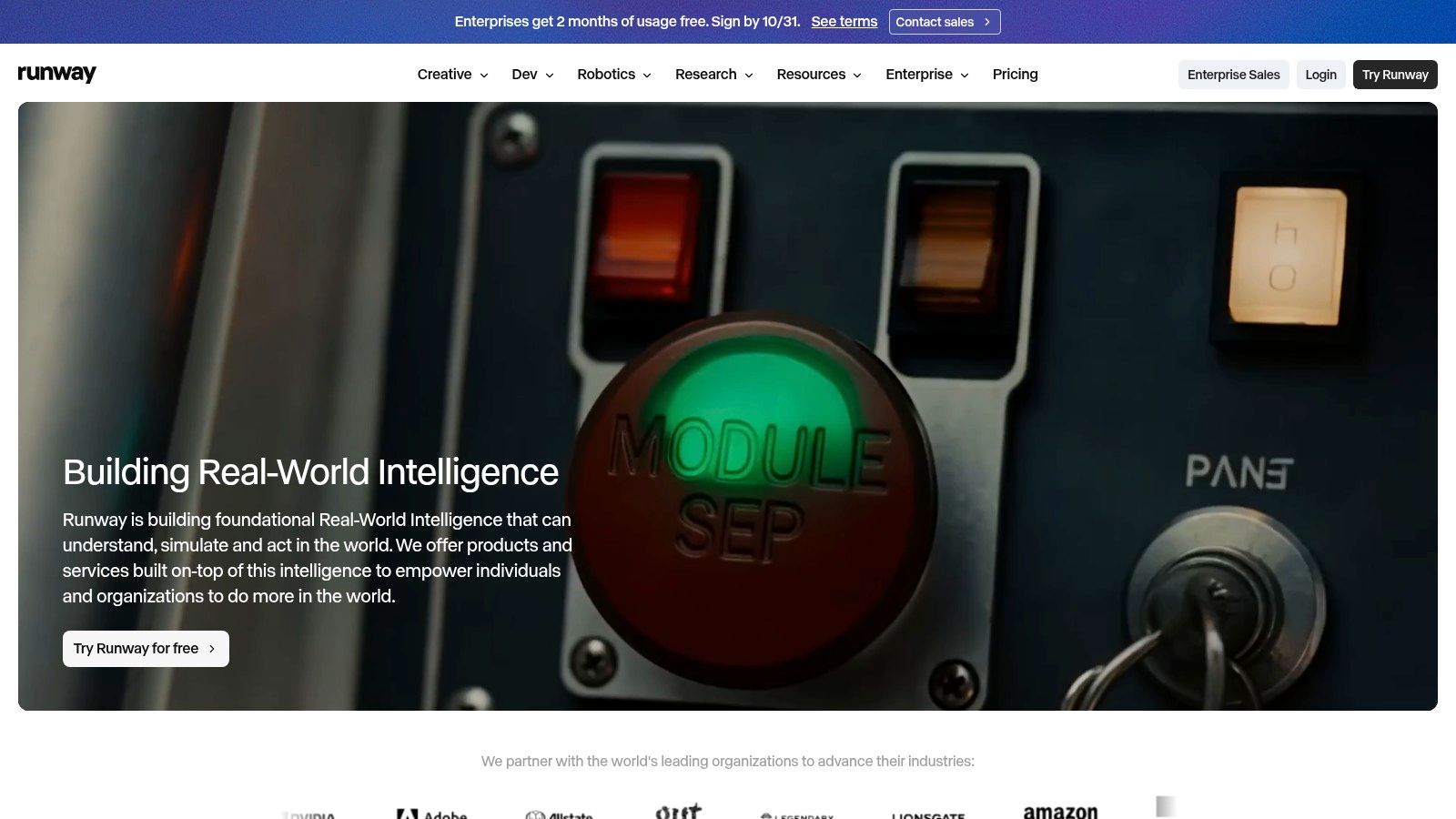
PixVerse is built for people who like to plan before they generate. Its model versions, from V3.5 through V5, make it easier to think in terms of output types and not just one generic generator at PixVerse. That makes it appealing when you want stylized shots and iterative refinements instead of random one-off tests.
The strongest practical advantage is transparency. PixVerse shows a per-model credit table, so you can see how different versions affect your free or paid run. That matters because creators often don't lose money on one render, they lose it by misunderstanding which model version is expensive enough to be worth saving for later.
What breaks first on free
The free credits are limited, and some outputs may include a watermark. That combination pushes PixVerse into the “test carefully, then decide” category. It is not the best choice if you want to brute-force dozens of prompts without watching the balance closely.
Its value is in controlled experimentation. Community showcases make it easier to see what the tool can do, and the refinement tools help when you want to steer a shot rather than throw prompts at a wall. The downside is that the interface can feel complex to first-time users, especially if they're not used to model names and credit ladders.
Upgrade trigger: when you need a specific model version often enough that the free credits no longer cover your real output rate.
That's the point where a subscription starts to look rational. Until then, PixVerse works best as a learning tool for creators who want to understand what different model choices cost in practice.
4. Runway Gen-3
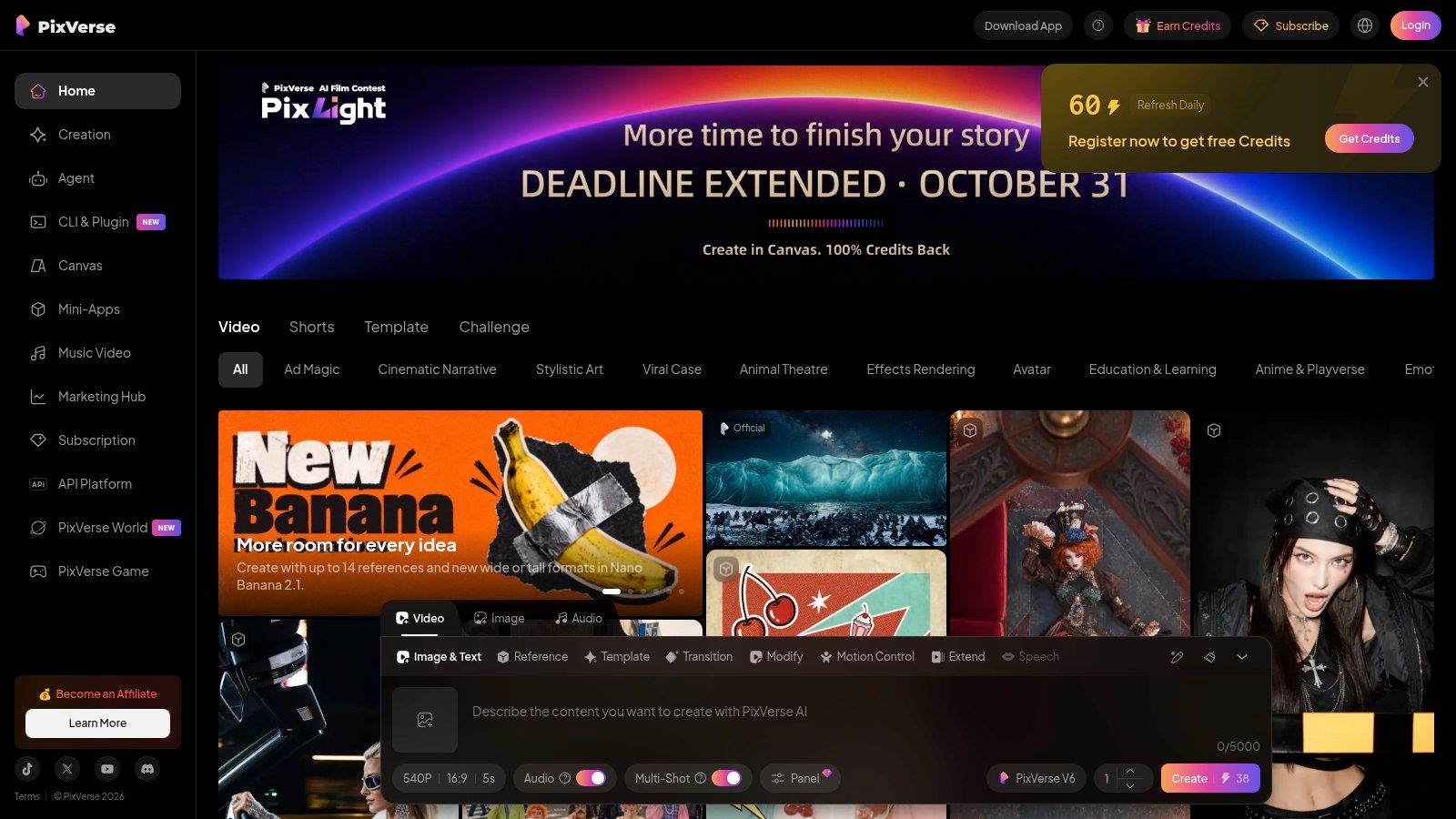
Runway feels like the most polished creator-first tool in this list. Gen-3 is suited to short, coherent clips, and the editor makes it easier to turn a generation into something you can ship at Runway. That matters when you are making social-sized exports and do not want to jump between tools.
The project library, versioning, and asset management matter just as much as generation quality. Runway feels less like a demo and more like a place where production gets organized.
Why the free tier usually ends the moment you get serious
Free credits are limited, and watermarking plus export limits change the equation fast. High-resolution output or longer clips burn through credits quickly, so the free tier works best as a test lane. The polished interface can make a draft feel closer to a finished video than it is, which helps until you need a clean export.
For a working creator, the test that matters is whether the clip looks good in preview and still exports cleanly enough to publish. Runway is strong for motion coherence, frame interpolation, and upscaling, but those same tools can push you toward the paid side as soon as a project needs repeatable output. Before paying, check the public feedback collected at the Revid Product Hunt review page to see what users report about credits and exports.
You can judge the upgrade point in plain terms:
- Stay free if you only need to explore style or motion.
- Upgrade when you need repeated exports, better resolution, or a cleaner publish path.
- Avoid free-only dependence if you are building client work or a branded series.
Runway works best when the clip has a job to do. If the free version cannot deliver that job without a watermark or repeated rerenders, the paid plan starts to look less like a nice-to-have and more like the practical option.
5. Stability AI Stable Video
Stable Video is the builder's option in this list. It's centered on open models, API access, and developer tools rather than a glossy consumer editor, so it fits users who want control or want to integrate video generation into an app at Stable Video. If that sounds technical, it is.
The upside is flexibility. You can start with open models, experiment locally, or use API credits if you're assembling a custom pipeline. That makes it one of the few places where "free" can mean useful for people who are comfortable with the developer side of the stack.
Who should not start here
If you want a plug-and-play social video tool, this is probably not it. The web UI options are thinner than the creator-facing editors, so the free value depends on how much setup you can handle. For some users, that is a feature, not a flaw, because it avoids the limits of heavily scripted consumer tools.
The upgrade trigger here isn't a watermark so much as complexity. Once your workflow needs reliability, scale, or app integration, the free starting point becomes just that, a starting point. If you're a solo creator who wants a fast post for Instagram, you may spend more time configuring than generating.
The free path makes sense when your goal is experimentation, not convenience.
That is the cleanest way to evaluate it. Stability AI is worth opening when you want freedom and technical control. It's worth paying for when the cost of your own setup time starts to exceed the benefit of a free model.
6. Kapwing AI Text to Video
Kapwing is closer to a content editor with AI help than a pure text-to-video engine, and that's exactly why many creators use it. It can turn prompts into a storyboard with stock, scripts, captions, and timeline editing at Kapwing's AI text to video. If you want a social-ready clip that still needs human cleanup, this is a practical place to start.
The editing layer is the advantage. You can polish the rough output with the same tools you'd use for a normal social edit, which helps when the AI output is only one part of the final piece. That makes Kapwing attractive for fast branded content, especially if you already think in timelines rather than prompts.
The free plan still comes with a watermark and usage limits, and that changes the value proposition fast. It is useful for drafting and for testing whether the AI-generated structure fits your idea. It is less useful if you need a clean, fully branded export without extra steps.
Internal notes and public review pages about Revid Reviews are useful here because Kapwing buyers often compare workflow, not just generation quality. The question is whether you need a rough-cut assistant or a tool that can own the whole pipeline.
Pay when the editor becomes the product
If most of your effort goes into fixing the AI output, the free tier is doing its job. If your process is mostly inside Kapwing already, paying starts to make sense because the watermark and usage limits become the only thing standing between you and a finished deliverable.
7. InVideo AI
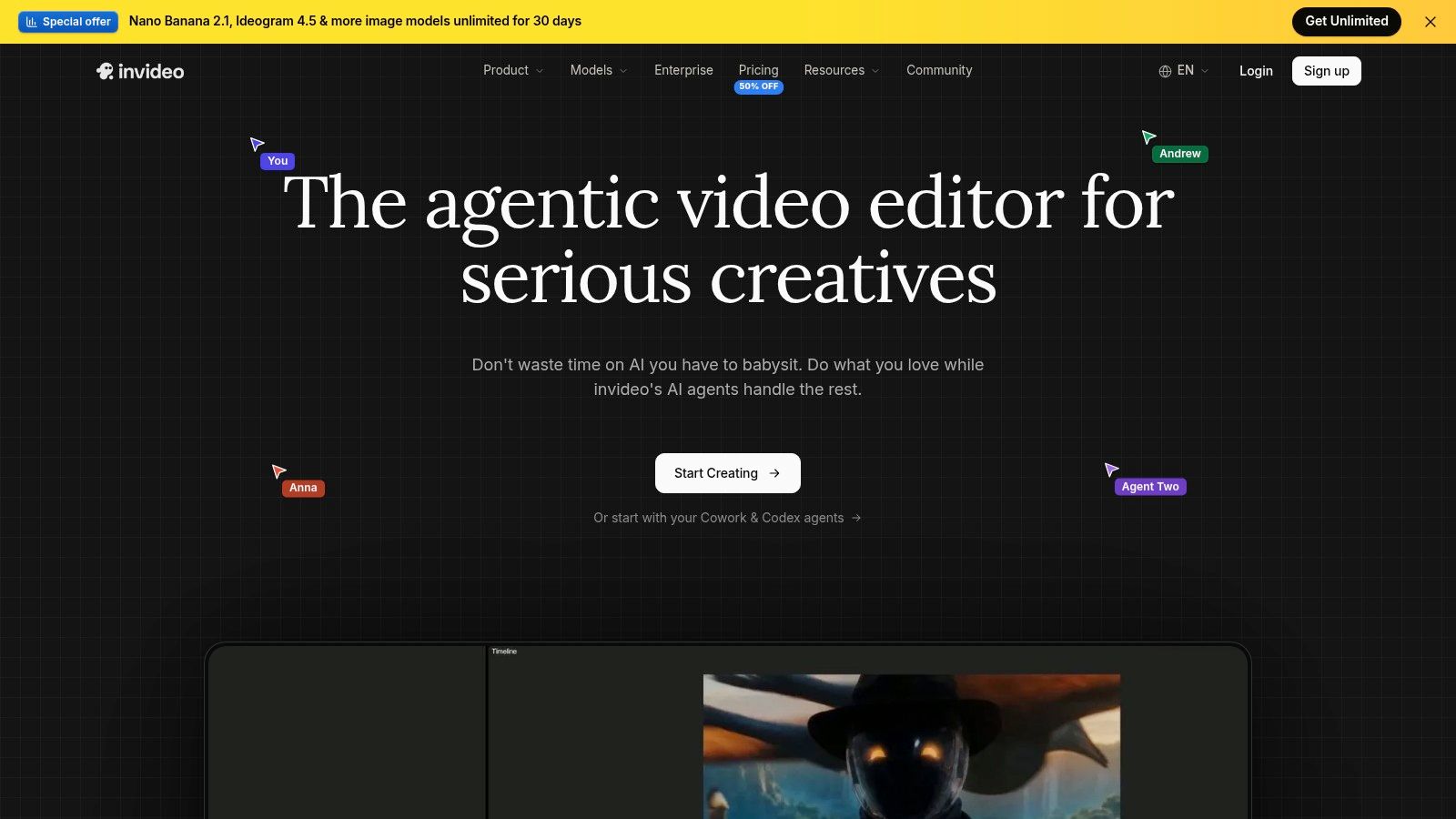
InVideo AI is built for speed. You type a prompt, it writes a script, assembles shots from stock, adds voiceover, music, and captions, then gives you a draft that already feels like a video at InVideo. That makes it especially appealing for UGC-style ads and faceless channel content.
The free plan is useful because it lets you test the whole workflow before paying. That matters more than it sounds like, because many people don't discover whether they like the tool until they see how the script stage, visual assembly, and voiceover work together.
Where the template feel becomes a limit
The downside is that the output can feel templated, and you may need several regenerations to get something that doesn't look generic. The free plan also includes a watermark and weekly caps, which means the tool is best for drafts and rough production, not endless free publishing.
That makes the upgrade trigger obvious. Pay once you're making regular ad variations or weekly content and you've already confirmed the structure works for your style. If your use case is one-off experimentation, the free tier is enough to learn the system.
For creators, InVideo sits in a useful middle ground. It does not ask you to shoot footage or build every scene yourself, but it also doesn't pretend to be a pure diffusion model. It's an assembly tool, and the free plan reflects that. If your priority is rapid draft production, it works. If you want cinematic novelty, you'll probably keep regenerating until the watermark reminds you to stop.
8. Canva AI Video Generator
Canva's AI video generator is less about long prompts and more about quick, usable assets. It produces very short clips, usually around 6 to 8 seconds, and drops them directly into Canva's editor and template system at Canva's AI video editor. If you need a social intro, transition, or branded filler shot, that's enough.
The advantage is simplicity. Canva already solves resizing, templates, brand kits, and basic editing, so the AI clip becomes one piece inside a familiar workflow. That is why non-specialists like it. They can create something fast without learning a separate generation-first platform.
The free plan works until you want more than a quick insert
The clip length is the biggest limit. You are not using Canva for a full scene, you're using it for short on-brand motion. Free plan quality options are limited, and some features sit behind Pro, so the question is whether the output is enough to strengthen a design you were already making.
Canva's AI usage is metered by monthly credits inside the editor, which makes it feel predictable until you start using AI more often. At that point, the free allowance becomes a quiet ceiling rather than an obvious wall.
Best use case: turn a short AI-generated clip into a branded asset inside the same tool you already use for design.
That is exactly where paying starts to make sense. If the short clip is part of a broader design workflow, Canva can be efficient. If you need longer motion, stronger generation control, or more ambitious scene building, the free version will feel like a preview, not a production lane.
9. Picsart AI Video Generator
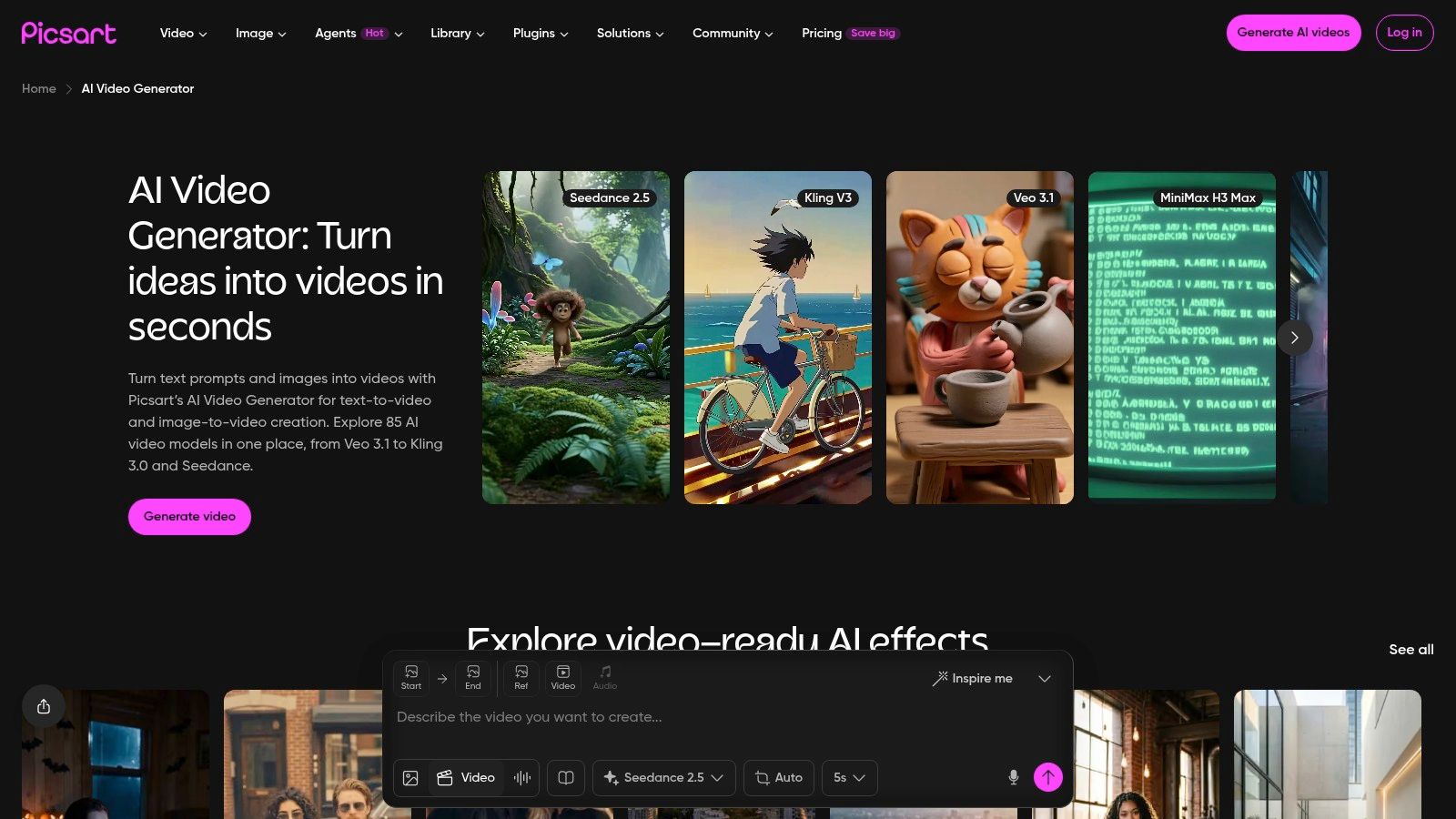
Picsart brings text-to-video into a broader creative suite, which is handy if you already use its design tools. The platform supports text-to-video and image-to-video across multiple models, plus stock assets, stickers, fonts, and in-app editing at Picsart's AI video generator. That makes it an easy fit for TikTok, Reels, and Shorts workflows.
The strength is convenience. You can generate, decorate, and edit without moving between separate apps, which reduces friction when you're posting quickly. It also has a clear path upward for teams that need higher volume or API access.
What the free plan is really for
The free tier is mainly for testing the workflow and checking which model feels right. Higher-end models or parallel jobs push you toward a paid plan, and quality changes depending on the model you choose. That means “Picsart” is not one experience, it's several.
That's useful if you want options, but it also means control varies. A creator who wants consistent output can find the free plan a little uneven, especially if they keep switching between models just to see what happens. The best way to use it is to pick one target format and stay focused.
If you already edit social graphics in Picsart, the video generator makes sense as an extension of an existing workflow. If you want a serious standalone text-to-video engine, the free plan may feel like a convenience feature with a ceiling. The upgrade trigger usually arrives when you need volume, consistency, or automation, not just novelty.
10. HeyGen Avatar Video and Text to Video
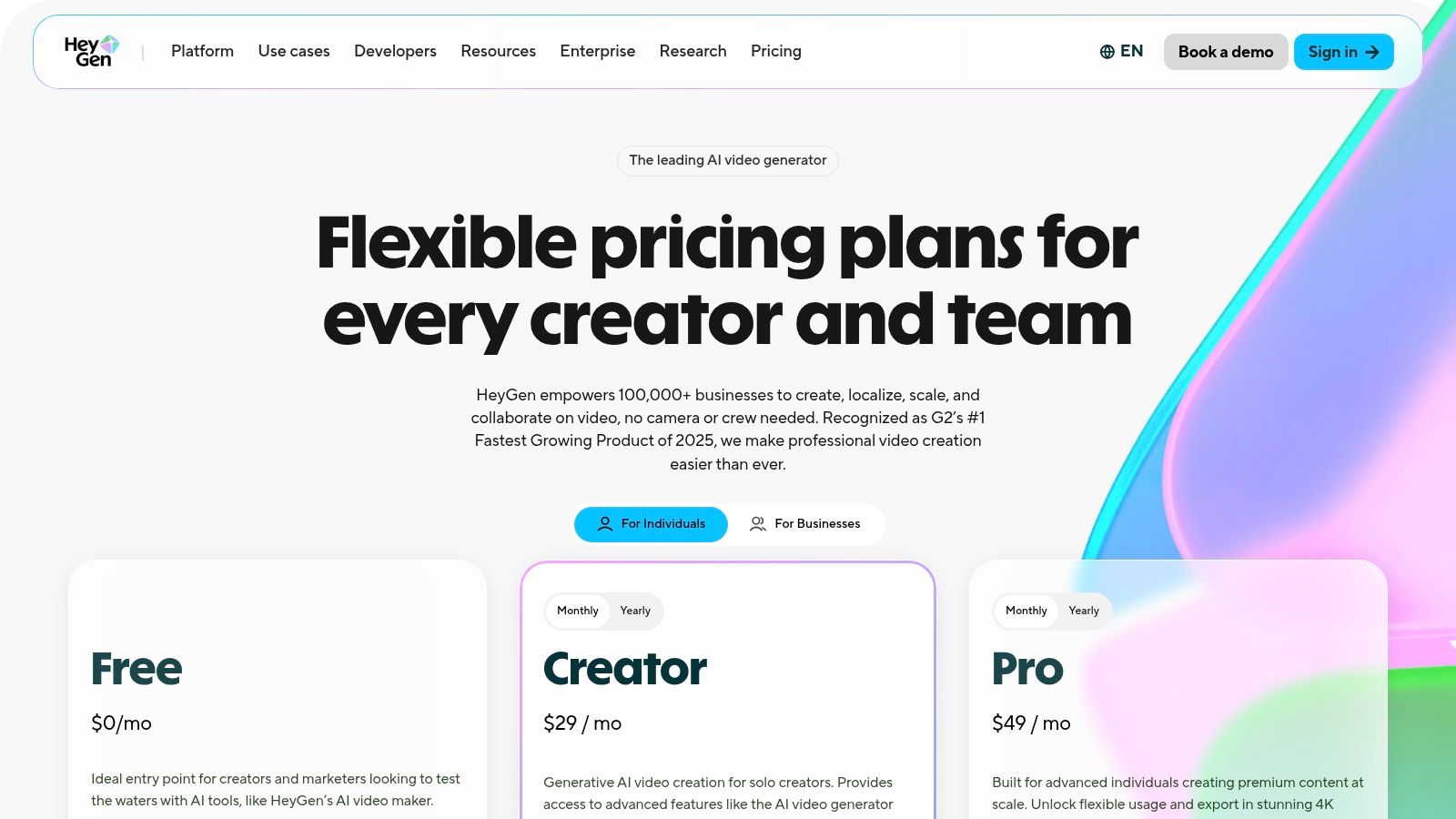
HeyGen is not trying to be a cinematic generator first. It is built around talking-avatar videos, where you type a script and get a spokesperson-style clip with lip sync, translation, and dubbing at HeyGen pricing. That makes it valuable for explainers, training, localization, and fast corporate content.
The output is clean and repeatable, which is exactly why businesses like it. You can generate the same kind of video over and over without filming a person each time. For teams that need consistency more than visual surprise, that's a strong use case.
Why the free comparison is different here
This is not a diffusion-first model, so comparing it with cinematic tools misses the point. The question is whether you need a presenter avatar or a generated scene. If you need a brand spokesperson, HeyGen is in a different category entirely.
The upgrade trigger is usually about scale and regional pricing. Since credit pricing has varied, users should check the current terms before planning a workflow around it. Free access is mainly a test of whether avatar-based delivery fits the job.
If your script needs a face and a voice, not a movie, HeyGen can save a lot of production time.
That's where paying starts to make sense. Once you are localizing content, making repeatable explainers, or building a library of spokesperson videos, the free plan is just the trial that proves the format.
Top 10 Free Text-to-Video Tools Comparison
| Product | Best for 👥 | Core features ✨ | UX / Quality ★ 🏆 | Price / Value 💰 |
|---|---|---|---|---|
| Pika | Creators making short social clips 👥 | Text/image→video, stylistic templates, quick variations ✨ | ★★★★, fast stylized outputs; best very short clips 🏆 | 💰 Generous free credits; 1080p burns more |
| Luma AI, Dream Machine | Cinematic short clips & motion control 👥 | Motion & camera controls, web+app sync, docs ✨ | ★★★★, strong dynamics & camera moves 🏆 | 💰 Credit tiers confusing; check current plan |
| PixVerse | Iterative stylized shots & model testing 👥 | Multiple model versions, refinement tools, per-model credits ✨ | ★★★, flexible but steeper learning curve | 💰 Transparent per-model pricing; limited free credits |
| Runway (Gen-3) | Creators & agencies for polished shorts 👥 | Text/video→video, frame interpolation, editor & exports ✨ | ★★★★, reliable motion, polished editor 🏆 | 💰 Limited free credits; high-res consumes more |
| Stability AI, Stable Video | Developers & integrators 👥 | Open models, API/SDK, local/experimental use ✨ | ★★★, powerful for devs; thinner consumer UI | 💰 Free API credits / open-models; dev setup needed |
| Kapwing, AI Text to Video | Social-first creators who edit heavily 👥 | Script→video storyboards, TTS, captions, timeline editor ✨ | ★★★★, approachable workflow; strong editing tools | 💰 Free plan has watermark and limits |
| InVideo AI | UGC ads & faceless channel drafts 👥 | Script-to-video, stock B-roll, voice and brand kits ✨ | ★★★, fast drafts; can feel templated | 💰 Free plan available but watermarked/limited |
| Canva, AI Video Generator | Quick on-brand short assets 👥 | Short clip generator, templates, brand kits, resize ✨ | ★★★, very simple; clip lengths short | 💰 Metered monthly credits; Pro features locked |
| Picsart, AI Video Generator | Social creators wanting design+T2V workflow 👥 | Multiple models, stock assets, stickers & editor ✨ | ★★★★, all-in-one fast pipeline | 💰 Free tier limited; clear upgrade/API path |
| HeyGen (Avatar Video + T2V) | Training, explainers, localized spokespersons 👥 | Lip‑synced avatars, TTS, translation & templates ✨ | ★★★★, extremely fast avatar videos 🏆 | 💰 Credit pricing varies by region; check rates |
Test one clip on the free plan before deciding to pay
The best way to use text to video free tools is to match the tool to the format first. Use Pika or Luma AI for short motion clips, Runway for short coherent scenes and export work, Kapwing, InVideo AI, or Canva for editor-led social videos, HeyGen for avatar explainers, and Stability AI if you want a developer pipeline. Then generate one clip at the exact length you plan to publish, export it, and check for watermarks, resolution, and whether the result holds up outside the preview.
Track credits per usable output for a week. That simple habit shows you whether a free plan is helping or wasting time. If the tool keeps blocking finished work because of watermark rules, clip length, credit burn, or export caps, the free version has already told you it's time to upgrade.
Recheck the current plan terms before you pay. Credit ladders and free tiers change, and the best tool this month may not be the best tool next month. The bigger commercial context matters too, because the AI video market is expanding quickly, with estimates pointing to growth from about USD 788.5 million in 2025 to USD 3.44 billion by 2033, even though market figures vary by methodology (Grand View Research's market overview).
For buyers who want public review context before spending, Revid Reviews, run by the Revid team, collects linked public reviews of Revid from sources like Trustpilot, X, and Product Hunt, so you can verify claims before you commit to a paid AI video tool.
If you want a buyer's view of AI video tools before you pay, start with Revid Reviews. It collects public reviews and links back to the originals, which makes it easier to compare free plans, upgrade triggers, and real user complaints in one place. That's a practical next step if you're weighing your own text to video free workflow.