You recorded a 60-minute podcast on Monday. By Friday you need eight vertical clips, each captioned, reframed, and actually worth posting. That's the job a good video repurposing tool is supposed to cut down, and it's also where weak ones waste your time with mid-thought cuts and burned credits.
This list groups ten tools by the job they really do. Some find highlights in long, speech-led footage. Some let you edit a transcript into clips. Others don't find moments at all, they move finished video across platforms. Mixing those jobs up is the fastest way to pay for the wrong thing.
The demand isn't theoretical. Wyzowl's survey found 89% of businesses used video as a marketing tool and 93% of video marketers reported a positive return on investment, according to Wyzowl's 2025 video marketing data. Short clips fit how people already watch, so one recording needs to become several platform-ready assets.
Full disclosure up front. Revid Reviews is run by the Revid team, which makes an AI video generator that isn't included in this list. Plan prices and limits below are vendor-stated, and points drawn from public user feedback are flagged as such. Check both before you pay.
Table of Contents
- 1. OpusClip
- 2. Vizard
- 3. Klap
- 4. 2short.ai
- 5. Repurpose.io
- 6. Descript
- 7. VEED
- 8. Captions
- 9. Wisecut
- 10. Submagic
- Free options, entry prices, and main limitations across the 10 tools
- Matching a video repurposing tool to your upload volume
1. OpusClip
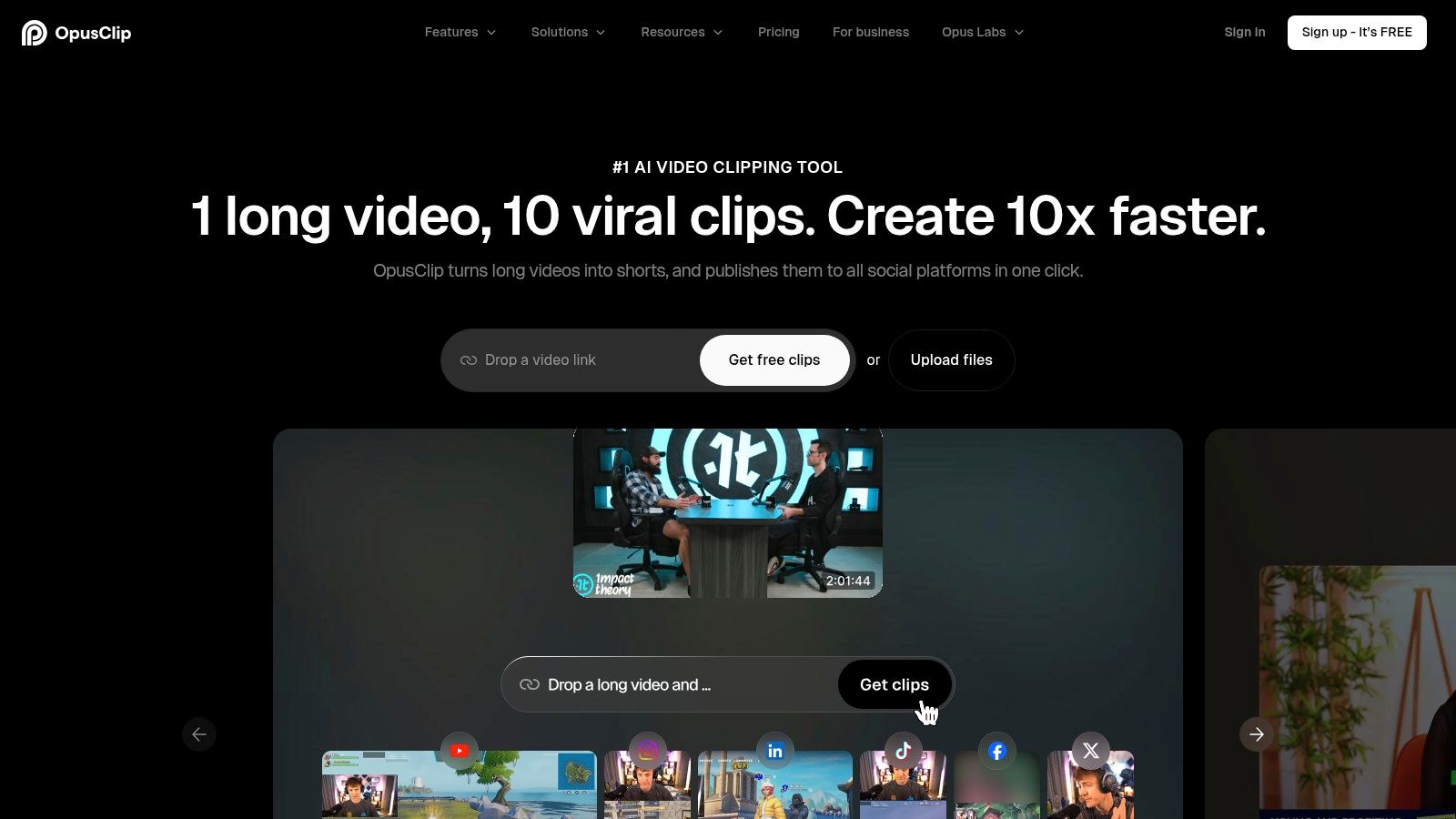
OpusClip is an AI clip finder for long, speech-led video. You feed it a podcast, interview, or webinar, and it returns a batch of short clips with animated captions and automatic reframing for TikTok, Instagram Reels, and YouTube Shorts.
Where it helps and where it trips
- Virality scores help you sort: Each generated clip gets a score, which is useful for triage when a batch gives you more candidates than you'll post.
- Review is still your job: Scores and selections are pattern-based, so you'll reject clips that start mid-sentence or lift a quote out of context.
- Pro adds real publishing range: Vendor-stated Pro features include multiple aspect ratios, B-roll, more import sources, a scheduler, and exports for Premiere Pro and DaVinci Resolve.
Pricing is vendor-stated as a free plan with 60 credits per month, Starter at $15 per month, and Pro at $29 per month or $174 per year. Free exports carry a watermark and stay exportable for only three days, so treat the free tier as a test, not a publishing workflow. Credits track processing volume, and frequent long uploads can drain them fast.
If you want to see how public feedback is collected and linked to originals, our Trustpilot review collection for Revid shows the approach we use across this site.
2. Vizard
Vizard does a similar long-to-short job, turning podcasts, interviews, and webinars into social clips with AI clipping, automatic subtitles, resizing, and a built-in editor. The difference is feel. User feedback often notes a straightforward interface and time saved on routine clipping.

That time claim has context. Adobe Express surveyed creators and found 56% reported saving more than 30 minutes per video with AI tools, while auto-repurposing was the most requested automation capability at 19%, according to Adobe Express research on AI video tools. Vizard is built for exactly that repeatable saving, if your source audio is clean.
Practical limits to check
- Speech quality drives results: Muddy audio or overlapping speakers produce weaker selections and captions that need more correction.
- Free tier expires quickly: Vendor-stated free exports have a watermark, and projects are stored for only three days.
- Credits follow uploaded minutes: The free plan includes 60 credits per month, and paid costs depend on the plan selector and uploaded video minutes.
Paid plans add scheduling and publishing, and Business adds shared workspaces and brand tools. Translation is also listed, which helps if you repost for more than one language audience. Don't judge it on a polished sample file. Run your noisiest real recording through it first.
3. Klap
Paste a YouTube link or upload a file, and Klap tries to hand back vertical clips for TikTok, Reels, and Shorts. It's aimed at creators who already publish long-form video and don't want a full editor between them and a short.
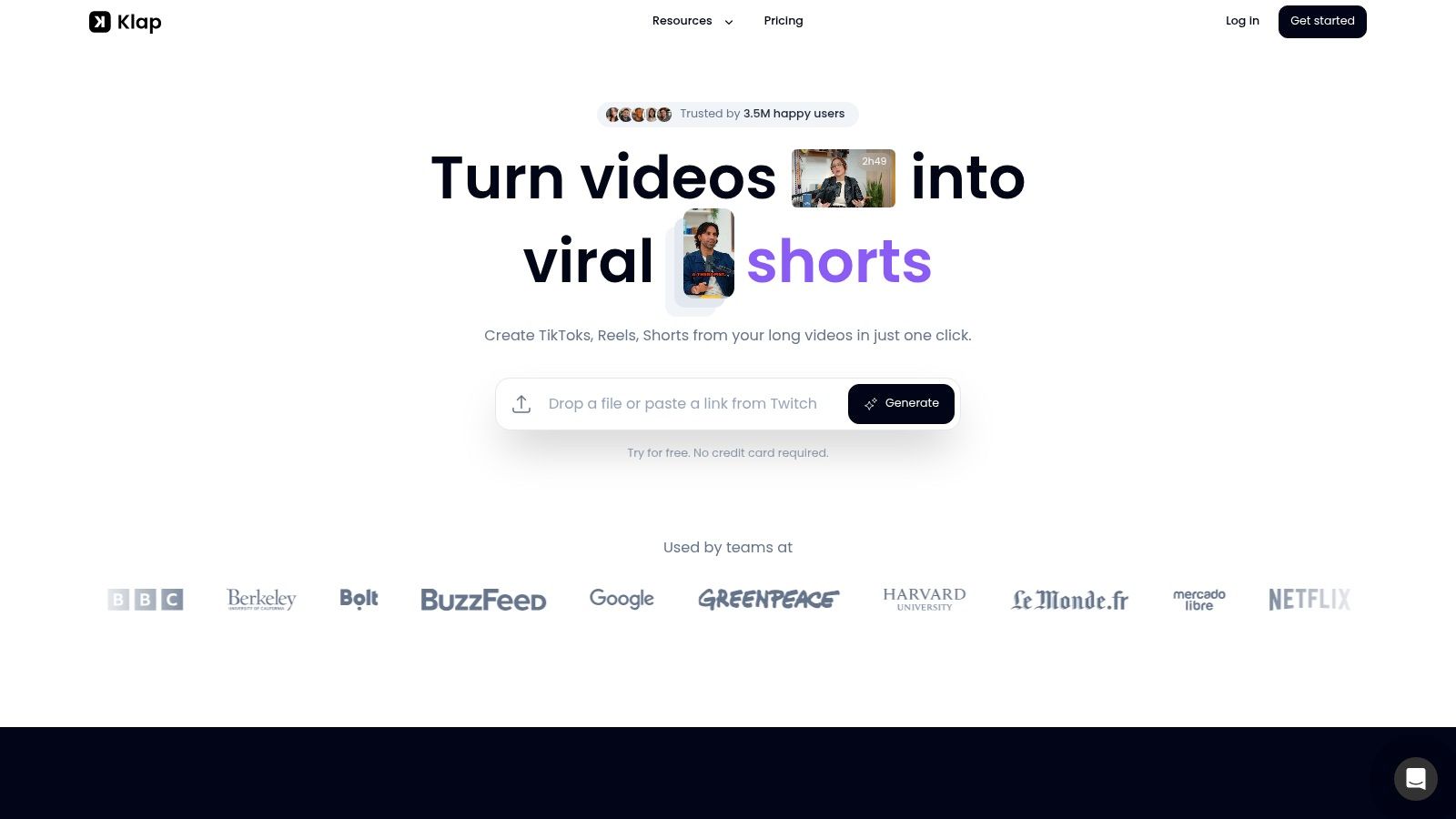
Klap states it works best with speech-led videos such as podcasts, interviews, lessons, and reviews. That vendor-stated limit matters. A music performance, gameplay montage, or mostly visual product demo gives the selection model little dialogue to rank, so results get arbitrary.
What the tiers actually change
- Captions in 52 languages: Useful if you publish the same clip for different regions, though you'll still want a human read for names and slang.
- Reframing layouts by footage type: Automatic reframing adapts to different source layouts instead of forcing one center crop.
- Higher tiers raise volume: Vendor-stated annual-billing rates are $14 per month for Basic, $39 for Pro, and $94 for Pro+, with larger clip allowances, 4K exports, and dubbing on higher tiers.
A free try is available, so test it with a lesson or interview first. Monthly clip limits vary by plan, and monthly versus annual pricing differs enough that you should compare both before subscribing. If your channel is visual-first, this probably isn't your primary video repurposing tool.
4. 2short.ai
If Klap feels broad, 2short.ai is narrower on purpose. It focuses on turning videos, particularly YouTube videos with captions, into Shorts, TikToks, and Reels. There's no sprawling editor to learn.
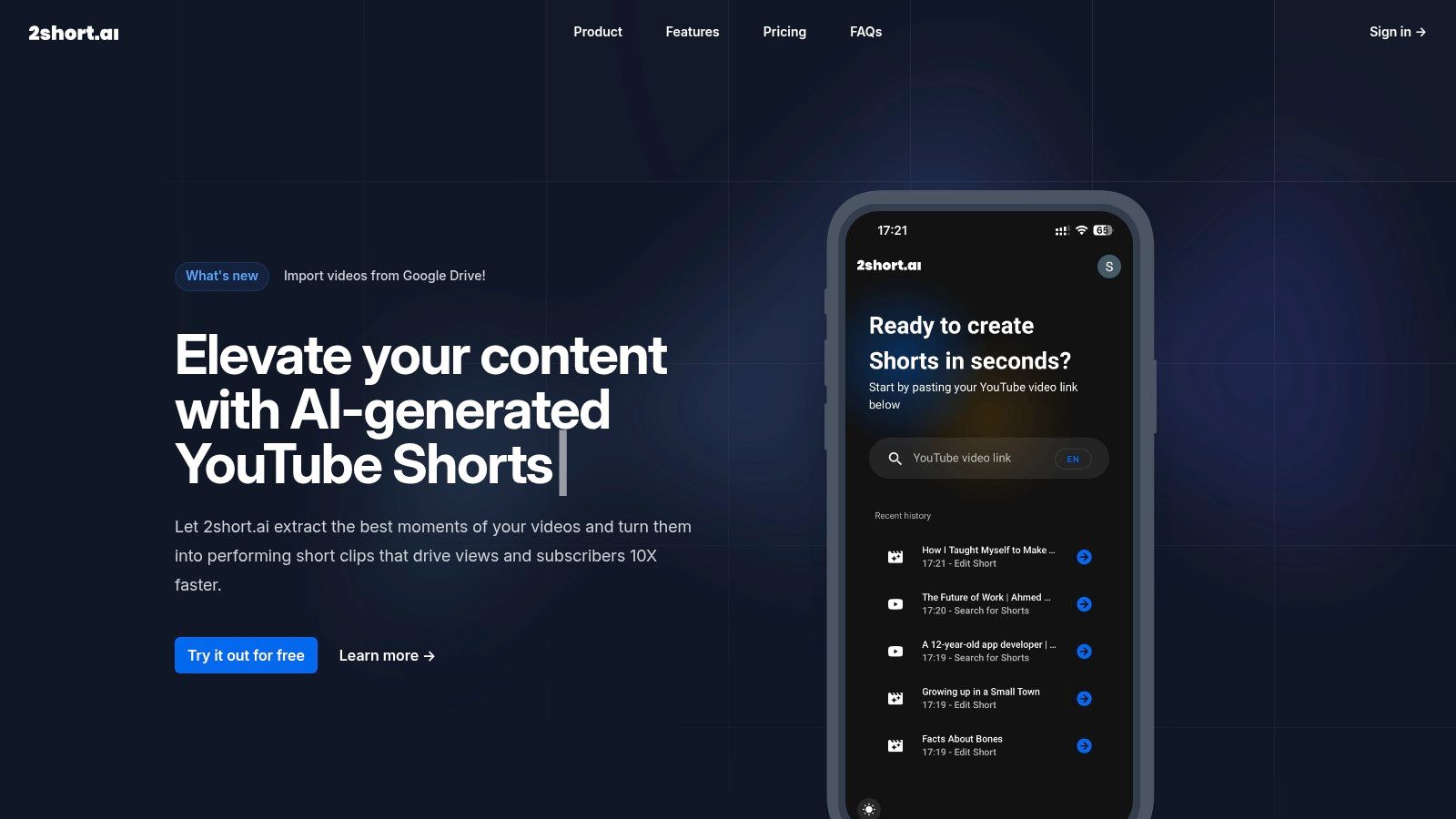
The most useful feature here is face tracking. When two people talk in a wide shot, keeping the active speaker in frame is the difference between a usable vertical clip and a crop of someone listening. Animated subtitles, vertical, square, or horizontal outputs, and brand presets for logos and overlays cover the finishing basics.
Practical rule: If a clip finder needs captions to process your video, test it on your least polished upload, not your best one. That's where the workflow breaks.
Vendor-stated paid plans are Lite at $9.90 per month, Pro at $19.90, and Premium at $49.90, which makes the entry point low compared with many rivals. The free plan is useful for testing analysis, but it has limited analysis time.
Two constraints shape fit. The vendor says videos need captions for processing, and no social scheduler is listed. You'll download and publish clips yourself. For a speech-led YouTube channel on a tight budget, that's an acceptable trade. For multi-platform automation, it isn't.
5. Repurpose.io
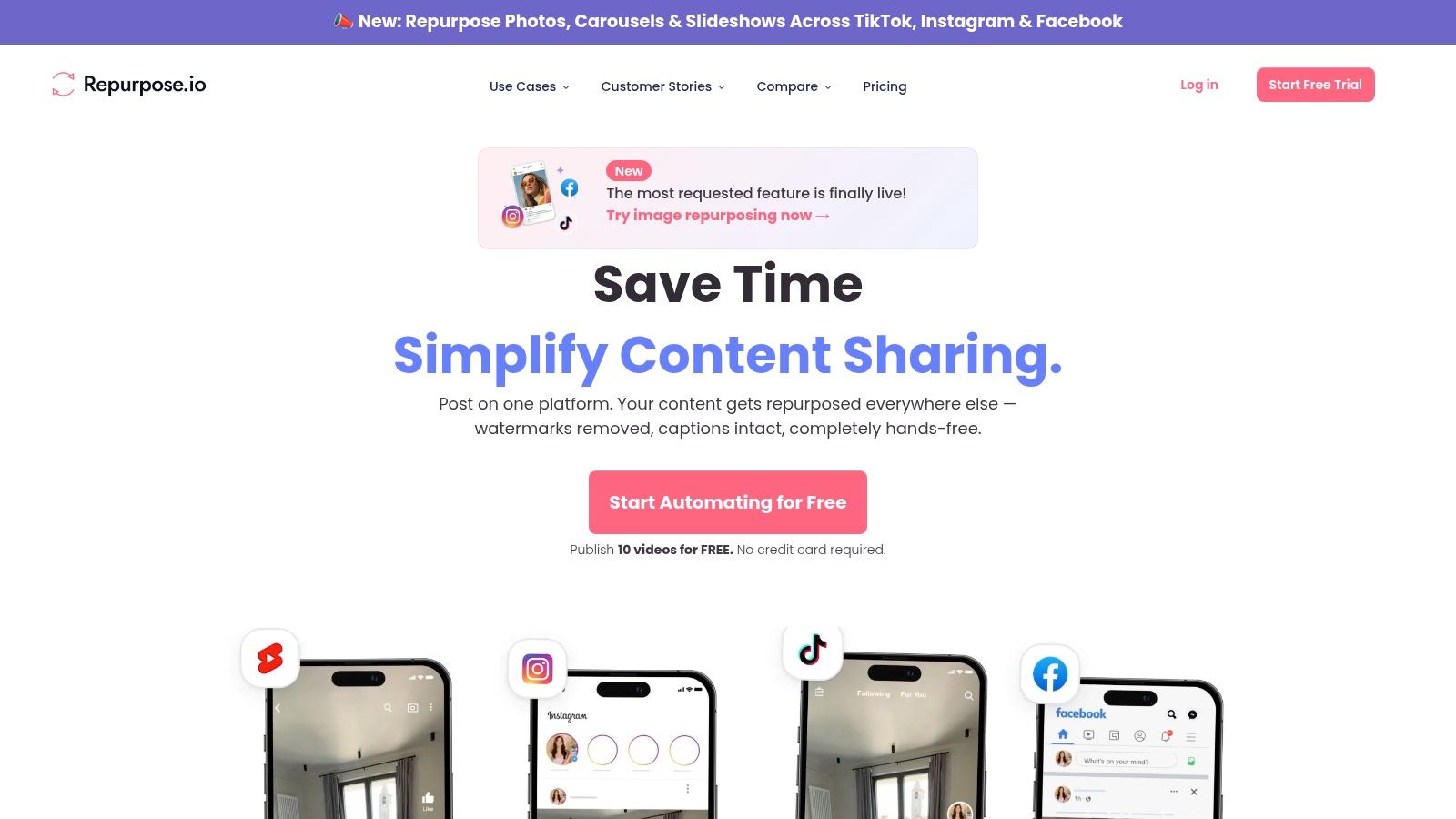
Repurpose.io belongs in a different category entirely. It doesn't hunt for highlights in a long recording. It's a distribution automator for creators who already have finished content and want it moved, resized, and republished across connected platforms.
That job grew as video took over feeds. A Cisco forecast estimated video would account for 82% of global internet traffic in 2022, as summarized in HubSpot's video marketing statistics roundup. Publishing one file to one channel stopped being the norm, and repetitive downloading and re-uploading became the bottleneck this tool targets.
What you're paying for
- Automated workflows: Connect social and cloud accounts once, then route video, audio, livestreams, stories, and images between them.
- Resizing and watermark removal: Handy when a clip made for one platform needs to travel cleanly to another.
- Backup and republishing: Useful for creators who repost proven content on a schedule.
Vendor-stated plans are Starter at $35 per month, Pro at $79, and Agency at $179, with a trial allowing up to 10 published videos within 14 days. Setup takes effort, and occasional publishers may find it expensive. Our buyer guides on AI video tools cover similar workflow trade-offs in more depth.
6. Descript
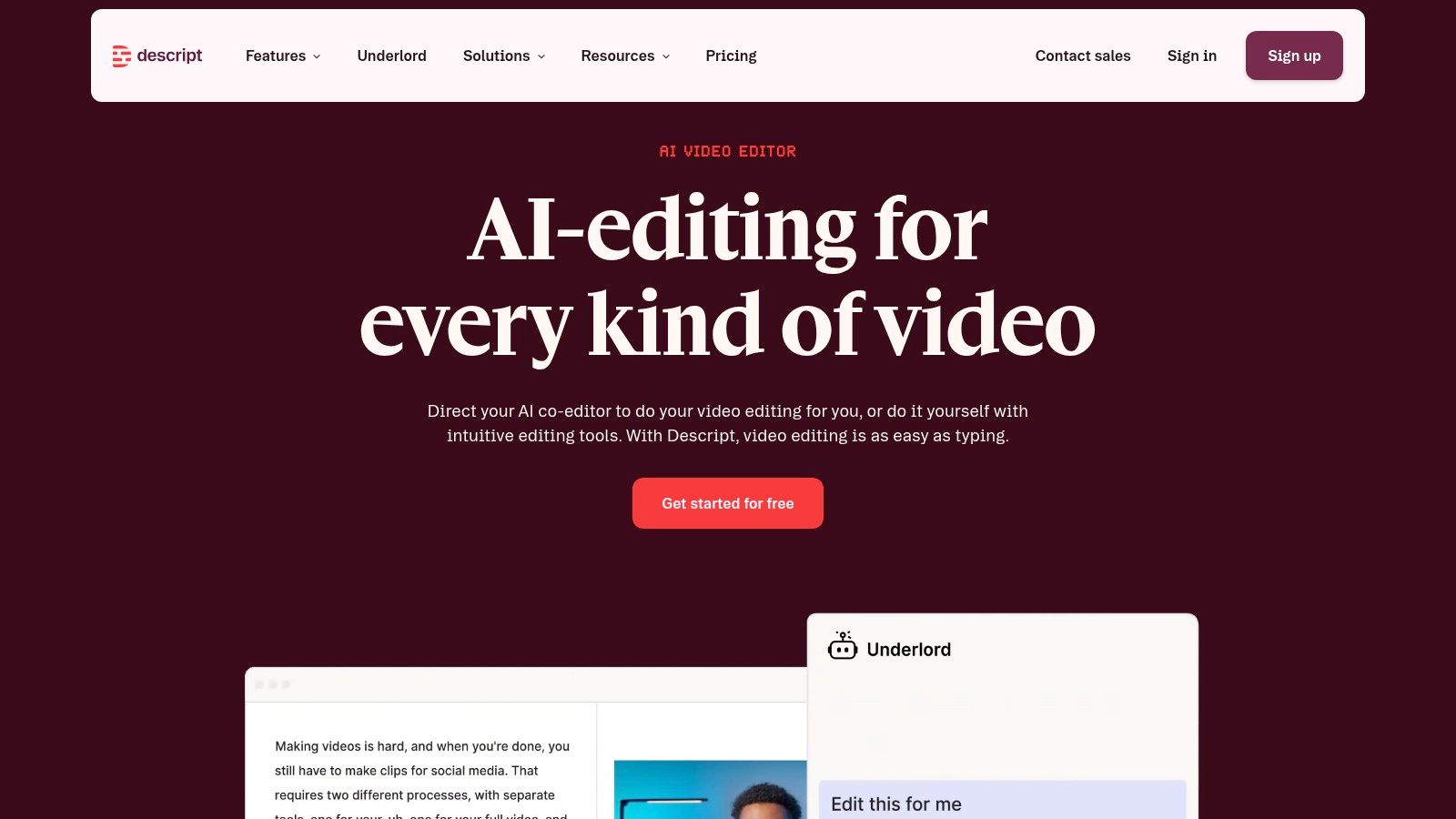
Descript is the transcript-led editor on this list. You edit words in a transcript and the underlying audio and video follow. For podcasters and educators, that makes precise dialogue cuts far less painful than scrubbing a timeline.
This approach also protects voice. A creator survey found 33% were concerned about AI's effect on authenticity and human creativity, according to Hello Partner's research on AI in the creator economy. Transcript editing keeps you in control of pacing, opinions, and meaning instead of accepting whatever a clip finder surfaces.
Strengths and friction
- Precise, readable edits: Delete a sentence in text and it's gone from the recording, which speeds cleanup of interviews and lessons.
- More than clipping: Filler-word removal, audio improvement, captions, collaboration, sharing, and translation sit in the same product.
- Broader means heavier: The interface asks more learning than a one-click clip generator, and clip discovery isn't its main focus.
A free plan is available without a credit card. Paid plans carry media-minute and AI-credit allowances that vary by tier, so heavy users should model monthly recording volume before choosing. Pick Descript when editorial control matters more than instant clip batches.
7. VEED
VEED pairs an AI Clips feature with a general browser editor, so you can generate a clip and then trim, subtitle, and polish it without switching products. That's appealing if you usually fix something in every generated clip anyway.
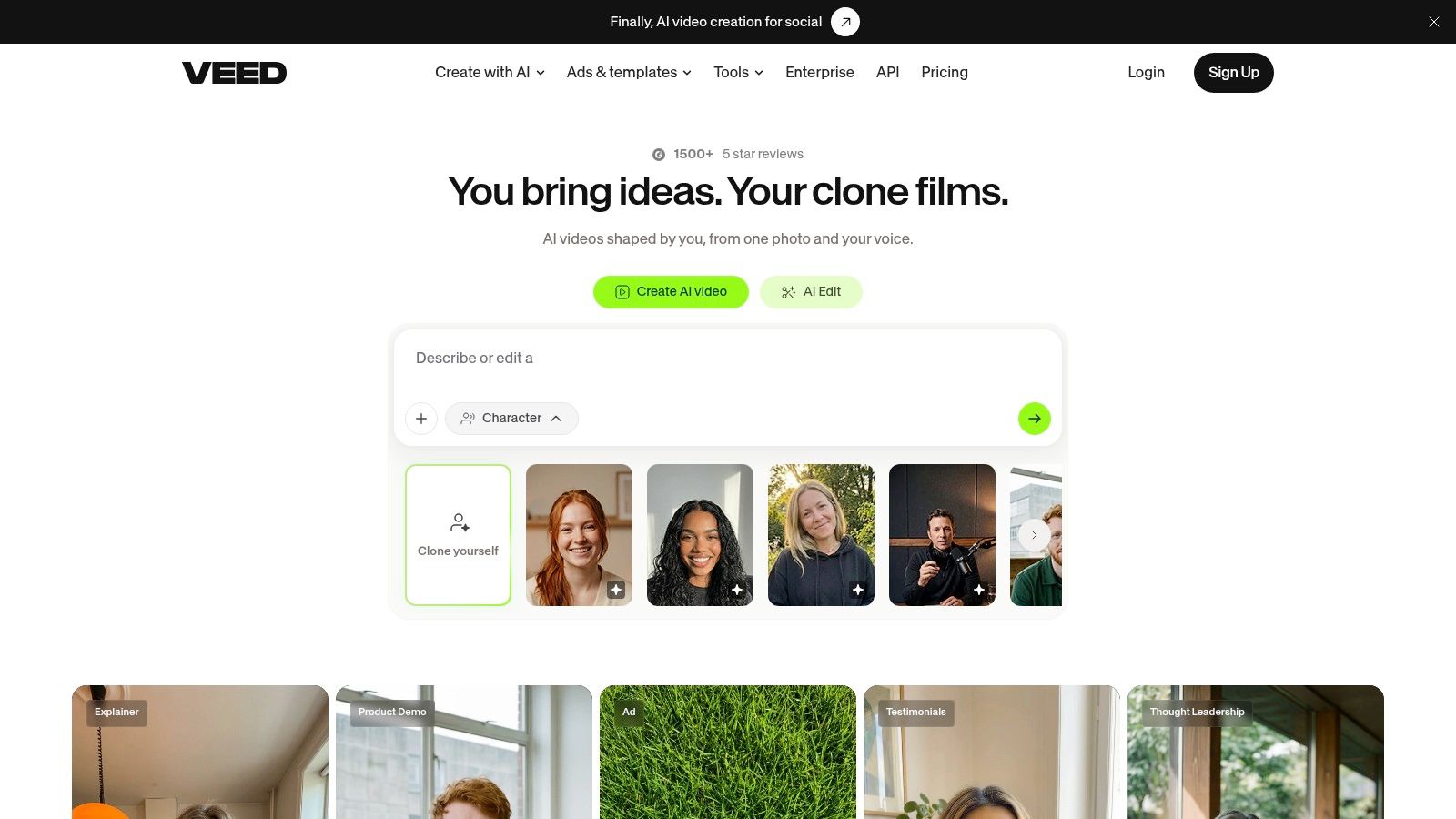
You can guide selection with clip goals and optional prompts, which gives you slightly more say than a fully automatic batch. Speaker framing and filler-word removal help talking-head footage feel tighter. Subtitle generation is built in, and you can review and trim before downloading.
A clip you can fix in the same tab beats a slightly better clip you have to export, re-import, and rebuild somewhere else.
The limits are documented and specific. VEED's help center states Clips requires speech in the source, with support for 1 minute to 3 hours of speech. Music-led or silent footage won't qualify. The free plan permits only one use of Clips, while Creator and higher plans include unlimited access to the feature according to that same help center.
Subscription access and prices can depend on account and billing details, so confirm at checkout. VEED fits creators who want generation and cleanup together, rather than a dedicated clip finder feeding a separate editor.
8. Captions
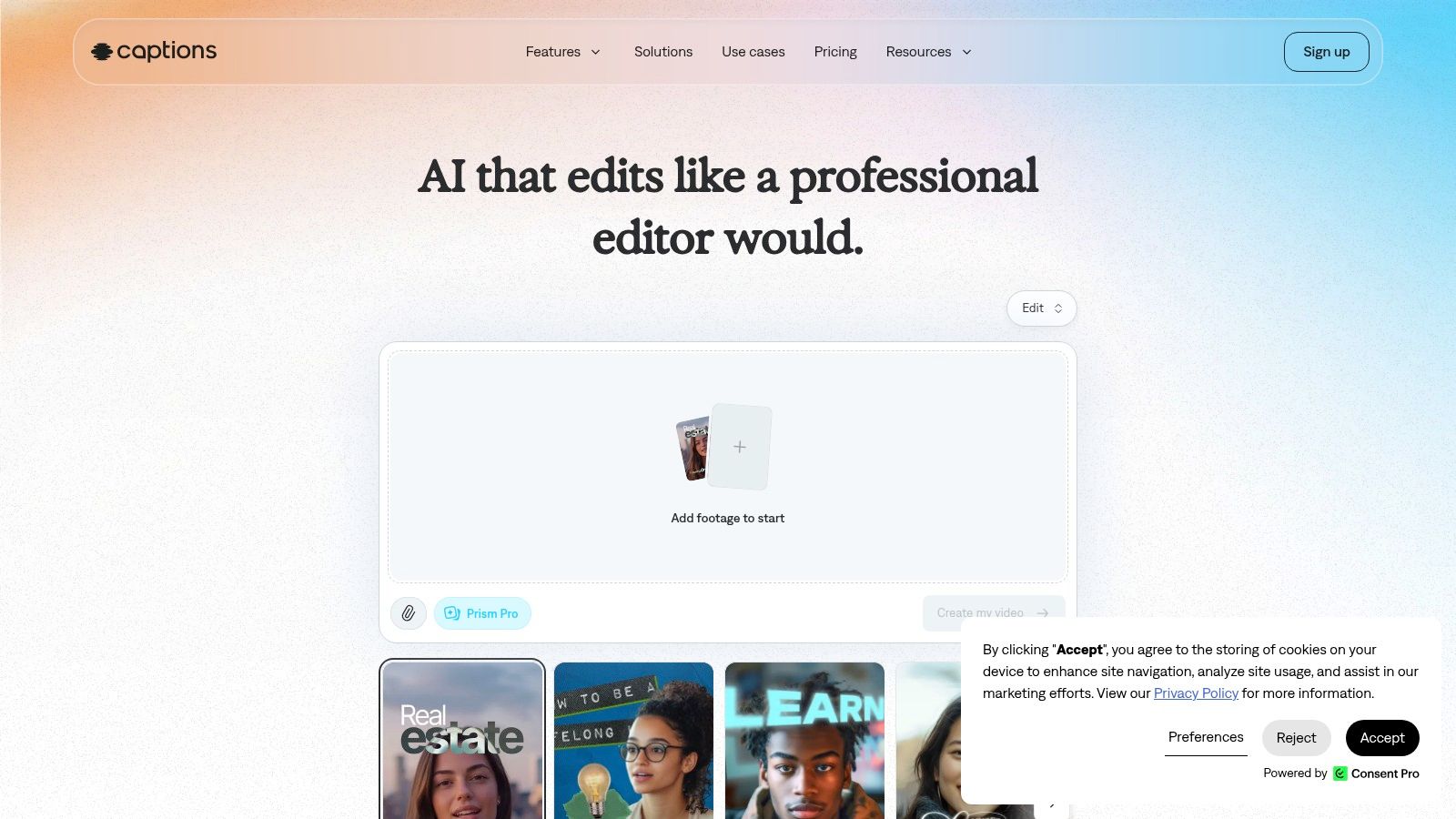
Captions started from subtitles and grew into a mobile and desktop product combining clipping, translation, dubbing, resizing, and AI editing. Its Clips feature turns longer videos into batches of social-ready clips, which makes it a hybrid between clip finder and finishing editor.
Accessibility is where tools like this need scrutiny, not just feature ticks. Industry data summarized in CMS Critic's coverage of Wistia's 2025 State of Video Report notes more than 60% of professionals had used or planned to use AI captions and caption adoption has risen 572% since 2021. Volume doesn't guarantee accuracy, timing, or readable line length.
What to verify on your own footage
- Caption quality in your language: Captions in more than 100 languages are listed, but names, jargon, and punctuation still need a review pass.
- Platform differences: Features and limits differ between desktop, iOS, and subscription plans, so test on the device you'll publish from.
- Credit burn on AI features: Heavy use can raise your effective cost beyond the headline subscription.
Vendor-stated pricing lists Max at $24.99 per month and Frontier plans from $69.99 per month. A free plan covers basic editing. It's best for caption-heavy, multilingual short edits, not complete long-form post-production.
9. Wisecut
Wisecut blends AI editing with optional distribution. Alongside its editor, applicable paid plans add Autopilot and a Social Hub for scheduling and auto-publishing, so it's trying to cover cleanup and delivery in one subscription.
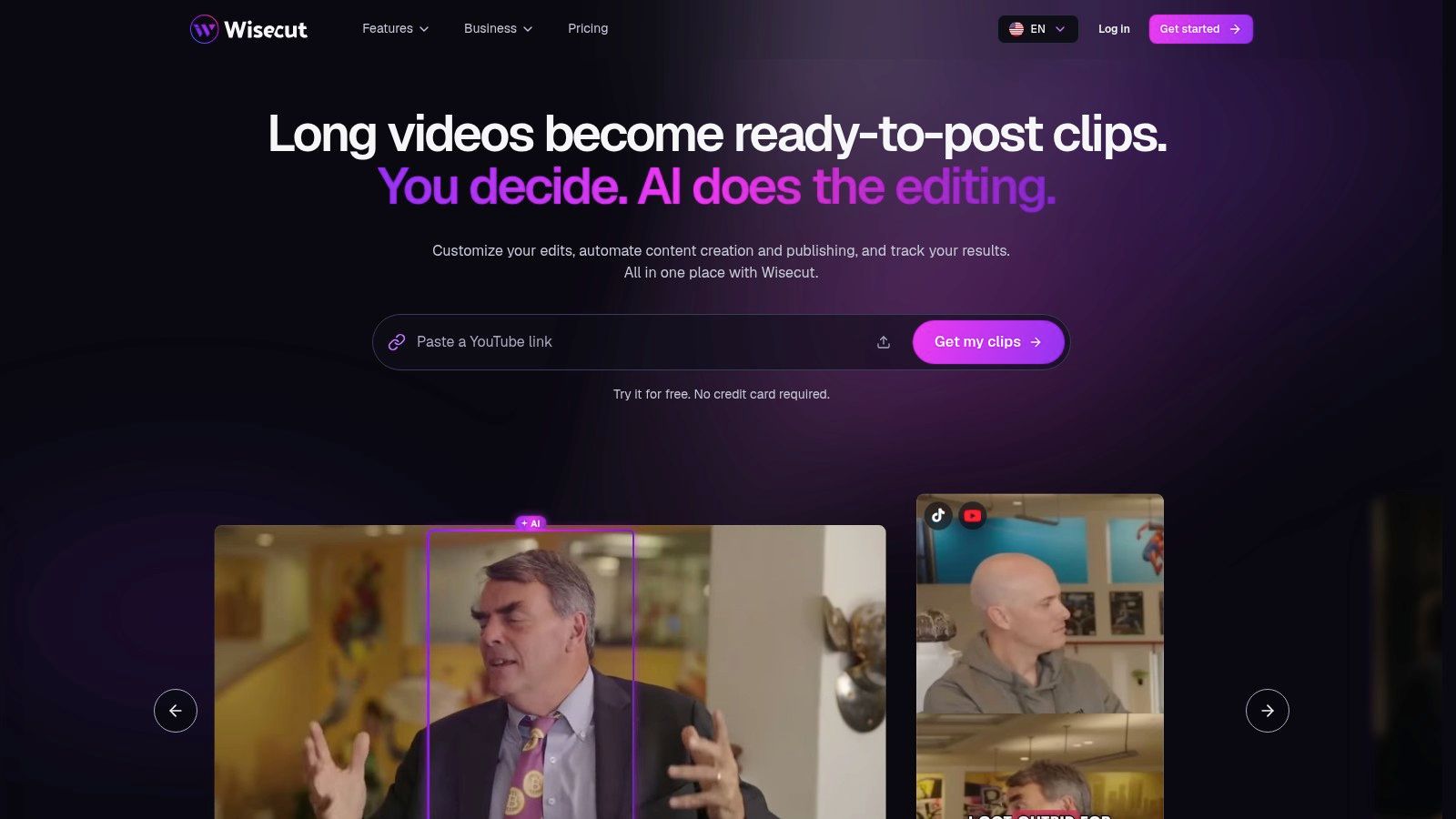
That bundle is the appeal and the risk. If you only need clips, you're paying for automation you may not use. If you publish constantly, scheduling and auto-publishing on Starter+ and above could remove a separate tool from your stack.
Credit math decides value
- Different tools spend differently: Paid bundles use credits, and vendor-stated details say Autopilot consumes credits faster than the editor.
- Free exports are tight: The free plan limits exports to three minutes at 480p, which is enough to judge the editor, not to publish seriously.
- Volume caps still apply: Paid-plan video-hour and file-size limits may not suit high-volume or large-file workflows.
Vendor-stated annual-billing prices are $23.25 per month for Starter+ and $83.25 for Professional+. Before committing annually, run one typical week of footage and watch credit consumption per finished clip. Bundled pricing only saves money if you use both halves of the bundle regularly.
10. Submagic
Submagic is primarily a short-form finishing editor. Automated clipping is present, but caption styling, reframing, B-roll, transitions, music, and sound effects are the center of gravity. It's for creators who care how a clip looks, not just whether the right excerpt was found.
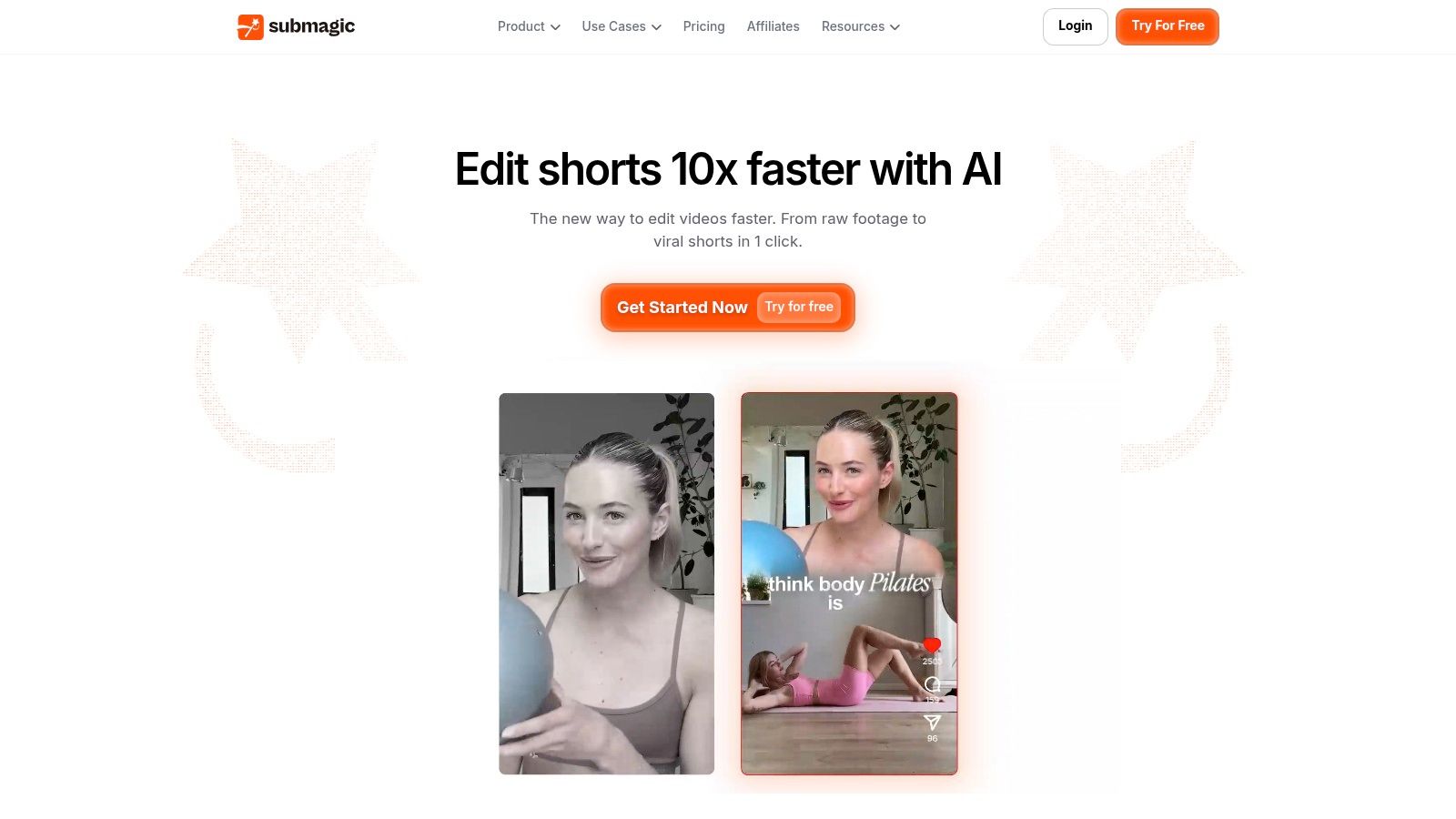
Silence removal and filler-word editing tighten pacing, and higher tiers list 4K and 60 FPS export options. If your current clips are accurate but visually flat, this polish layer can matter more than another clip finder.
Check the add-on before you budget
- Magic Clips may cost extra: The help center lists a separate Magic Clips add-on at $19 per month, alongside Starter at $19 per month, while the product page lists plans starting around $12 per month.
- Limits vary by subscription: Upload and clip allowances change by tier, so confirm them against your weekly output.
- Distribution isn't the focus: It's built for short-form editing, not automated cross-network publishing like Repurpose.io.
Confirm plan and add-on costs at checkout, since the two vendor pages don't present one simple price. For another view of how launch feedback shapes buyer decisions, see our Product Hunt review collection. Submagic makes most sense paired with a reliable source of good excerpts.
Free options, entry prices, and main limitations across the 10 tools
| Item | Free option | Entry paid price | Best for | Main limitation |
|---|---|---|---|---|
| OpusClip | 60 credits per month | $15/month | Generating batches of social clips from long videos | AI selections need review; free exports have a watermark |
| Vizard | 60 credits per month | Varies by plan and uploaded video minutes | Clipping podcasts, interviews, and webinars with editing tools | Free exports have a watermark; results depend on clear speech |
| Klap | Free try available | $14/month with annual billing | Quickly turning speech-led videos into vertical clips | Less suited to music-led or mostly visual videos |
| 2short.ai | Free plan with limited analysis time | $9.90/month | Making captioned clips with face tracking | Requires captions for processing; no listed social scheduler |
| Repurpose.io | 14-day trial with up to 10 published videos | $35/month | Automating content distribution across platforms | Does not focus on finding highlights in long videos |
| Descript | Free plan available without a credit card | Not specified | Transcript-based editing and repurposing with editorial control | Less focused on one-click clip discovery |
| VEED | One use of the Clips feature | Not specified | Generating and editing social clips in one browser-based tool | Free Clips use is limited; source needs speech |
| Captions | Free plan for basic editing | $24.99/month | Caption-heavy and multilingual social videos | Features and limits vary by platform and plan |
| Wisecut | Free plan available | $23.25/month with annual billing | Combining AI editing with social publishing automation | Credit use and export limits can constrain usage |
| Submagic | Not specified | From about $12/month; Starter listed at $19/month | Styling short-form clips with captions and effects | Automated clipping may require a separate add-on |
Matching a video repurposing tool to your upload volume
Pick by job first. If you need moments found in long speech, start with OpusClip, Vizard, Klap, or 2short.ai. If you need control over dialogue, Descript and VEED keep you closer to the edit. If your clips already exist, Repurpose.io and Wisecut address distribution, while Captions and Submagic focus on how finished clips read and look.
Then test with one real recording, not a sample. Run the same hour of footage through two shortlisted tools and count usable clips, not generated clips. A batch of twenty candidates with three postable results is worse than eight candidates with five postable results, because review time is the hidden cost in every workflow here.
Time that review with a critical eye. Note how often captions mangle names, how often reframing loses the speaker, and how many clips start or end mid-thought. Those failure points decide whether automation saves an evening or just moves the work from editing to fixing.
Watch credits, watermarks, and expiry dates
- Credit burn per source hour: Track what one long upload consumes, then multiply by your busiest month. Sticker price means little if a weekly podcast exhausts a plan in ten days.
- Watermarks on free exports: Several free tiers watermark output, so budget for a paid plan if clips will run publicly or in ads.
- Expiring projects: Three-day export or storage windows punish anyone who batches work weekly. Download keepers immediately during tests.
Scale is part of the decision too. Metricool's 2025 report analyzed 5,696,685 short-form videos from 582,456 accounts worldwide, as reported by Marketing Tech News on Metricool's State of Short-Form Video Report. You're publishing into crowded feeds, so recognizable voice and clean captions matter as much as volume.
Bottom line: The best video repurposing tool is the one that gives you the most postable clips per hour of source footage, after your corrections, at a credit cost your busiest month can sustain.
Don't commit annually on a demo. Pay monthly for one cycle, publish real clips, and keep a simple tally of exports you posted versus credits spent. If a tool can't survive that arithmetic, a longer feature list won't save it.
If you're comparing repurposing workflows before you spend, Revid Reviews collects public creator reviews from Trustpilot, X, and Product Hunt, each linked to its original, alongside buyer guides on pricing, credits, and comparisons. Visit to check what real users report, verify claims for yourself, and decide which AI video tool fits your publishing volume.